
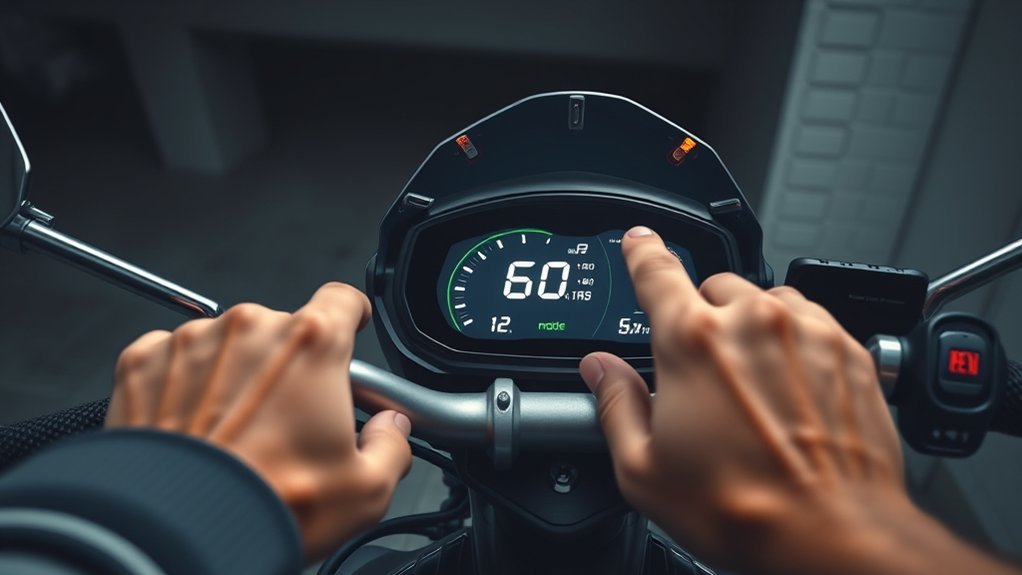
Last Updated on September 10, 2026 by Daniel Globe
If your electric scooter shows speed in kilometers per hour but you prefer miles per hour, the change is usually a display preference rather than a performance change. The exact method depends on the scooter model: some use a dashboard setting, some use a manufacturer app, and others do not provide a user-selectable unit option. Check your model before changing anything.
Quick Answer
To change an electric scooter from km/h to mph, open its documented display settings or manufacturer app and look for Units, Speed Unit, Metric/Imperial, or MPH/KMH. Select mph or Imperial and save. Xiaomi users with supported models can change the setting through Mi Home/Xiaomi Home. Exact menus vary by model.
Key Takeaways
- Changing km/h to mph normally changes how speed is displayed; it does not make the scooter faster.
- Always use instructions for your exact scooter model because dashboard buttons, P-settings, and app menus differ.
- For the Xiaomi Electric Scooter 4 Lite (2nd Gen), Xiaomi documents the path Mi Home/Xiaomi Home → device card → More → Unit settings → Imperial → OK.
- If mph is unavailable, convert manually with km/h × 0.621371 = mph.
- Test the change at low speed without staring at the display or handling a phone while moving.
At a Glance
| Time Required | About 2–5 minutes |
| Difficulty | Easy |
| Tools Needed | Owner’s manual; smartphone with the official manufacturer app if your scooter uses app-based settings |
| Cost | $0 |
Disclosure: As an Amazon Associate I earn from qualifying purchases. Some links on this page are affiliate links, at no extra cost to you.
Why Change KM to MPH on Your Scooter
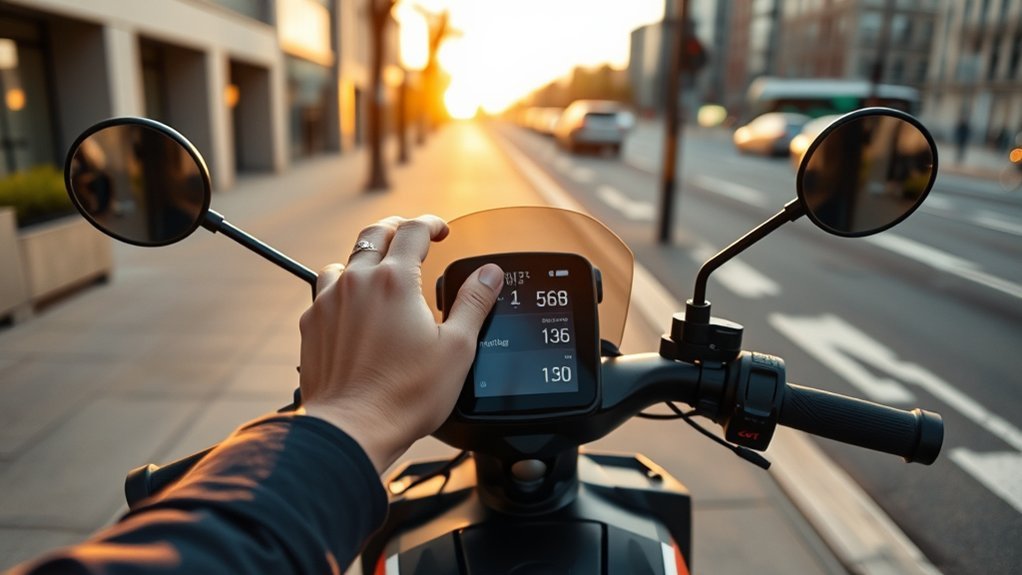
Switching your scooter from kilometers per hour to mph can make the display easier to understand if miles per hour are the familiar road-speed unit where you ride. Instead of mentally converting every number, you can compare your displayed speed more easily with signs and local limits.
The change is mainly about speed monitoring and familiarity. It does not automatically increase motor power, remove a speed limiter, or change the scooter’s legal status. Always follow the manufacturer’s instructions and the laws that apply where you ride.
Note: A change from km/h to mph normally changes the unit used to display speed. A separate riding-mode or speed-limit setting may affect performance, so do not treat the two controls as the same thing.
Identify Your Electric Scooter Model First
Before opening hidden menus or changing dashboard parameters, find the exact manufacturer and model name. Look on the scooter’s frame label, packaging, purchase record, official app, or owner’s manual. Two scooters that look nearly identical can use completely different button combinations and controller settings.
Then check the manufacturer’s manual or official support page for terms such as Units, Speed Unit, Metric/Imperial, KMH/MPH, or Unit settings. If the manual does not document a hidden P-setting, do not copy a P-code from another scooter.
Warning: Do not change undocumented wheel-size, controller, current, voltage, speed-limit, or other P-settings just to obtain an mph display. Incorrect values can make the speed reading inaccurate or change how the scooter operates.
How to Change KM to MPH on the Display
If your scooter supports changing units directly from its dashboard, use the procedure documented for your exact model. The button sequence is not universal, but the normal process is:
- Park the scooter and power it on. Make settings changes while stationary.
- Open the documented settings menu. Depending on the scooter, this may use a Settings button, Menu button, a long press, a combination of buttons, or a documented P-setting.
- Find the unit option. It may be labeled Units, MPH/KMH, Metric/Imperial, Speed Unit, or something similar.
- Select mph or Imperial.
- Save and exit. Some displays save immediately; others require a confirmation or a specific exit command.
- Check the dashboard while stopped. Confirm that the unit indicator now shows mph.
If the setting does not appear, do not assume the scooter is defective. Some models move the unit control to their companion app, and others have a fixed display.
Pro Tip: Take a photo of the original settings screen before entering an advanced dashboard menu. If you accidentally highlight another parameter, you will have a reference for the original value.
How to Change KM to MPH in the Xiaomi App
Xiaomi’s official app is called Mi Home/Xiaomi Home. The exact menu can vary by scooter model and app version, so use Xiaomi’s instructions for your model rather than assuming every Xiaomi scooter has the same interface.
For the Xiaomi Electric Scooter 4 Lite (2nd Gen), Xiaomi currently documents these steps:
- Turn on the scooter and open Mi Home/Xiaomi Home.
- Open Mi Home and select the scooter’s device card.
- Tap More in the upper-right area.
- Open Unit settings.
- Select Imperial system for mph.
- Tap OK to confirm.
After saving, allow the app and scooter a moment to synchronize, then check the dashboard while the scooter is stationary. If your Xiaomi model does not show the same menu, search Xiaomi’s official support site or the manual for that exact model rather than changing unrelated settings.
KM/H to MPH Conversion Table
If your scooter cannot display mph, you can still convert its reading. The NIST SI conversion guide defines one international mile as 1.609344 kilometers. That gives the practical formula:
mph = km/h × 0.621371
| km/h | Approx. mph |
|---|---|
| 5 km/h | 3.1 mph |
| 10 km/h | 6.2 mph |
| 15 km/h | 9.3 mph |
| 20 km/h | 12.4 mph |
| 25 km/h | 15.5 mph |
| 30 km/h | 18.6 mph |
For example, 20 km/h × 0.621371 equals about 12.4 mph. You can memorize a few common values instead of handling a phone while riding.
What to Do If Your Scooter Won’t Switch Units
If your scooter won’t change units, first confirm that the model actually supports an mph display. Check its official manual, manufacturer support page, and companion-app settings. A missing option is not necessarily a fault.
- Confirm the correct method. Determine whether your model uses the dashboard, an app, or a documented P-setting.
- Save the setting correctly. Some dashboards require a specific confirmation or exit sequence.
- Update the official app. If the manufacturer recommends an app update, install the current version before troubleshooting further.
- Install official firmware only when recommended. Do not assume a firmware update will add an mph option, and avoid unofficial firmware merely to change units.
- Restart the scooter. A normal power cycle may refresh the dashboard after a saved change.
- Use manual conversion if necessary. Multiply km/h by 0.621371 when no supported mph option is available.
Do not hold a phone and perform live conversions while the scooter is moving. Calculate the values before riding, stop in a safe place when checking an app, or use a properly secured hands-free display only where doing so is lawful and safe.
Changing KM/H to MPH Is Different From Changing Speed Mode
A unit setting changes how a speed value is shown. For example, approximately 25 km/h and 15.5 mph represent the same speed. A riding mode, by contrast, may change acceleration characteristics or the maximum speed permitted by the scooter’s controller.
Mode names also vary. Xiaomi documents Pedestrian, Standard, and Sport on several current models, while other scooters may use Eco, Drive, Sport, S+, or different labels. On the Xiaomi Electric Scooter 4 Pro (2nd Gen), for example, Xiaomi instructs users to double-press the power button to cycle riding modes while stationary. Your model may work differently.
Do not change riding modes, speed limits, controller parameters, or regional settings merely to switch between km/h and mph.
How to Test Your New MPH Settings Safely
Once the unit has changed, verify it without turning the check into a high-speed test. The U.S. Consumer Product Safety Commission recommends wearing a helmet, checking the scooter for damage, following local traffic laws, obeying posted speed limits, and staying aware of surrounding traffic and obstacles.
Short Test Ride
Choose a safe, open, low-traffic area where scooter riding is permitted. Wear appropriate protective equipment, confirm that the brakes and tires are in good condition, and begin at low speed. The goal is simply to confirm that the displayed number is plausible after the unit change.
| Speed | Feel | Action |
|---|---|---|
| Low | Calm and controlled | Confirm the mph value is plausible |
| Medium | Steady | Use only a brief glance if conditions are safe |
| Higher | Not required | Do not increase speed just to test the unit setting |
Keep both hands on the handlebars, brake smoothly, and stay focused on the riding environment. There is no need to test the scooter at maximum speed merely because the display unit changed.
Watch the Display Safely
Check the speed display only with short, safe glances. If you need to inspect the unit symbol, menus, or settings closely, stop the scooter first. If the number flickers, fails to update, or still shows km/h, park before reopening the settings.
- Confirm the dashboard shows mph or the expected imperial-unit indicator.
- At a familiar low speed, check whether the displayed number is roughly what you expect.
- If desired, compare it with a GPS speed reading as a rough check, but do not treat a consumer phone GPS reading as a calibrated speedometer.
- Do not hold or operate a phone while riding.
- Remain within local speed limits and permitted riding areas.
A successful unit change should alter the displayed value proportionally. For example, a speed previously shown as about 20 km/h should appear as roughly 12.4 mph, not 20 mph.
What to Do If the App and Scooter Don’t Match
If the app shows mph while the scooter still shows km/h, or vice versa, first check the unit preference in both places. A mismatch does not automatically mean Bluetooth has failed; the app and dashboard may have separate settings, the new value may not have saved, or synchronization may simply need to refresh.
Check App Pairing
Make sure the scooter is powered on, Bluetooth is enabled on the phone, and the manufacturer app shows the scooter as connected. Keep the phone close to the scooter while troubleshooting.
- Confirm Bluetooth is enabled.
- Confirm the official app has the permissions it needs to connect.
- Check for an app update.
- Keep the phone close to the scooter during pairing.
- If the connection fails, restart the scooter and phone before trying again.
Xiaomi’s current Bluetooth troubleshooting for supported scooters recommends checking Bluetooth, updating Mi Home/Xiaomi Home, restarting the devices, and keeping the phone close to the scooter. If those steps fail, Xiaomi recommends contacting its after-sales support rather than repeatedly changing unrelated settings.
Match Scooter Settings
Once the app is connected, open its unit preference and make sure it is set to Imperial or mph. If the scooter also has an independent dashboard-unit option, check that setting while stationary and make the two selections agree.
Save the setting, leave the menu normally, and give the devices a few seconds to synchronize. Then turn the scooter off and back on if the manufacturer permits a normal power cycle. Do not alter speed-limit, wheel-size, or controller settings in an attempt to force synchronization.
Reconnect and Sync
If the units still disagree, refresh the connection in this order:
- Close and reopen the official scooter app.
- Turn Bluetooth off and back on.
- Power-cycle the scooter while it is stationary.
- Restart the phone if necessary.
- Reconnect through the manufacturer’s documented pairing procedure.
- Recheck the unit setting and save it.
Removing and re-pairing the scooter should be a later troubleshooting step, because some connected scooters are tied to a user account. Follow the manufacturer’s instructions before unbinding a scooter from an account.
Frequently Asked Questions
How to Change Electric Scooter to MPH?
Park the scooter, open the unit setting documented for your model, select mph or Imperial, save the change, and verify the dashboard while stationary. If no dashboard option exists, check the manufacturer’s official app or manual.
How to Change KM to MPH on Scooter?
Look for Units, Speed Unit, KMH/MPH, or Metric/Imperial in the scooter’s documented dashboard or app settings. Because button combinations differ by model, do not use a P-setting copied from another scooter unless your manual specifically identifies it.
How Do I Change KM to MPH If My Scooter Has No Unit Setting?
Use manual conversion: multiply the km/h reading by 0.621371. For example, 20 km/h is about 12.4 mph and 25 km/h is about 15.5 mph. Some scooters simply do not provide a user-selectable mph display.
How to Change Speed Mode on Electric Scooter?
Speed or riding modes are separate from km/h and mph settings. Follow your exact model’s manual for the correct button sequence and available modes. For example, some Xiaomi models use a double-press of the power button to cycle through Pedestrian, Standard, and Sport modes while the scooter is stationary.
Does Changing From KM/H to MPH Make an Electric Scooter Faster?
No. A normal unit change only changes how the same speed is represented on the display. For example, 25 km/h is approximately 15.5 mph. Speed modes and controller speed limits are separate settings.
Why Does My Scooter Show KM/H When the App Shows MPH?
Check whether the app and dashboard have separate unit preferences, confirm the change was saved, and refresh the Bluetooth connection. Update the official app, restart the scooter and phone if needed, and use the manufacturer’s model-specific pairing instructions before unbinding or resetting anything.
Conclusion
Changing an electric scooter from km/h to mph is usually a simple unit-setting adjustment, but the correct procedure depends on the model. Start with the owner’s manual or official manufacturer app, select mph or Imperial where supported, save the setting, and verify it safely while stationary or at low speed.
For Xiaomi scooters, use Mi Home/Xiaomi Home and follow the support instructions for your exact model. If your scooter has no mph option, the reliable fallback is simple: km/h × 0.621371 = mph. Most importantly, remember that changing the displayed unit does not unlock more speed or replace local riding rules.
Sources
- Xiaomi — How to change the unit of the Xiaomi Electric Scooter 4 Lite (2nd Gen) — verifies the Mi Home/Xiaomi Home unit-setting procedure.
- Xiaomi — Bluetooth troubleshooting for the Electric Scooter 4 Lite (2nd Gen) — supports app-update, restart, proximity, and Bluetooth troubleshooting steps.
- Xiaomi — Riding modes on the Electric Scooter 4 Pro (2nd Gen) — confirms that riding modes are a separate function and are model-specific.
- U.S. Consumer Product Safety Commission — Micromobility Safety — supports helmet use, pre-ride checks, awareness, and following local traffic laws.
- National Institute of Standards and Technology — Guide for the Use of the International System of Units — supports the mile-to-kilometer conversion used for km/h-to-mph calculations.
