Last Updated on July 30, 2026 by Caleb Warren
Electronics can be damaged inside a backpack by more than a major drop. A leaking bottle, a hard charger pressing against a screen, trapped heat, rain entering through a zipper, or an unattended bag can cause expensive problems. The safest approach is to combine a fitted sleeve, careful organization, layered moisture protection, battery safety, and digital security.
Quick Answer
To protect electronics in a backpack, place each device in a fitted padded sleeve, keep rigid objects and liquids in separate compartments, and use a rain cover plus an internal dry bag when moisture is possible. Power devices down before packing, carry power banks safely, secure the bag in public, and back up and encrypt important data.
Key Takeaways
- Use a snug sleeve inside a padded, correctly sized device compartment.
- Keep water bottles, toiletries, keys, tools, and hard chargers away from screens and camera lenses.
- Treat a water-resistant backpack as the first layer, not a guarantee that the contents will remain dry.
- Do not operate or charge heat-producing electronics inside a tightly packed bag.
- Carry spare lithium batteries and power banks in carry-on baggage when flying, with their terminals protected.
- Use encryption, backups, multifactor authentication, and device-finding features in case the bag is lost or stolen.
At a Glance
| Time Required | 5–10 minutes before each trip |
| Difficulty | Easy |
| Tools Needed | Fitted device sleeve, small tech pouch, cable ties, microfiber cloth, and optional rain cover or dry bag |
| Cost | $0 if suitable protection is already available; approximately $15–$60 for a sleeve, organizer, or weather layer |
Disclosure: As an Amazon Associate I earn from qualifying purchases. Some links on this page are affiliate links, at no extra cost to you.
Choose the Right Backpack for Your Electronics
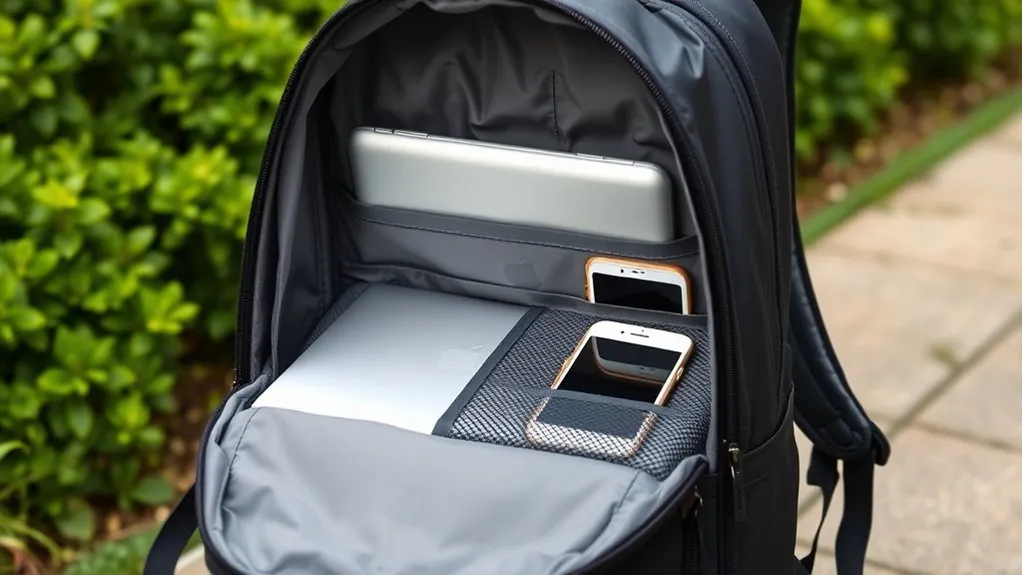
Choosing the right backpack is the first step in protecting your electronics. Look for a dedicated laptop or tablet compartment with padding on the front, back, sides, and bottom. A suspended compartment that ends above the base of the bag can reduce the chance of the device striking the floor when you set the backpack down.
The compartment should match the size of your device. A compartment that is too large allows the device to slide, while one that is too tight can place pressure on the display, hinges, or ports. Test the fit with the laptop or tablet already inside its sleeve.
High-density foam can soften ordinary bumps, but padding does not make a backpack drop-proof. Check that there are no exposed seams, buckles, frames, or hard objects pressing into the device area. A structured base can help the bag remain upright, but it should not create a rigid pressure point beneath the laptop.
Weather-resistant polyester or nylon with a polyurethane or durable water-repellent treatment can slow light rain. It does not automatically make the seams, zippers, back panel, or openings waterproof. Look for covered or water-resistant zippers and use a separate inner moisture barrier when the forecast or activity creates a meaningful water risk.
Choose enough capacity for every item without forcing the zipper closed. Overpacking bends cables, presses objects into screens, reduces ventilation, and strains seams. Multiple organizational pockets are useful when they keep chargers, batteries, pens, keys, and liquids away from the main device compartment.
Pro Tip: Place the empty backpack upright and press gently on the outside of the laptop compartment. If your fingers can easily create a hard pressure point against the device, add a fitted sleeve or choose a better-padded compartment.
Use a Fitted Laptop Sleeve for Added Protection
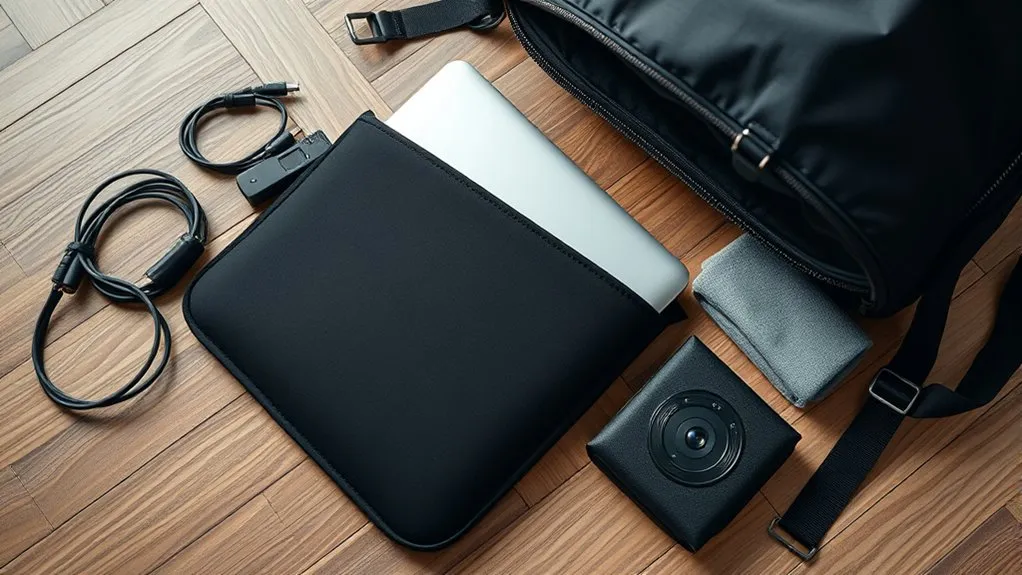
A laptop sleeve adds a second layer between the device and the rest of the bag. It can reduce scratches, soften everyday bumps, and protect vulnerable corners. It is especially useful when the backpack compartment has limited side or bottom padding.
- Choose the correct fit: The laptop should not slide from side to side, but the sleeve should close without squeezing the display or hinges.
- Check the padding: Foam, neoprene, or layered fabric can provide cushioning. Inspect the corners and zipper track for hard contact points.
- Protect the zipper: A zipper guard or soft internal lip prevents metal zipper hardware from rubbing against the device.
- Match the sleeve to the bag: Confirm that the sleeved device fits completely inside the backpack compartment without bowing or forcing the bag closed.
- Keep accessories outside the sleeve: Do not place a charger, mouse, adapter, pen, or cable plug in the same sleeve as the laptop unless it has a separate padded pocket.
A sleeve and padded backpack work best together. Neither one guarantees protection from a severe fall, crushing load, or liquid entering the compartment, but the combination reduces common transport damage.
Organize Your Bag for Safe Transport
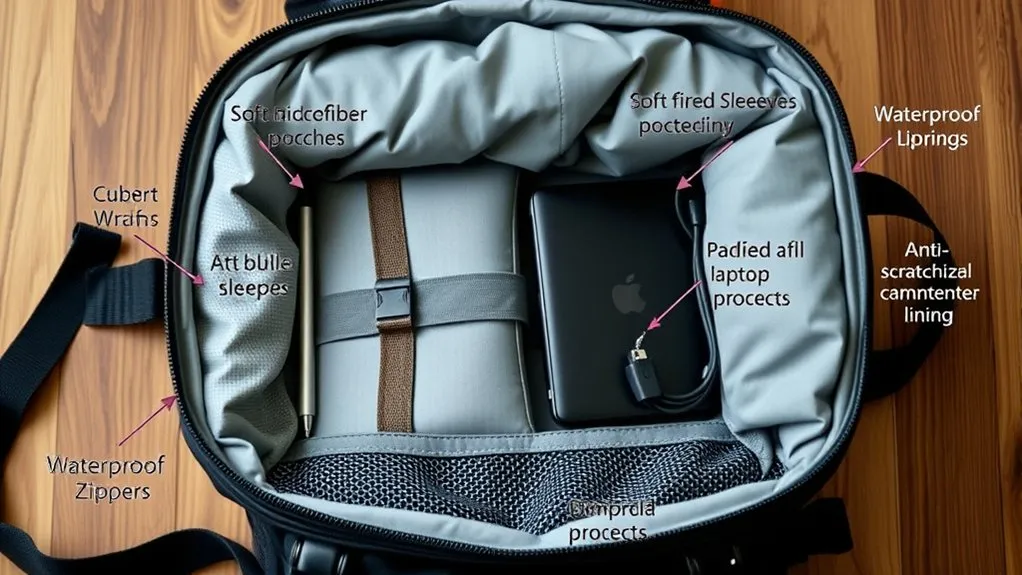
Good organization prevents objects from shifting into your electronics. Place the laptop or tablet in its dedicated compartment, then keep dense items close to your back without allowing them to press directly against the device. Distribute the remaining weight evenly so the backpack does not twist or fall over when set down.
Water bottles, toiletries, food containers, and other liquids belong in a separate exterior pocket or sealed compartment. Confirm that every lid is fully closed. For extra protection, place leak-prone containers inside a resealable waterproof pouch.
Keep keys, tools, camera mounts, metal adapters, plugs, and other hard objects away from displays and lenses. A rigid charger can crack a screen if another bag is placed on top of the backpack. Small pouches and tech organizers prevent accessories from moving, tangling, or creating pressure points.
Use This Safe Packing Order
- Power down equipment: Shut down laptops and other heat-producing devices instead of leaving them awake inside the bag.
- Inspect each device: Look for a swollen battery, cracked case, bent connector, wet port, or unusual heat before packing.
- Add individual protection: Install lens caps and place laptops, tablets, handheld consoles, and external drives in fitted sleeves or cases.
- Load the device compartment: Place the largest flat device in its dedicated section without forcing it.
- Pack hard accessories separately: Put chargers, adapters, power banks, and cables in a closed tech pouch.
- Isolate liquids: Use an exterior bottle pocket or a sealed compartment that does not drain into the electronics area.
- Check for pressure: Close the bag gently and feel both sides of the device compartment for hard lumps or tension.
- Secure loose straps and zippers: Confirm that nothing can catch, open, or swing while you walk.
Warning: Never pack a swollen, punctured, leaking, smoking, or unusually hot battery. Stop using the device, move it away from flammable materials when safe to do so, and follow the manufacturer’s disposal or service instructions.
The best backpack protection is layered: a fitted case for impact, careful organization for pressure damage, an inner barrier for moisture, and digital safeguards for loss or theft.
Prepare for Weather With Protective Gear
Weather protection should use more than one layer. A coated backpack can slow light rain, a fitted rain cover can reduce direct exposure, and an internal dry bag or waterproof case can protect the most valuable devices if water reaches the pack interior.
Understand Water-Resistant and Waterproof Backpacks
Backpacks made from coated nylon or polyester can provide useful protection from light rain and splashes. The actual performance also depends on the seams, zipper construction, closures, back panel, and condition of the coating.
A product described as water-resistant is intended to resist limited exposure. A product described as waterproof should have a clear manufacturer rating or test method. Neither term automatically means the bag can be submerged.
- Coated fabric: Helps water bead or move off the surface during limited exposure.
- Covered or sealed zippers: Reduce one common entry point but still require proper closure.
- Welded or sealed seams: Provide better water protection than ordinary stitched seams.
- Roll-top closures: Can reduce openings when rolled and fastened exactly as directed.
- Raised device compartment: Keeps electronics away from water that may collect at the base.
Use a Properly Fitted Rain Cover
A rain cover adds a useful outer barrier during a shower. Choose the size that matches the packed volume of the backpack, stretch it over the exposed front and sides, and secure its elastic edge or straps so wind cannot pull it loose.
A cover may leave part of the shoulder-strap side or back panel exposed. Water can also enter when the cover is removed or when a zipper is opened. Continue to protect electronics inside the bag rather than relying on the cover alone.
Inspect the cover for holes, peeling coatings, weak elastic, and damaged seams. Let it dry completely before storage so moisture is not trapped against the backpack.
Add an Internal Moisture Barrier
Place vulnerable electronics in a dry bag, waterproof electronics case, or heavy-duty resealable pouch before putting them in the backpack. Close the product according to its instructions. A roll-top dry bag normally needs several tight rolls before the buckle is fastened.
Do not assume that every dry bag can survive submersion. Use that claim only when the manufacturer provides a submersion or ingress-protection rating that covers your intended conditions.
Note: A plastic resealable bag can provide inexpensive splash protection, but it can tear, open, or trap condensation. It is a backup layer rather than a dependable substitute for a fitted waterproof case or properly rated dry bag.
Protect Electronics From Heat, Cold, and Condensation
A backpack can trap heat, especially when it is packed tightly or left in direct sunlight. Shut down laptops, cameras, game systems, and other heat-producing devices before closing the bag. Do not charge a device or power bank inside a tightly packed compartment.
- Keep the backpack out of direct sun whenever possible.
- Never leave electronics in a hot parked vehicle.
- Do not place the bag against a heater, radiator, or hot air vent.
- Leave space around equipment that is still warm from use before packing it.
- Stop using a battery that swells, gives off an odor, becomes unusually hot, hisses, smokes, or leaks.
Condensation can form when cold electronics are moved into warm, humid air. Keep the device powered off and inside its closed case or bag while it gradually reaches the new temperature. If visible moisture appears, do not turn the device on or connect it to power until it is dry and the manufacturer’s guidance permits use.
Handle Batteries and Power Banks Safely
Lithium-ion batteries store substantial energy in a small space. Damage, overheating, water exposure, overcharging, manufacturing defects, or contact between exposed terminals and metal objects can lead to overheating or thermal runaway.
Pack Batteries Safely Every Day
- Keep power banks and spare batteries in a protective pouch rather than loose with keys, coins, or tools.
- Cover exposed battery terminals with nonconductive tape or use the original packaging or a fitted battery case.
- Do not place a heavy object on a power bank or battery pack.
- Use the correct charger and cable for the device.
- Do not charge equipment inside a closed backpack.
- Check the manufacturer’s recall information if a battery behaves abnormally.
Follow Airline Battery Rules
The Federal Aviation Administration’s PackSafe guidance requires spare lithium batteries and power banks to remain in carry-on baggage. Protect their terminals from short circuits. If a carry-on bag is gate-checked, remove all spare lithium batteries and power banks before handing over the bag.
Devices with installed lithium batteries, including laptops, phones, tablets, and cameras, should also be carried in the cabin when possible. If an airline permits a device in checked baggage, the device must be completely powered off rather than left in sleep or hibernation mode, and it must be protected from damage and accidental activation.
Most ordinary rechargeable consumer batteries are within the FAA’s limit of 100 watt-hours. Spare batteries from 101 to 160 watt-hours require airline approval and are subject to quantity restrictions. Airlines may impose stricter rules, so check the carrier’s policy before departure.
Warning: Damaged or recalled lithium batteries that could produce sparks or dangerous heat must not be carried aboard an aircraft unless they have been removed or otherwise made safe under applicable rules.
Stay Aware of Your Surroundings
Physical security matters in airports, stations, cafés, hostels, classrooms, and crowded streets. Keep the backpack in sight or in physical contact with your body. Do not leave it unattended, even for a brief trip to a counter or restroom.
Observe Your Environment
- Limit phone distractions when moving through crowded areas.
- Check that every zipper is fully closed after a security screening or purchase.
- Keep the bag on both shoulders rather than hanging loosely from one strap.
- Be cautious when someone creates a sudden distraction or crowds unusually close.
- Avoid displaying expensive equipment longer than necessary.
Secure Your Belongings
When seated, place the backpack between your feet, on your lap, or under the seat where you can maintain contact with it. Do not hang it loosely from the back of a chair. In accommodation, use a locker or secure storage area that is large enough for the entire bag.
Small zipper clips can discourage quick access, although they do not make a fabric backpack theft-proof. A cable lock may help secure a compatible laptop in a fixed work area, but it is not a substitute for supervision.
Recognize Common Theft Tactics
Opportunistic theft may involve a quick grab, an unnoticed zipper opening, a distraction, or one person blocking your view while another reaches for the bag. Maintaining contact with the backpack and checking its closures reduces the opportunity for these tactics.
Do not physically confront a suspected thief when doing so could place you in danger. Move to a secure area, contact local staff or law enforcement, and use device-location information only in coordination with the proper authorities.
Implement Digital Security Measures
Physical padding protects the hardware, but it does not protect the information stored on a lost or stolen device. Prepare the device before travel so another person cannot easily access your accounts or files.
| Measure | Action | Benefit |
|---|---|---|
| Strong credentials | Use a unique password of at least 16 characters, a password manager, or a passkey where supported. | Reduces the risk from guessing and password reuse. |
| Multifactor authentication | Enable MFA on email, cloud storage, banking, work, and device accounts. | Adds another verification step if a password is exposed. |
| Automatic locking | Use a short screen-lock timeout and a strong PIN, password, fingerprint, or face authentication. | Limits access when a device is unattended. |
| Device encryption | Enable the operating system’s full-device encryption and store the recovery key securely. | Makes stored data harder to read without authorization. |
| Regular backups | Back up important files to a properly secured cloud service or external drive and test recovery. | Reduces permanent data loss after damage, loss, or theft. |
| Software updates | Install operating-system, browser, firmware, and application updates promptly. | Patches known security weaknesses. |
| Device finding | Enable and test Apple Find My, Android Find Hub, or the manufacturer’s equivalent. | Allows location, locking, Lost Mode, or remote erasure when available. |
CISA recommends long, random, and unique passwords of at least 16 characters. A password manager can generate and store them. Turn on multifactor authentication wherever it is offered.
Use the device’s built-in encryption and maintain a current backup. CISA advises encrypting devices and removable media and backing up important information to a secure external drive or properly vetted cloud service. Store encryption recovery keys somewhere other than the backpack.
Use Public Wi-Fi More Safely
- Confirm the official network name with staff before connecting.
- Disable automatic connection to unknown networks.
- Turn off file sharing and device discovery on public networks.
- Use websites and apps that provide encrypted HTTPS connections.
- Prefer your cellular connection or personal hotspot for banking, confidential work, or other sensitive activity.
- Use a reputable VPN when appropriate, but do not treat it as protection from phishing, malicious downloads, or a fake website.
- Forget the network after use if you do not need to reconnect automatically.
Prepare for Loss or Theft
Record the device model, serial number, and IMEI where applicable. Keep the record in a secure account that you can reach without the missing device. Enable location services and the platform’s finding feature before leaving home.
Apple users can prepare Find My and Lost Mode. Android users can use Find Hub to locate, secure, or erase a missing device. Test that you can sign in from another trusted device and make sure account-recovery information is current.
What to Do After a Drop, Spill, Loss, or Theft
After a Drop
- Turn the device off if it is safe to do so.
- Inspect the case, screen, hinges, ports, battery area, and charger.
- Do not charge or continue using a device with a swollen battery, cracked battery enclosure, smoke, odor, or unusual heat.
- Back up accessible data if the device appears stable.
- Arrange professional inspection if the display separates, the case is bent, the battery is damaged, or the device behaves abnormally.
After Liquid Exposure
- Remove the device from the wet bag and disconnect external power when it is safe to do so.
- Power it off. Do not repeatedly test it or connect a charger.
- Remove the case and detachable accessories. Remove a user-removable battery only when the manufacturer instructs you to do so.
- Blot the exterior with a soft, absorbent cloth. Do not force liquid deeper into ports.
- Do not use an oven, hair dryer, direct heater, or other high heat.
- Follow the device manufacturer’s liquid-exposure instructions or contact an authorized service provider.
Warning: Water exposure can make a damaged lithium battery unsafe even after the outside appears dry. Stop using the device if it heats unexpectedly, swells, smells unusual, hisses, leaks, or smokes.
After Loss or Theft
- Use the platform’s device-finding service to mark the device as lost or secure it.
- Do not travel alone to a device location or confront a suspected thief.
- Report the theft to local law enforcement and provide the model and serial or IMEI number.
- Contact your mobile carrier to suspend service or block the device when appropriate.
- Change the password for the primary email or device account if account access may be exposed.
- Review active sessions, payment accounts, and security alerts.
- Erase the device remotely when recovery is unlikely and the risk to the data justifies erasure. Understand that erasure may end location tracking on some platforms.
- Contact the insurer or card-benefit provider if applicable and retain the police report and purchase record.
Maintain Your Electronics and Backpack Regularly
Routine inspection helps you find small problems before a trip. Check the backpack’s padding, seams, zipper tracks, closures, rain cover, straps, and bottle pockets. Replace or repair components that can no longer keep the device stable and separated from liquids.
- Clean the device safely: Power it off, unplug it, and follow its manufacturer’s instructions. Apply permitted moisture to a soft lint-free cloth rather than spraying the device directly.
- Clean the backpack separately: Remove all electronics first and follow the backpack care label so protective coatings are not damaged.
- Inspect cables: Replace cables with exposed wire, damaged insulation, bent connectors, burn marks, or loose ends.
- Check battery condition: Watch for swelling, heat, odor, reduced runtime, or physical damage.
- Manage cables loosely: Use soft ties and broad coils instead of sharp bends around a charger.
- Test backups: Confirm that important files can actually be restored.
- Dry everything: Let the backpack, rain cover, sleeves, and pouches dry fully before storage.
Manufacturer cleaning instructions vary by screen coating and device material. For example, Apple advises shutting devices down, unplugging power, using a soft lint-free cloth, and avoiding moisture in openings. Check the instructions for your exact product before using alcohol, disinfectant wipes, compressed air, or household cleaners.
Engage With the Community for Tips and Tricks
Other travelers, photographers, students, and remote workers can provide useful packing ideas, especially for a specific backpack or device. Compare those suggestions with the product manual, airline rules, and manufacturer guidance before relying on them.
When sharing your own method, include the device size, backpack model, weather conditions, and type of travel. Those details make a recommendation more useful than a general claim that one product works for everyone.
| Topic | Suggestions to Compare | Useful Selection Criteria |
|---|---|---|
| Protective gear | Sleeves, cases, corner padding, lens caps | Exact fit, protected zipper, raised edges, hinge and port clearance |
| Cable management | Soft ties, pouches, labeled organizers | Loose cable bends, separate charger storage, no exposed metal |
| Water protection | Rain covers, dry bags, waterproof cases | Sealed seams, closure method, test rating, intended exposure |
| Theft deterrence | Zipper clips, lockers, cable locks, tracking features | Ease of use, compatibility, secure anchor point, recovery setup |
Frequently Asked Questions
What materials are best for padded tech organizers?
Look for closed-cell foam, neoprene, EVA padding, or layered fabric that cushions the contents without shedding lint. A durable nylon or polyester exterior can resist abrasion. The organizer should have soft internal surfaces, protected zippers, and enough structure to keep plugs and hard adapters from pressing against a device.
How can I clean electronics before packing them?
Turn the device off, unplug all cables, and use the manufacturer’s cleaning instructions. A soft lint-free cloth that is dry or only slightly damp is appropriate for many devices. Never spray cleaner directly onto electronics or allow moisture to enter a port, speaker, keyboard, or ventilation opening.
Should I remove batteries from devices before traveling?
Not as a general rule. Installed batteries normally remain in phones, tablets, laptops, and cameras. When flying, keep devices in carry-on baggage when possible. Spare lithium batteries and power banks must remain in carry-on baggage, and exposed terminals must be protected. Check the FAA, airline, and device instructions before travel.
How do I prevent electronics from overheating during travel?
Shut down heat-producing devices before packing, avoid charging inside the backpack, keep the bag out of direct sunlight and hot vehicles, and allow warm equipment to cool before closing the compartment. Do not use extra insulation around a powered device because it may trap heat.
Are specific brands required for protective cases?
No single brand is best for every device or trip. Compare exact device fit, corner and edge coverage, hinge and port clearance, zipper protection, manufacturer compatibility, warranty terms, and any documented drop or water rating. A correctly fitted case is more useful than a highly rated case that allows the device to move.
Is a water-resistant backpack enough for electronics?
It may be enough for brief, light exposure, but it is not the safest choice for heavy rain, boating, or repeated outdoor use. Add a fitted pack cover and place the electronics inside a properly closed dry bag or waterproof case. Confirm any submersion claim in the product’s official rating.
Can I put a laptop in checked baggage?
The FAA recommends carrying devices with lithium batteries in carry-on baggage. If an airline permits a laptop in checked baggage, it must be completely powered off and protected from damage and accidental activation. Spare batteries and power banks cannot remain in checked baggage.
What should I do if electronics get wet inside the backpack?
Remove the device, disconnect external power when safe, turn it off, and blot the exterior with a soft cloth. Do not charge it, apply high heat, or repeatedly test it. Follow the manufacturer’s liquid-exposure instructions and arrange service if the battery heats, swells, smells unusual, leaks, or the device behaves abnormally.
Conclusion
Protecting electronics in a backpack requires several simple layers. Start with a correctly sized padded compartment and fitted sleeve. Separate liquids and rigid accessories, prevent pressure against screens, and shut down heat-producing devices before packing. Add a rain cover and internal moisture barrier when conditions require them.
Physical protection is only part of the plan. Follow lithium-battery rules, keep the backpack under your control, use strong account security, encrypt and back up important data, and enable device-finding tools before travel. A five-minute packing check can prevent damage, make recovery easier, and keep both the equipment and the information on it safer.
Sources
- Federal Aviation Administration — PackSafe: Lithium Batteries — carry-on restrictions, battery limits, terminal protection, damage, and thermal-runaway risks.
- Cybersecurity and Infrastructure Security Agency — Use Strong Passwords — current password length, uniqueness, randomness, and password-manager guidance.
- CISA — Protect Data Stored on Your Devices — device encryption, recovery keys, and secure backups.
- Apple Support — How to Clean Your Apple Products — safe cleaning practices and moisture precautions.
- Apple Support — If Your iPhone or iPad Was Stolen and Google Android Help — Find, Secure, or Erase a Lost Android Device — device location, locking, Lost Mode, and remote erasure.
- CISA — Securing Wireless Networks — public Wi-Fi verification and wireless-network precautions.