
Last Updated on July 30, 2026 by Caleb Warren
A laptop can travel safely in a backpack when the bag fits it correctly, the compartment limits movement, and hard or wet items cannot press against it. Physical protection is only part of the job, however. Airport screening, lithium-battery rules, rain, heat, theft, and data security also affect how you should pack and carry your computer.
Quick Answer
Protect your laptop in a travel backpack by placing it in a correctly sized, padded compartment with a suspended bottom. Keep chargers, liquids, and hard objects separate, add a sleeve when needed, and carry the bag with you. Use rain protection, secure your data, and follow airport lithium-battery rules.
Key Takeaways
- Choose a compartment based on your laptop’s actual width, depth, and thickness—not screen size alone.
- Use padding and a suspended or false bottom to reduce damage from bumps and setting the backpack down.
- Keep chargers, keys, bottles, and other hard or wet items out of the laptop compartment.
- Keep laptops and power banks accessible in carry-on baggage and remove power banks before gate-checking a bag.
- Use automatic locking, multifactor authentication, backups, encryption, and device-location tools before leaving home.
At a Glance
| Time Required | 10–15 minutes to measure, configure, and pack the backpack |
| Difficulty | Easy |
| Tools Needed | Tape measure, padded backpack, optional laptop sleeve, accessory pouch, and rain cover or waterproof liner |
| Cost | $0 if you already own suitable gear; about $15–$50 for a sleeve, organizer, or rain cover |
Disclosure: As an Amazon Associate I earn from qualifying purchases. Some links on this page are affiliate links, at no extra cost to you.
Choose the Right Laptop Backpack
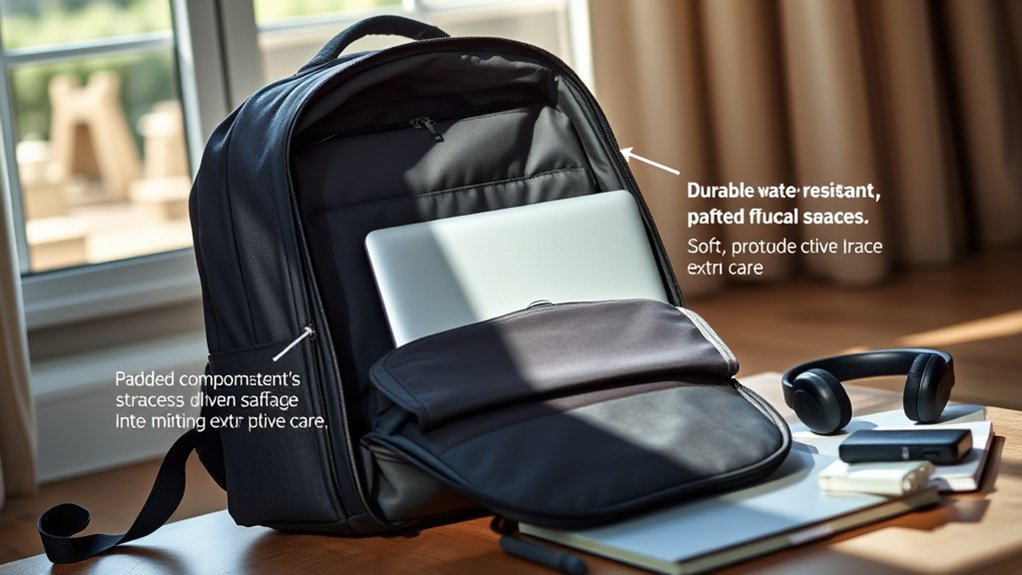
Start with a backpack that matches your laptop’s actual dimensions. A device advertised as a 15-inch laptop may have a different body size from another 15-inch model, so measure its width, depth, and thickness. Compare those measurements with the backpack manufacturer’s internal compartment dimensions.
The compartment should hold the laptop securely without forcing it into place. A loose compartment allows the computer to slide and strike the sides of the bag. A compartment that is too tight can place pressure on the lid, hinges, corners, or ports.
Look for these protective features:
- Padding on both sides: Dense foam between the laptop and the main storage area helps reduce pressure from other belongings.
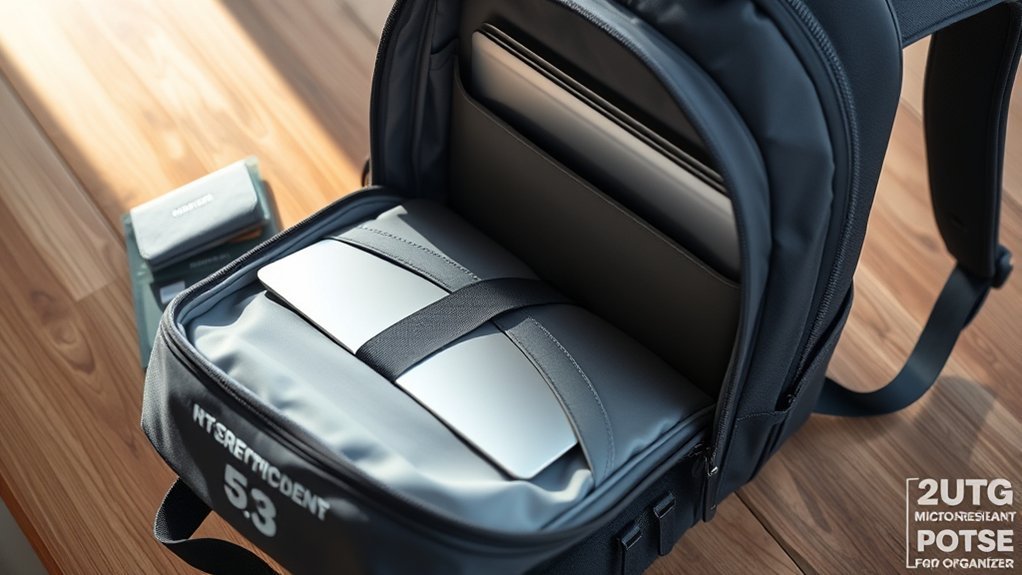
- A suspended or false bottom: The laptop compartment should end above the bottom of the backpack so the device does not take the full impact when the bag is set down.
- A supportive back panel: A structured panel limits bending and keeps the laptop close to your back.
- A secure closure: A zipper, hook-and-loop tab, or retaining strap helps prevent the laptop from slipping out when the main compartment opens.
- Covered or lockable zippers: These features may discourage quick access, although they cannot make a bag theft-proof.
- Water-resistant fabric and zippers: These can slow light moisture long enough for you to reach shelter.
Slash-resistant panels, hidden zippers, and locking pulls may deter opportunistic theft, but they are not impenetrable. Physical control of the backpack remains more important than any built-in anti-theft feature.
Pro Tip: Put the empty backpack on a table and press gently against the front of the laptop compartment. If your hand can easily push through and touch where the screen would sit, plan to use a sleeve or add a thin protective panel between the laptop and the main compartment.
Keep Your Laptop Secure and Organized
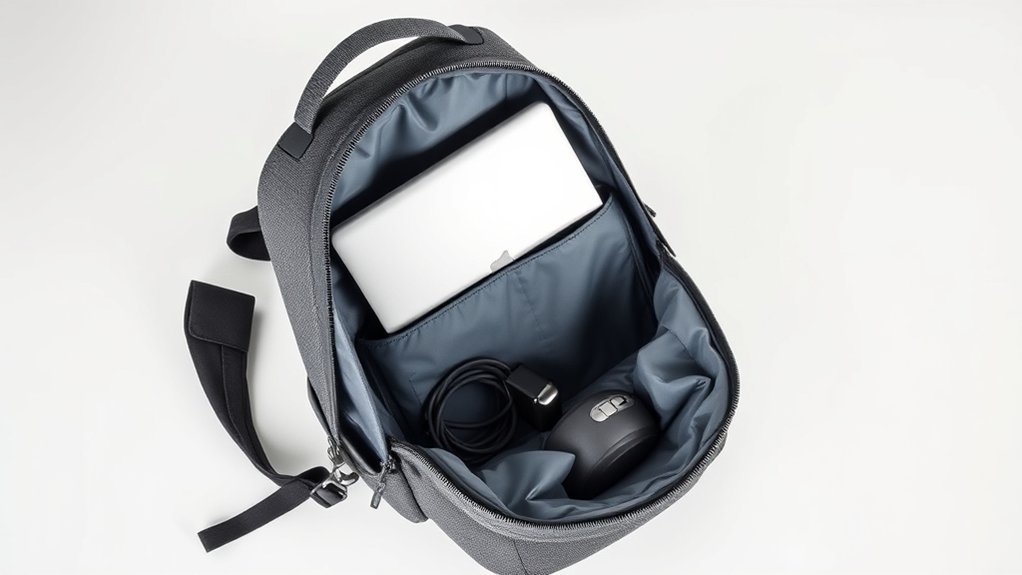
A protective backpack can still damage a laptop if it is packed carelessly. The main goal is to prevent movement, pressure, scratches, moisture, and direct contact with hard accessories.
Pack the Laptop Step by Step
- Shut down or put the laptop into the mode recommended for your trip. Fully shut it down before placing it in checked baggage, although accessible carry-on storage is preferred for air travel.
- Remove loose items from the laptop compartment. Do not store keys, pens, adapters, coins, memory-card cases, or cables beside the computer.
- Use a sleeve when the built-in padding is thin or the fit is loose. The sleeve should fit closely without squeezing the device.
- Insert the laptop into its dedicated compartment. Close any retaining strap or internal zipper.
- Place chargers and accessories in a separate pouch. Keep the power brick away from the display so it cannot press against the lid.
- Keep liquids in an upright, separate pocket. Use a bottle with a reliable locking cap, and do not place a bottle in the same enclosed space as the laptop.
- Check the bag before closing it. The zipper should move without force, and the front of the bag should not bulge against the laptop.
Warning: Do not force an overpacked backpack closed. Pressure from shoes, books, chargers, or tightly compressed clothing can bend the laptop chassis, damage the display, or strain the hinges even when the computer is inside a padded compartment.
Keep heavier travel items low and close to your back, but do not let a hard edge press directly against the laptop. Soft clothing can provide separation, but it should not replace a properly padded compartment.
Prepare for Airport Screening and Air Travel
Pack the laptop where you can reach it without unloading the entire backpack. The Transportation Security Administration’s laptop guidance generally instructs standard-screening passengers to remove a laptop and place it in a separate bin. TSA PreCheck passengers generally may leave laptops in their bags.
Screening procedures can vary by checkpoint, equipment, airport, and officer instructions. Read the signs at your lane and follow the officer’s directions rather than assuming the procedure will be the same at every airport.
Note: Keep the laptop compartment free of tangled cables, metal accessories, and liquids. A clean compartment makes the laptop easier to remove and less likely to be dropped during screening.
Keep the Laptop and Batteries in the Cabin
The Federal Aviation Administration recommends keeping laptops and other lithium-battery devices in accessible carry-on baggage. A laptop may be allowed in checked baggage under applicable rules, but it must be completely powered off and protected from accidental activation and damage. Airline and international requirements may be more restrictive.
For the safest and most practical air-travel setup, keep the laptop, power bank, and spare batteries accessible in the aircraft cabin.
If an airline requires you to gate-check your backpack:
- Remove the laptop when practical and keep it with you in a smaller personal item.
- Remove all power banks and spare lithium batteries. They are prohibited in checked baggage.
- Protect spare battery terminals from short circuits by using the original packaging, terminal covers, or separate protective bags.
- Make sure the laptop is fully powered off if it must remain in the checked bag.
- Tell airline staff if a device or battery becomes unusually hot, expands, smokes, or gives off an unusual odor.
Warning: Do not travel with a damaged, swollen, defective, or recalled laptop battery unless the battery has been removed or the device has been made safe in accordance with the airline and manufacturer’s instructions. The FAA warns that damaged lithium batteries may overheat or catch fire.
Protect Against Rain, Heat, Dust, and Condensation
A backpack made from coated nylon or polyester may resist a short period of light rain, but water-resistant does not mean waterproof. Water can still enter through seams, zipper tracks, openings, and worn coatings.
Use layered protection when rain is likely:
- Light rain: Close every zipper and use the backpack’s rain cover if it has one.
- Steady or heavy rain: Place the sleeved laptop inside a waterproof liner or correctly sized dry bag before putting it in the backpack.
- Boat, beach, or flood-prone travel: Keep the laptop away from deck spray, wet clothing, open drink containers, and standing water. A standard rain cover does not protect a submerged bag.
Inspect the backpack periodically. Peeling coatings, damaged seams, worn zipper flaps, and small holes reduce water resistance.
Protect the Laptop From Heat
Do not leave the backpack in a parked vehicle, in direct sun, beside a heater, or on hot pavement. Avoid running or charging the laptop while it is enclosed in the backpack because blocked vents can trap heat.
Stop using the laptop or charger if you notice swelling, extreme heat, smoke, sparking, a chemical smell, or a damaged cable. Move away from combustible material if it is safe to do so and alert staff immediately when you are aboard an aircraft or in a public facility.
Watch for Condensation
Moving a cold laptop into a warm, humid room can cause moisture to form on or inside the device. Keep it powered off and allow it to reach room temperature before turning it on or connecting the charger. The required time varies with the temperature change and the manufacturer’s instructions.
What to Do After a Spill
- Disconnect external power when it is safe to do so.
- Turn the laptop off rather than testing whether it still works.
- Remove nearby wet items from the backpack.
- Blot exterior moisture with a lint-free cloth. Do not force liquid deeper into ports or vents.
- Follow the laptop manufacturer’s spill guidance or arrange professional service.
- Do not use direct heat, an oven, or a hair dryer to speed drying.
Safeguard Your Data and Privacy Before Travel
A padded bag protects hardware, but it cannot protect files if the laptop is lost, stolen, or accessed while unlocked. Complete the following steps before the trip:
- Install operating-system, browser, and security updates. Turn on automatic updates when appropriate.
- Use a strong, unique password or passkey. Do not reuse the same password across important accounts.
- Enable multifactor authentication. Prioritize email, cloud storage, banking, work, and password-manager accounts.
- Set a short automatic screen-lock time. Require authentication when the laptop wakes.
- Create a tested backup. Keep at least one copy somewhere other than the laptop backpack.
- Enable built-in device-location features. Confirm that you can sign in to the associated account from another device.
- Remove unnecessary sensitive files. Carry only the information you need for the trip.
Turn On Full-Disk Encryption
Encryption helps protect files if someone removes or accesses the storage drive without authorization.
On compatible Windows devices, review Microsoft’s Device Encryption guidance. Availability and automatic activation vary by hardware, Windows edition, account type, and configuration. Confirm that encryption is active and that you can retrieve the recovery key before traveling.
Mac users can review Apple’s FileVault guidance. Apple advises keeping the recovery key somewhere safe and separate from the Mac.
Pro Tip: Do not keep the only copy of an encryption recovery key in a text file stored on the encrypted laptop. Save it in a secure account, password manager, or another protected location you can reach during the trip.
Use Public Wi-Fi Carefully
Public Wi-Fi is not automatically unsafe. The Federal Trade Commission explains that widespread HTTPS encryption makes public Wi-Fi generally safer than it was in the past. However, a secure connection does not prove that a website, login page, or hotspot is legitimate.
Use these safeguards:
- Confirm the official hotspot name with the airport, hotel, café, or venue.
- Look for https and the browser’s connection indicator before entering sensitive information.
- Do not continue through unexpected certificate or security warnings.
- Disable automatic connection to open networks.
- Turn off file sharing, local discovery, or public-folder access when you do not need it.
- Use cellular data or a personal hotspot for highly sensitive activity when available.
- Use a trusted VPN when required by your employer or when it fits your risk level, but do not treat a VPN as protection from phishing or fraudulent websites.
- Sign out when finished and avoid leaving important accounts open on an unattended laptop.
Prevent Loss and Theft While Traveling
Keep the backpack in sight and under your control in airports, stations, cafés, hotel lobbies, rideshares, and other crowded places. A lockable zipper can slow quick access, but it does not replace attention.
- Place the backpack between your feet or keep a strap around your leg while seated.
- Use an under-seat position instead of an unattended overhead rack when practical.
- Do not hang the backpack loosely over the back of a café chair.
- Keep the laptop out of view when you are not using it.
- Do not leave the bag in a visible part of a parked vehicle.
- Use a luggage tag that provides a safe contact method without displaying unnecessary personal information.
- Add a distinctive but discreet marker so you can identify the bag without advertising that it contains expensive equipment.
Be cautious when someone creates a distraction, crowds your personal space, asks you to set the bag down, or offers unsolicited help with your luggage. These situations do not always indicate theft, but they are good reasons to check your belongings.
What to Do if the Laptop Is Lost or Stolen
- Use the device manufacturer’s location service to mark, lock, or erase the laptop when those options are available.
- Do not personally confront someone at a reported location. Give the information to local law enforcement.
- Change the password for your primary email account and any account that can reset other passwords.
- Revoke active sessions and review recent account activity.
- Notify your employer or school immediately if the laptop contains organizational data or access credentials.
- File a police, airline, hotel, or transit report as appropriate and save the report number.
- Monitor financial, email, cloud-storage, and identity-related accounts for unexpected activity.
Laptop Travel Checklist
Before Leaving
- Measure the laptop and test the backpack fit.
- Confirm the compartment has padding and bottom clearance.
- Install updates and complete a backup.
- Enable encryption, automatic locking, multifactor authentication, and device location.
- Inspect the battery, charging cable, and power adapter for damage.
- Check the airline’s current baggage and battery requirements.
While Traveling
- Keep the laptop and power bank in accessible carry-on baggage.
- Remove the laptop for screening when instructed.
- Keep drinks, hard accessories, and damp clothing separate.
- Maintain physical control of the backpack in public places.
- Avoid charging inside the closed backpack.
- Protect the bag from rain, hot vehicles, and direct sunlight.
After the Trip
- Inspect the laptop, battery, charger, sleeve, and backpack for damage or moisture.
- Clean visible dirt according to the manufacturer’s instructions.
- Review important account activity if you used unfamiliar networks.
- Back up new trip files before clearing memory cards or external storage.
Frequently Asked Questions
Can I carry my laptop in a regular backpack?
Yes, but add a well-fitting padded sleeve if the backpack lacks a dedicated compartment. Keep the laptop against the supportive back panel, raise it above the bottom with padding, and prevent chargers, keys, bottles, or other hard objects from touching it.
What size laptop backpack should I choose?
Choose by the laptop’s actual external dimensions rather than screen size alone. The compartment should be slightly larger than the laptop or sleeved laptop, allowing easy insertion without enough open space for it to slide around.
Is it safe to leave my laptop charging while traveling?
Charging while you are stationary is normally acceptable when you use a compatible, undamaged charger and a suitable outlet. Place the laptop and adapter on a stable surface with open ventilation. Do not charge inside a closed backpack, use a damaged cable, or continue charging if the battery or adapter becomes unusually hot, swollen, or starts producing an odor.
How often should I clean my laptop while traveling?
There is no universal schedule. Clean it when you see dust, sand, fingerprints, or residue, and clean it promptly after safe handling of a minor exterior spill. Follow the manufacturer’s instructions. In general, shut the laptop down, unplug it, use a soft lint-free cloth, and never spray liquid directly into the screen, keyboard, ports, or vents.
Can I use a laptop case inside my backpack?
Yes. A padded sleeve or case adds scratch protection and can improve the fit of a loose compartment. Make sure the covered laptop still slides in easily and does not stretch the compartment or place pressure on the lid.
Should I put my laptop in checked baggage?
Accessible carry-on baggage is the better choice. If a laptop must go in checked baggage, confirm the airline’s rules, power it completely off, protect it from accidental activation, and cushion it against damage. Power banks and spare lithium batteries must not remain in checked baggage.
Do I need to remove my laptop at airport security?
Standard TSA screening generally requires travelers to remove laptops and place them in a separate bin, while TSA PreCheck passengers generally may leave them in the bag. Equipment and procedures vary, so follow the signs and officer instructions at your specific checkpoint.
Is a rain cover enough to protect a laptop?
A rain cover helps in light or moderate rain, but it may leave the back panel and strap openings exposed. For heavy rain, boat travel, or very wet conditions, place the laptop in a waterproof liner or dry bag inside the backpack. No ordinary backpack setup should be treated as safe for submersion.
Conclusion
Protecting a laptop in a travel backpack requires more than thick padding. Use a correctly sized compartment, keep hard and wet items separate, avoid overpacking, and add rain protection when conditions demand it. During air travel, keep the laptop and power bank accessible in the cabin and follow screening instructions at the checkpoint.
Before leaving, update and back up the laptop, enable automatic locking and multifactor authentication, turn on encryption, and confirm that device-location tools work. These steps reduce both physical damage and the consequences of loss or theft.
Sources
- Transportation Security Administration — Laptops — airport screening and TSA PreCheck laptop guidance
- Federal Aviation Administration — Lithium Batteries in Baggage — carry-on, checked-baggage, gate-check, power-bank, and damaged-battery guidance
- Federal Trade Commission — Are Public Wi-Fi Networks Safe? — HTTPS, account protection, updates, and public-network guidance
- Microsoft Support — Device Encryption in Windows — Windows Device Encryption availability and setup
- Apple Support — Protect Data on Your Mac With FileVault — Mac encryption and recovery-key guidance
- Apple Support — How to Clean Your Apple Products — laptop shutdown, cloth, moisture, and cleaning precautions