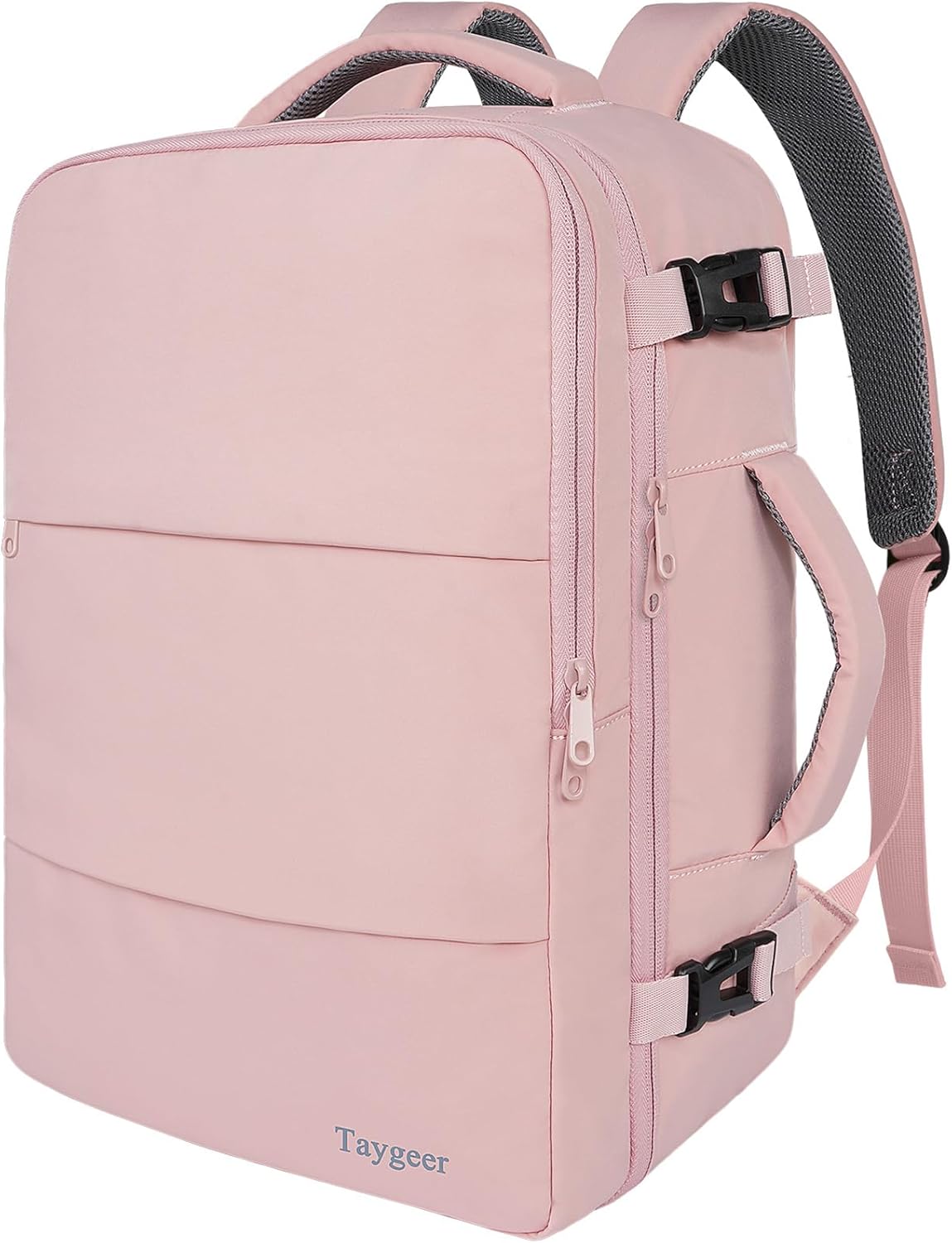
Last Updated on September 10, 2026 by Daniel Globe
Packing a laptop in a carry-on backpack takes more than sliding it into the nearest pocket. The computer needs a snug, padded compartment, room around its screen and corners, and protection from chargers, liquids, heat, and pressure. You also need to plan for airport screening, battery restrictions, and the possibility that your bag will be checked at the gate.
Quick Answer
Pack your laptop in a snug padded sleeve, then place it in a suspended compartment against the backpack’s back panel. Keep chargers and hard accessories in a separate pouch. At U.S. security, follow the officer’s instructions; standard lanes often require laptops out, while TSA PreCheck usually lets them stay packed.
Key Takeaways
- Use a padded sleeve inside a dedicated compartment that fits the laptop without bending or squeezing it.
- Keep the computer close to your back and separate it from chargers, keys, bottles, adapters, and other hard objects.
- Power banks and spare lithium batteries must stay in the aircraft cabin and must be removed before a bag is gate-checked.
- Back up important files, update the device, enable tracking, and record the serial number before leaving home.
- Follow the instructions given by security officers, airline staff, and the flight crew, even when they differ from normal procedures.
At a Glance
| Time Required | 10–15 minutes |
| Difficulty | Easy |
| Tools Needed | Padded laptop sleeve, dedicated backpack compartment, and cable pouch |
| Cost | $0 if you already own suitable protection; about $15–$60 for a sleeve or organizer |
Disclosure: As an Amazon Associate I earn from qualifying purchases. Some links on this page are affiliate links, at no extra cost to you.
Before Packing Your Laptop
Start by checking your airline’s current carry-on and personal-item limits. A backpack that fits one airline’s under-seat space may be too large for another airline or aircraft. The Federal Aviation Administration recommends checking directly with the airline because carriers may set stricter limits on bag dimensions and the number of items allowed.
Next, measure the laptop and compare it with the usable dimensions of the backpack compartment. Do not rely only on a label such as “fits a 15-inch laptop.” Screen-size labels measure the display diagonally and do not tell you the computer’s full width, depth, or thickness.
Prepare Your Device and Data
- Back up important files to an encrypted external drive or a trusted cloud service.
- Install operating-system, browser, antivirus, and application updates before the trip.
- Use a strong password or passphrase and enable full-disk encryption when available.
- Turn on the manufacturer’s device-location feature and confirm that you can access it from another device.
- Photograph or record the model, serial number, and proof of purchase.
- Remove unnecessary sensitive files, especially when traveling for business or entering a high-risk destination.
The U.S. Department of State advises travelers to update devices, use secure connections, protect equipment from theft, and enable device-tracking features before international travel.
TSA Laptop Rules
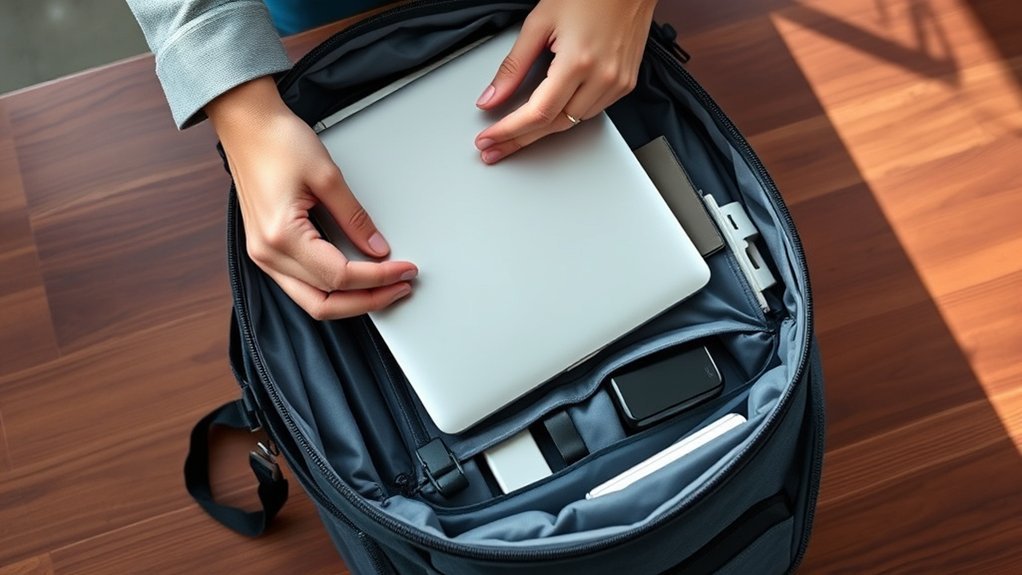
At a standard U.S. security checkpoint, the Transportation Security Administration normally asks passengers to remove laptops from their carry-on bags and place them in a separate bin for X-ray screening. The laptop should be placed flat with nothing stacked above or below it.
TSA PreCheck travelers generally may leave laptops inside their bags. However, screening equipment, local procedures, and an officer’s instructions may change what you need to remove. Always follow the directions given at the checkpoint.
Note: TSA rules apply to U.S. checkpoints. Airports in other countries may require every laptop, tablet, cable pouch, or large electronic device to be removed, even when you use an expedited-security program.
A standard wall charger and charging cable can usually remain in the backpack unless an officer asks you to remove them. A power bank is different because it contains a lithium battery and is subject to carry-on battery rules.
Carrying the laptop in the cabin is the safest option because you control how the bag is handled and cabin crew can respond if a battery problem develops. A laptop placed in checked baggage must be completely powered off and protected from accidental activation and physical damage.
Packing Your Laptop Properly
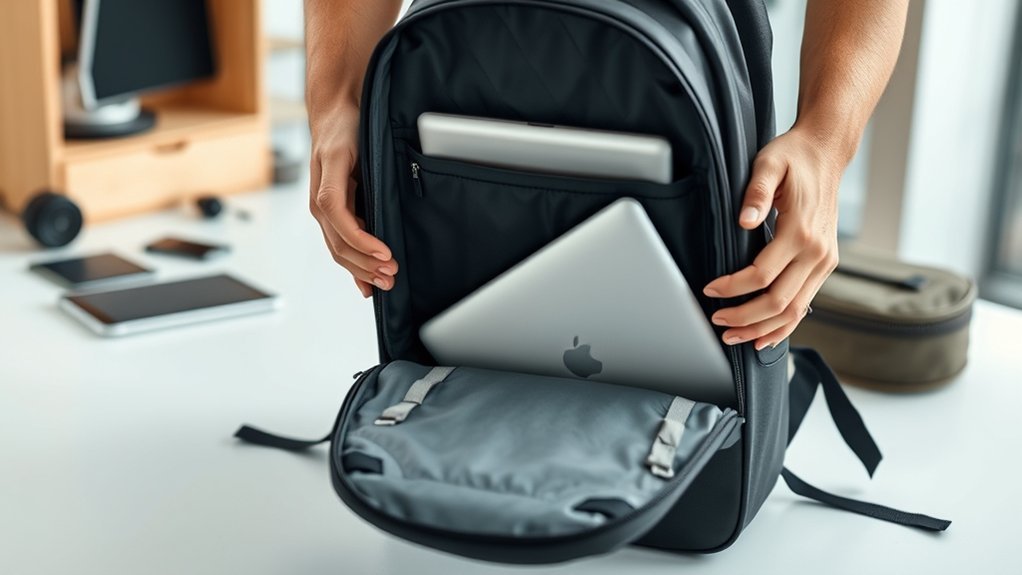
The safest setup uses two layers of protection: a snug padded sleeve around the computer and a structured laptop compartment inside the backpack. The compartment should hold the device close to your back without forcing the zipper or pressing against the screen.
Choose a Padded Sleeve
A good sleeve absorbs minor shocks, protects the finish, and limits movement inside the backpack. Look for these features:
- Correct fit: The laptop should not slide several inches inside the sleeve, but the sleeve should not squeeze the corners.
- Corner protection: Reinforced corners help during short drops and rough handling.
- Soft interior: Smooth lining reduces scratches on the lid and base.
- Water-resistant exterior: This provides limited protection from rain or a small spill but does not make the laptop waterproof.
- Low-profile closure: A bulky zipper pull or buckle should not press against the screen.
Warning: Do not charge or run a laptop while it is sealed inside a sleeve or tightly packed compartment. Trapped heat can damage the battery and other components. If the device becomes unusually hot, swells, smokes, or gives off an unusual odor, stop using it and alert airline staff immediately.
Organize Accessories Efficiently
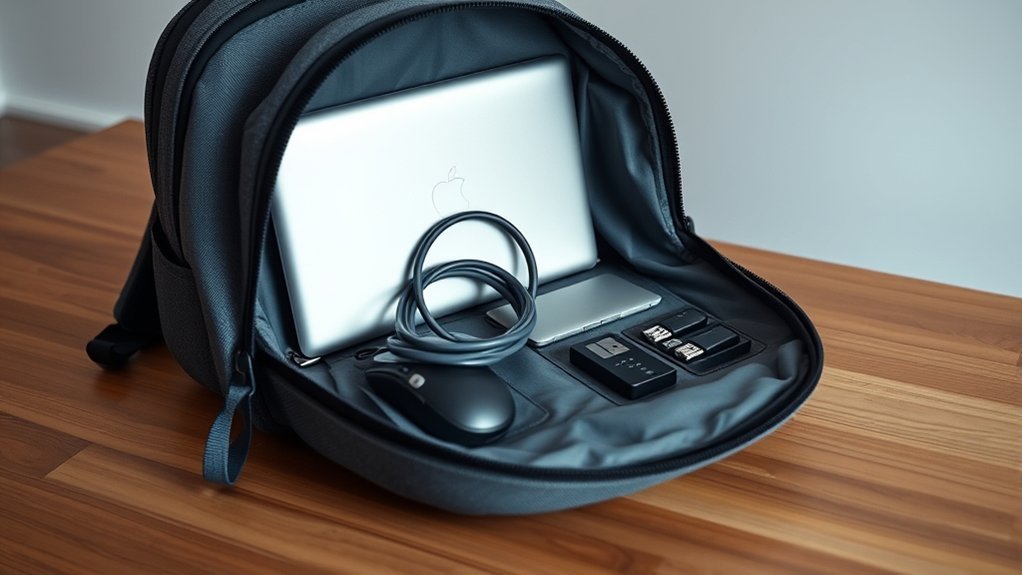
Place the laptop in the compartment closest to the backpack’s padded back panel. A suspended or false-bottom compartment is best because the computer does not strike the floor when the backpack is set down.
Keep hard accessories in a separate pouch. Chargers, travel adapters, external drives, mice, pens, keys, and power banks can create concentrated pressure against the laptop if they are allowed to rest against its lid or underside.
Step-by-Step Packing Method
- Inspect the computer. Do not travel with a swollen, cracked, leaking, recalled, or unusually hot battery.
- Shut it down. For long travel days, use a full shutdown rather than leaving the computer active inside the bag.
- Remove loose items. Check that no USB receiver, memory card adapter, cable, or dongle is protruding from a port.
- Put it in the sleeve. Close the sleeve without forcing the corners or placing objects inside with the computer.
- Use the laptop compartment. Position the device upright against the padded back panel.
- Pack accessories separately. Coil cables loosely and place chargers, adapters, and drives in a pouch.
- Separate liquids. Keep bottles in an exterior holder or leak-resistant compartment away from the laptop.
- Test the bag. Zip it without force, lift it, set it down gently, and confirm that nothing shifts or presses against the screen.
Pro Tip: Place a thin sheet of clean packing foam or a folded microfiber cloth between the laptop sleeve and any nearby hard item. Do not place loose clothing inside the sleeve because fabric can bunch up and create uneven screen pressure.
Choosing the Right Laptop Backpack
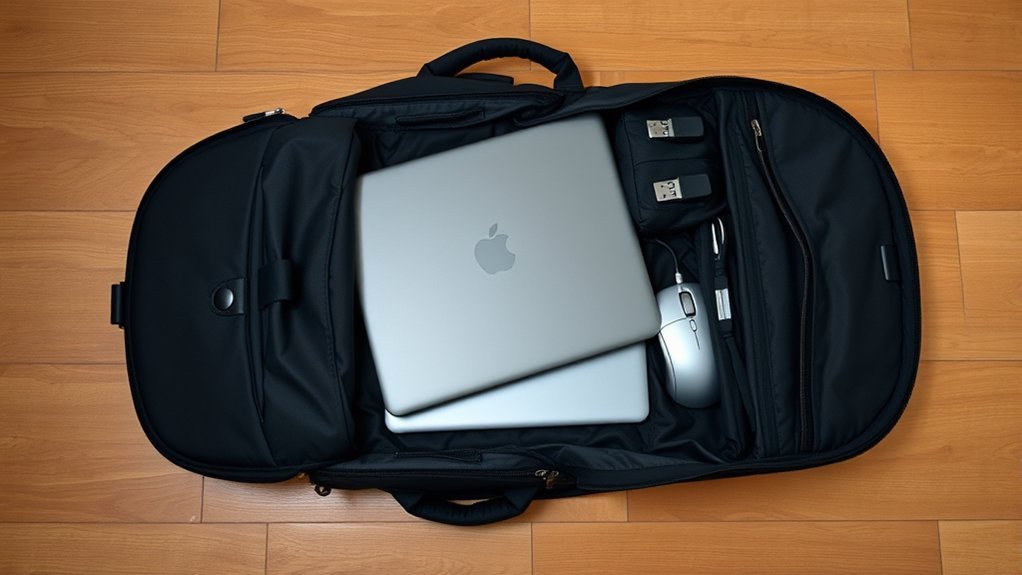
The right backpack must fit your body, your laptop, and the airline’s baggage limit. A heavily padded bag is not automatically safer if the compartment is too loose, the bottom is unprotected, or the pack becomes too large to keep with you.
Padding and Protection Features
Prioritize practical protection rather than thick padding alone:
- A dedicated compartment with padding on the front, back, bottom, and corners
- A suspended or false bottom that keeps the laptop above the base of the bag
- A secure strap or snug sleeve that limits side-to-side movement
- A structured back panel that reduces bending and twisting
- A water-resistant exterior and covered or water-resistant zippers
- A design that does not place a metal frame, bottle, or rigid organizer against the screen
Organizational Compartments and Accessibility
An independently accessible laptop compartment can speed up security screening because you do not have to unpack clothing and toiletries to reach the computer. The zipper should open wide enough to remove the laptop smoothly without scraping its corners.
Use separate pockets for:
- Wall charger and cable
- Power bank or spare battery
- Mouse and small peripherals
- Passport and travel documents
- Liquids and toiletries
- Headphones and items needed during the flight
Before buying or using the backpack, fully load it and confirm that the laptop compartment remains flat. If packing cubes or shoes bow the compartment toward the screen, reduce the load or move those items.
Anti-Theft Design Considerations
Anti-theft features can discourage quick access, but no backpack is theft-proof. Useful features include:
- Lockable or concealed main zippers
- Cut-resistant reinforcement in high-risk areas
- An internal document pocket
- A luggage pass-through that secures the pack to a suitcase handle
- Straps that can be looped around a chair leg while you remain beside the bag
- A simple exterior that does not advertise expensive electronics
An RFID-blocking pocket may be useful for certain contactless cards or passports, but it does not secure the laptop, encrypt its data, or prevent physical theft.
Packing Your Chargers Separately
Pack the laptop’s wall charger in a padded cable pouch rather than directly beside the computer. Coil the cable in loose loops instead of wrapping it tightly around the power brick, which can strain the cable near the connector.
Choose a charger that provides the wattage required by the laptop. A low-output phone charger may fit the port but charge the computer very slowly or fail to keep up while the laptop is in use.
Lithium Battery and Power-Bank Rules
Under current FAA passenger battery guidance:
- Most personal laptop batteries rated at no more than 100 watt-hours are permitted.
- Lithium-ion batteries rated from 101 to 160 watt-hours require airline approval.
- Passengers may carry no more than two spare batteries in the 101–160 Wh range.
- Power banks and uninstalled spare lithium batteries must remain in carry-on baggage.
- Battery terminals must be protected from contact with metal and from short circuits.
- Damaged or recalled batteries that may spark or generate dangerous heat must not be carried unless they have been made safe under applicable guidance.
The watt-hour rating is normally printed on the battery or power bank. When only voltage and amp-hours are shown, calculate watt-hours by multiplying volts by amp-hours. For example, 20 volts multiplied by 5 amp-hours equals 100 Wh.
Warning: If your backpack is checked at the gate or planeside, remove every power bank and spare lithium battery first and keep them with you in the cabin. Remove the laptop as well whenever possible so it is not exposed to baggage handling.
International Charging and Plug Adapters
A plug adapter changes the shape of the plug; it does not change voltage. Check the charger label before connecting it abroad. Many laptop power supplies accept a range such as 100–240V and only need the correct plug adapter, but you must verify the input rating printed on your own charger.
Do not use a cheap, loose, cracked, or overheating adapter. Keep the charger uncovered while it is operating and unplug it if the outlet, cable, or power brick becomes unusually hot.
Organizing Your Belongings
Packing cubes and small pouches can reduce clutter, but they should not be packed so tightly that they push into the laptop compartment. Use one small organizer for electronics instead of scattering cables and adapters throughout the bag.
What Not to Pack Next to a Laptop
- Water bottles, toiletries, or any container that may leak
- Keys, coins, tools, padlocks, or metal adapters
- Shoes with hard heels or buckles
- Heavy books or objects that can bend the display
- Food that can melt, spill, or leave crumbs in ports
- Magnets or specialty equipment that the laptop manufacturer warns against
If the backpack is difficult to zip, remove items rather than forcing the closure. Pressure from an overstuffed main compartment can transfer directly to the laptop screen.
Final Carry-On Checklist
- Laptop fully shut down or placed in the appropriate travel state
- Padded sleeve closed
- Computer held against the back panel
- No object pressing against the screen
- Charger and cables in a separate pouch
- Power bank in the carry-on, with its rating visible
- Liquids separated from electronics
- Passport, boarding pass, and medication accessible
- Backpack fits the airline’s current dimensions
- Gate-check items easy to remove
Tips for Traveling Light With a Laptop
A lighter backpack is easier to carry and places less pressure on the computer. Use the following decisions to reduce weight without giving up essential protection:
| Tip | How It Helps |
|---|---|
| Bring only the device you need | Avoid carrying a laptop, tablet, e-reader, and second computer when one device can handle the trip. |
| Use one compatible charger | A properly rated multi-port charger may replace several separate wall adapters. |
| Remove duplicate cables | Pack the minimum number and length required for the devices you are carrying. |
| Store files digitally | Download tickets, manuals, books, and documents instead of carrying paper copies, while retaining essential emergency information offline. |
| Weigh the finished bag | This helps you spot unnecessary items and identify whether the bag meets the airline’s weight limit. |
Essential Laptop Travel Accessories
Useful accessories protect the computer or solve a specific travel problem. You do not need to pack every available gadget.
- Padded laptop sleeve: Adds impact and scratch protection.
- Cable pouch: Keeps hard accessories away from the screen.
- Correct plug adapter: Matches the outlets used at your destination.
- Compact laptop stand: Improves screen height when you expect to work for long periods.
- Small microfiber cloth: Protects the finish and cleans the screen without liquid.
- Water-resistant backpack cover: Adds rain protection when the bag itself is not weather-resistant.
- Short charging cable: Reduces clutter in airports and on planes when it meets the device’s power requirements.
A keyboard cover may reduce damage from a small splash while the laptop is open, but it does not make the computer waterproof. Never continue using a device after liquid enters its vents, keyboard, or ports.
Protecting the Laptop From Weather and Temperature
Keep the laptop away from direct sun, parked vehicles, heaters, and freezing conditions. Extreme temperatures can affect the battery, display, and internal components.
When bringing a cold laptop into a warm, humid room, leave it powered off until it reaches room temperature. This reduces the chance of condensation forming inside the device. Do not try to warm it quickly with a hair dryer, heater, or direct sunlight.
During rain, keep the backpack closed and use a rain cover when needed. A water-resistant backpack slows moisture entry but does not protect against complete soaking.
Security and Theft Considerations
Physical security starts with keeping the backpack under your control. In airports, cafes, trains, and hotel lobbies, place it between your feet or against your body instead of hanging it over the back of a chair.
- Do not leave the laptop visible in an unattended vehicle.
- Use a locker or safe only after confirming that it closes securely and is large enough for the device.
- Ask accommodations about secure luggage storage before arriving early or departing late.
- Do not leave a locked backpack unattended in a public place; the entire bag can still be taken.
- Avoid displaying expensive equipment while moving through crowded areas.
- Keep the laptop with you when practical rather than storing it in a shared room.
Protect Your Data While Traveling
Use your own cellular connection or another trusted network for sensitive work when possible. Avoid connecting unknown USB drives, charging cables, or peripherals to the laptop. A public USB charging port may not provide the same control as your own wall charger and cable.
What to Do if the Laptop Is Lost or Stolen
- Use the manufacturer’s tracking service from another trusted device.
- Lock or erase the laptop remotely when appropriate.
- Change passwords for email, cloud storage, banking, work accounts, and password managers.
- Notify your employer or information-security team immediately if business data is involved.
- Report theft to local police and obtain a written report or case number.
- Notify the airline, airport, hotel, rail operator, or other property office where the loss occurred.
- Contact the insurer or card-benefit administrator and follow its documentation deadlines.
Travel Insurance for Your Tech Gear
Travel insurance may cover lost, stolen, or damaged baggage and personal effects, but the protection is not automatic or unlimited. The National Association of Insurance Commissioners advises travelers to review each policy’s limits, covered events, and exclusions.
Before buying or relying on a policy, check:
- The total personal-property and per-item coverage limits
- The deductible
- Whether reimbursement uses replacement cost or depreciated value
- Exclusions for unattended property, shared rooms, vehicles, or checked baggage
- Whether coverage is primary or applies only after another insurer pays
- Whether work-owned equipment is excluded
- The deadline for reporting the incident
- Whether a police, airline, or property report is required
Keep a copy of the receipt, serial number, model information, photographs, and insurance documents somewhere other than on the laptop itself. Homeowners, renters, employer, and credit-card benefits may also provide limited protection, so check for overlapping coverage before buying an additional policy.
Note: Insurance terms vary widely. Do not assume that a policy covers the laptop’s full value, accidental damage, or theft from an unattended bag unless those terms are stated in the policy.
Using Your Laptop at the Airport and on the Plane
Use the laptop only where you can keep control of it and its cables. In crowded gate areas, avoid stretching a charging cable across a walkway. Do not leave the computer unattended while saving a seat or visiting a counter.
On the aircraft, place the device in airplane mode unless the crew permits a specific wireless service. Airline policies may allow electronic-device use during much of the flight, but laptops and other heavier devices normally must be safely stowed for taxi, takeoff, landing, turbulence, and any other time the crew directs.
Do not place a laptop loose in a seat pocket. When it is not in use, return it to the backpack and stow the bag under the seat or in another approved location. If the battery overheats, expands, smokes, or burns, stop using the device and notify the cabin crew immediately.
Frequently Asked Questions
Can I use a laptop during the flight?
Usually, but the airline and flight crew control when it may be used. Put the device in airplane mode and stow it securely for taxi, takeoff, landing, turbulence, and whenever the crew instructs you to do so.
How do I protect my laptop from damage while traveling?
Use a snug padded sleeve inside a suspended laptop compartment. Keep the computer against the backpack’s back panel, separate liquids and hard accessories, avoid overstuffing, and protect the bag from extreme temperatures and rain.
Should I remove my laptop from its sleeve at airport security?
At a standard U.S. checkpoint, you will normally remove the laptop from the backpack. Whether it must also come out of a thin sleeve depends on checkpoint instructions. TSA PreCheck usually allows it to remain packed, but always follow the officer’s directions.
What should I do if my laptop is too large for my backpack?
Do not force it into a small compartment or leave the zipper partly open. Use a correctly sized laptop backpack or a protective laptop bag that meets your airline’s carry-on or personal-item limits.
Are there restrictions on laptop battery sizes?
Yes. Most lithium-ion batteries up to 100 Wh are permitted for personal use. Batteries from 101 to 160 Wh require airline approval, and no more than two spare batteries in that range are allowed. Airlines and international authorities may impose stricter limits.
Can I put a power bank in checked baggage?
No. Power banks and other spare lithium batteries must remain in carry-on baggage. If your carry-on is gate-checked, remove the power bank and keep it with you in the aircraft cabin.
What should I remove if my backpack is gate-checked?
Remove all power banks and spare lithium batteries. Remove the laptop, external drives, medication, identification, travel documents, valuables, and fragile electronics whenever possible before handing over the bag.
Conclusion
The safest way to pack a laptop in a carry-on backpack is to combine a snug sleeve, a suspended compartment, and careful organization. Keep the computer close to your back, separate it from liquids and hard accessories, and avoid forcing an overfilled bag closed.
Before leaving, confirm the airline’s bag and battery limits, back up your data, enable device tracking, and prepare to remove power banks if the bag is gate-checked. At security and on the aircraft, follow the instructions given by officers and crew. These steps reduce the most common risks without adding unnecessary weight or complicated gear.
Sources
- Transportation Security Administration: Laptops — U.S. checkpoint screening guidance.
- Transportation Security Administration: TSA PreCheck — expedited-screening laptop procedures.
- Federal Aviation Administration: Airline Passengers and Batteries — laptop, spare-battery, power-bank, and watt-hour rules.
- Federal Aviation Administration: Portable Electronic Devices Containing Batteries — carry-on and checked-baggage safety requirements.
- Federal Aviation Administration: Carry-On Baggage Tips — airline limits, stowage, and gate-check preparation.
- U.S. Department of State: Communicating While Abroad — device updates, tracking, connections, and technology security.