
Last Updated on July 30, 2026 by Caleb Warren
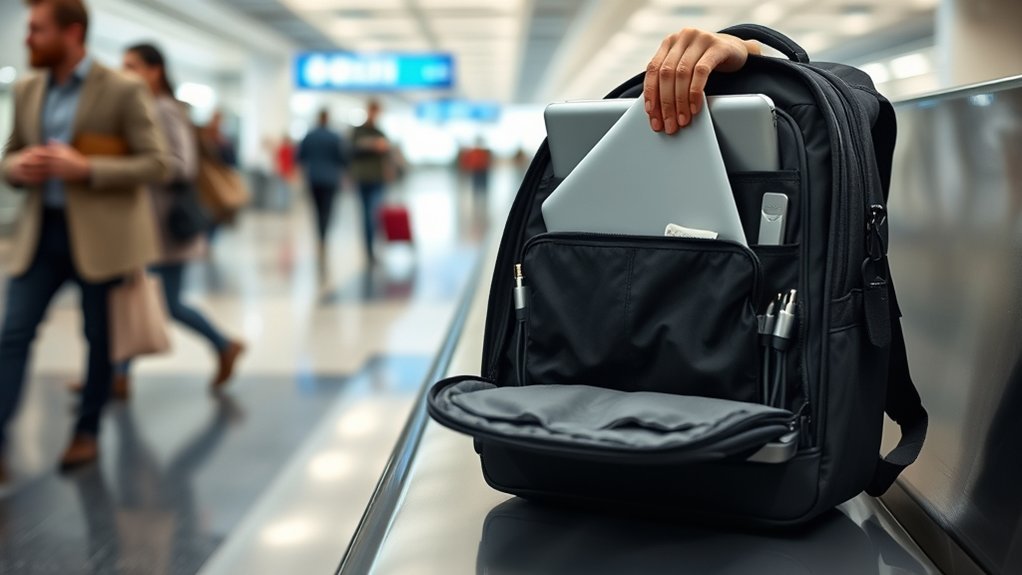
Flying with a laptop is easier when you protect both the device and the data stored on it. The safest approach is to keep the laptop in your carry-on backpack, place it in a snug padded sleeve, separate it from hard accessories and liquids, and make it easy to remove at security. You should also understand the airline’s battery rules before leaving home.
Quick Answer
Keep your laptop in a padded sleeve inside a raised, dedicated carry-on compartment. Place it flat against the backpack’s back panel, keep chargers and liquids in separate pockets, and avoid overstuffing the bag. Before flying, check TSA instructions, airline size limits, and lithium-battery rules.
Key Takeaways
- Carry the laptop in the cabin whenever possible rather than putting it in checked baggage.
- Use both a fitted sleeve and a padded backpack compartment for protection against pressure, scratches, and minor impacts.
- Keep power banks and spare lithium batteries in your carry-on, including when a backpack is checked at the gate.
- Follow the instructions at your specific security lane because laptop-removal procedures can vary.
- Back up and encrypt important data before departure, and do not assume that public or hotel networks are private.
At a Glance
| Time Required | About 10–15 minutes before leaving for the airport |
| Difficulty | Easy |
| Tools Needed | Padded laptop sleeve, suitable carry-on backpack, cable pouch, and optional water-resistant cover |
| Cost | $0 if you already own suitable protection; optional accessories vary by product |
Disclosure: As an Amazon Associate I earn from qualifying purchases. Some links on this page are affiliate links, at no extra cost to you.
Assessing the Need for a Laptop on Your Trip
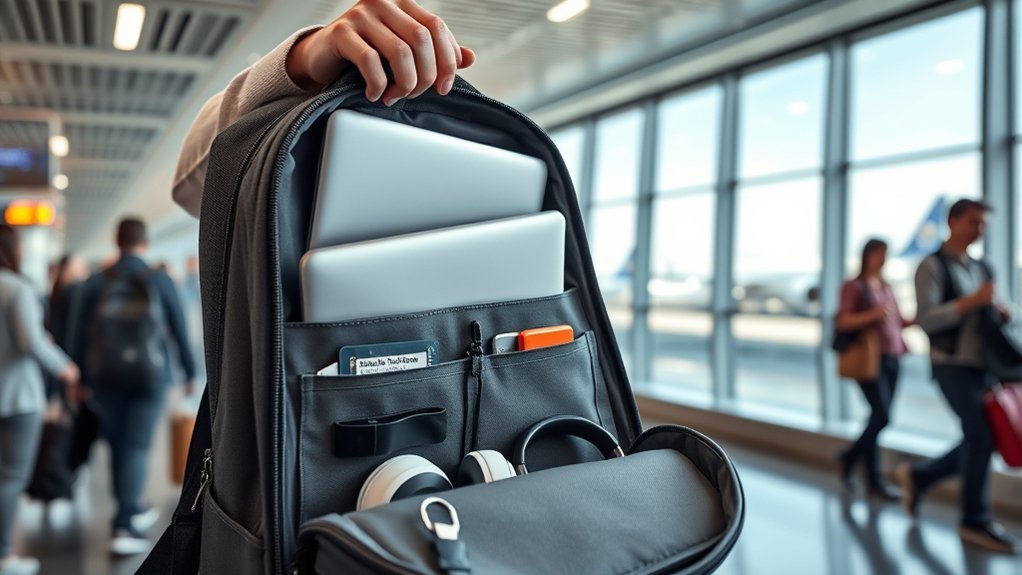
Before packing, decide whether the laptop is essential. Leaving it at home can reduce the weight you carry, shorten security checks, and remove the risk of loss or damage. A phone or tablet may be enough for entertainment, email, reservations, and light work.
If you need a full keyboard, specialized software, business files, or a larger screen, bringing the laptop may be worthwhile. Choose the lightest device you already own that can handle the work. For context, the 13-inch M2 MacBook Air was listed at 2.7 pounds, but weight should be considered alongside battery life, durability, and the cost of replacing the device.
Also consider the security of your accommodation, the reliability of internet service, access to electrical outlets, and whether local laws or customs rules affect the electronics you can bring. Storage quality varies among hotels, hostels, rental properties, and shared rooms, so do not assume a room safe or locker will fit your laptop.
Choosing the Right Laptop Backpack
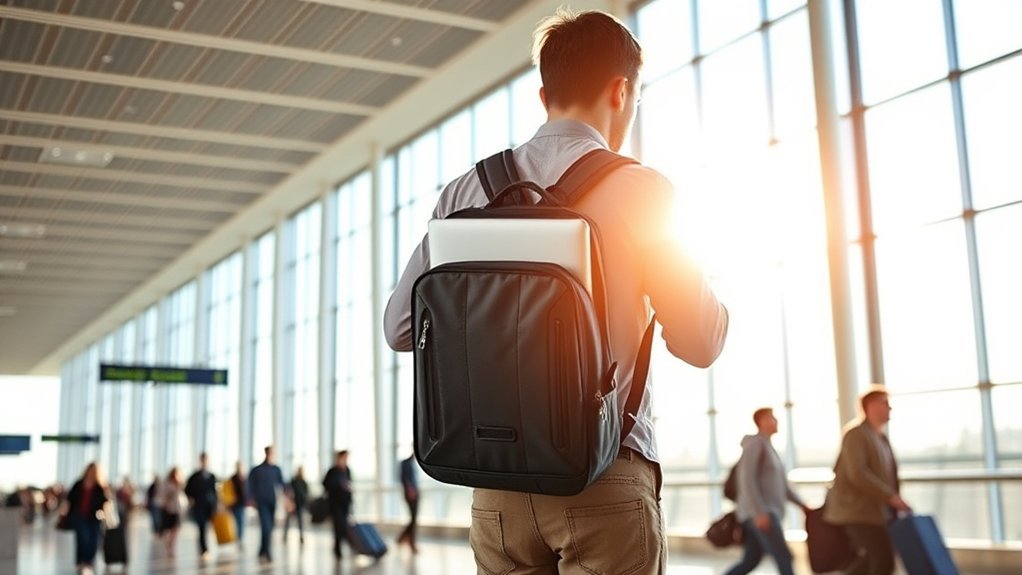
A good travel backpack should protect the laptop without becoming difficult to carry or screen. Before flying, compare the packed bag with your airline’s current personal-item or carry-on size and weight limits. A backpack that fits under one airline’s seat may be too large for another airline or aircraft.
Look for these features:
- A dedicated laptop compartment: It should fit the laptop closely enough to limit movement without bending or pressing on the screen.
- A raised or false bottom: The laptop compartment should stop above the bottom of the backpack so the computer does not strike the floor when the bag is set down.
- Padding on both sides: Padding should protect the back, screen side, edges, and lower corners.
- A water-resistant exterior: This helps with light rain and small splashes, although it does not make the bag waterproof.
- Strong zippers and stitching: These are more important than decorative “anti-theft” labels.
- Comfortable straps and a stable back panel: Wide adjustable straps help keep the load close to your body.
- Easy checkpoint access: You should be able to open the laptop compartment without unpacking the entire backpack.
Combination zipper locks, hidden pockets, and cut-resistant fabric can deter casual interference, but they cannot guarantee that a bag will not be stolen or opened. Keep the backpack under your control instead of relying on a lock alone.
Pro Tip: Test the backpack at home. Insert the sleeved laptop, zip the compartment, and gently press the outside. If you can feel the charger, a plug, or another hard object pressing against the screen area, rearrange the bag.
Packing Your Laptop Properly
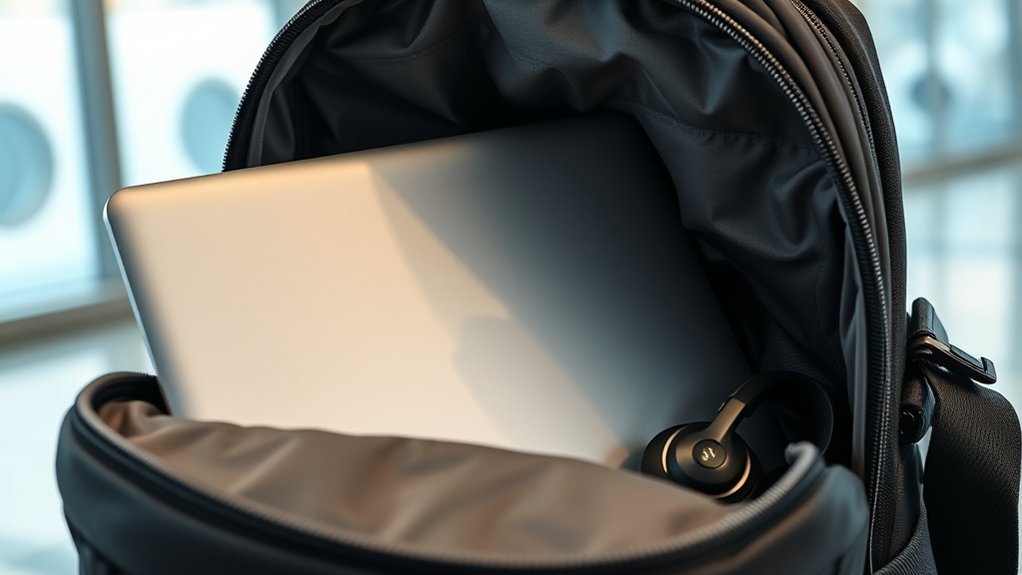
The goal is to prevent the laptop from moving, bending, overheating, getting wet, or being struck by another item. Pack it after bulky clothing but before filling the bag’s outer pockets so you can judge the pressure on the computer.
- Save your work and prepare the device. Close open files and disconnect drives, memory cards, and cables. A full shutdown is the safest choice when the laptop will remain tightly packed or may be checked.
- Place the laptop in a fitted sleeve. The device should not slide several inches inside the sleeve.
- Put the sleeve in the dedicated compartment. Position it against the backpack panel closest to your back rather than against the exposed outer face of the bag.
- Keep hard items separate. Put the charger, plug adapter, mouse, keys, pens, and portable stand in another compartment or padded pouch.
- Separate all liquids. Toiletries, drinks, and refillable bottles should be sealed and stored away from the laptop compartment.
- Do not overstuff the backpack. A zipper that is difficult to close is a sign that the laptop may be under damaging pressure.
- Keep the compartment accessible. Pack so you can remove the laptop without placing loose belongings on the checkpoint floor.
Use Padded Sleeves
A high-quality padded sleeve adds cushioning against bumps, scratches, and pressure from nearby items. Choose a sleeve made for your laptop’s actual dimensions rather than relying only on the advertised screen size. Two laptops with the same screen measurement can have different widths and thicknesses.
The sleeve should close securely without stretching around the laptop. Water-resistant material can help with a small spill, but it should not be treated as waterproof protection. If heavy rain is expected, add a backpack rain cover or place the sleeved laptop inside a sealed water-resistant liner.
Some sleeves unfold into desk mats or work surfaces. This can help keep the laptop away from damp, dirty, or abrasive tables, but make sure the material does not block the computer’s ventilation while it is running.
Organize Accessories Efficiently
Store the charging brick, cables, mouse, adapters, external drives, and other accessories in separate pockets or a cable organizer. Wrap cables loosely instead of bending them sharply around the charging brick. Cover exposed plugs so they cannot scratch the laptop or press against its display.
Avoid packing a power bank, charger, or portable hard drive in the same tight sleeve as the laptop. Packing cubes can organize clothing, but they should not be wedged against the display with enough force to bend the lid.
Protect the Laptop From Pressure, Heat, and Spills
Do not sit on the backpack, place it under a heavy suitcase, or let it become trapped beneath other bags in an overhead bin. When possible, place it under the seat in front of you where you can monitor it and where other passengers are less likely to force luggage against it.
Do not run or charge the laptop while it is sealed inside a tightly packed sleeve or backpack. Charging and processor activity create heat, while padding limits airflow. If the laptop feels unusually hot, remove it from the bag and allow it to cool on a hard, dry, ventilated surface.
Carry-On, Checked Baggage, and Lithium-Battery Rules
The Federal Aviation Administration recommends carrying laptops and similar battery-powered devices in carry-on baggage. A battery incident can be noticed and addressed more quickly in the cabin than in a cargo compartment.
If a laptop must be placed in checked baggage, it must be completely powered off—not left in sleep or hibernation mode—and protected against accidental activation and physical damage. Airline policies may be stricter, so check with the carrier before departure.
Warning: If your carry-on backpack is checked at the gate or planeside, remove all power banks and spare lithium batteries before handing over the bag. Keep those batteries with you in the cabin and protect their terminals against contact with metal.
For ordinary passenger electronics, the FAA’s lithium-battery limits are based on battery size:
- Up to 100 watt-hours: Most common laptop batteries fall within this category and are generally permitted for personal use.
- More than 100 Wh and up to 160 Wh: Airline approval is required. A passenger may carry no more than two spare batteries in this larger category.
- More than 160 Wh: These batteries are not permitted in ordinary passenger baggage under the standard personal-electronics exception.
The watt-hour rating is normally printed on the battery or listed in the laptop’s technical specifications. When only voltage and amp-hours are shown, watt-hours can be calculated by multiplying volts by amp-hours.
A power bank is a spare lithium battery for aviation purposes. It belongs in your carry-on, not in checked baggage.
Do not fly with a battery or device that is damaged, recalled, swollen, leaking, producing an unusual odor, or likely to generate excessive heat unless the affected battery has been safely removed or the airline confirms that the item has been made safe.
Warning: If a laptop or battery becomes unusually hot, expands, smokes, sparks, or burns during a flight, alert a flight attendant immediately. Do not hide it inside the backpack or continue charging it.
Essential Laptop Travel Accessories
The right accessories can reduce clutter and prevent damage, but every item should have a clear purpose. Useful options include:
- A snug padded laptop sleeve
- A cable pouch that separates plugs and hard accessories
- A water-resistant backpack cover or internal liner
- A privacy screen for work involving sensitive information
- A compact laptop stand for longer work sessions
- A manufacturer-approved charger and undamaged cable
- A plug adapter that matches the destination’s outlet type
- A tracking feature or account-based device-location service
A plug adapter changes the physical plug shape; it does not automatically convert voltage. Check the input label on your charger before connecting it abroad. Many modern laptop chargers accept a range such as 100–240 volts, but you should verify the specifications for your exact charger rather than assume compatibility.
A portable stand can improve posture, but it should be stored away from the laptop screen. If you plan to use the stand in flight, make sure it fits safely on the tray table and follow crew instructions during taxi, takeoff, landing, or turbulence.
Keeping Your Laptop Secure During Travel
Keep the backpack in your possession or within sight throughout the airport. Avoid hanging it loosely from the back of a chair, leaving it beside a charging station, or placing it on top of rolling luggage where it can fall.
When seated, keep the bag under the seat in front of you when space and airline rules permit. If it must go in an overhead bin, place it where another passenger is less likely to crush it with a hard suitcase. Do not place it in an open bin several rows away unless there is no safe alternative.
Use a luggage tag or discreet identifier to distinguish the backpack from similar bags. Include a phone number or email address rather than displaying more personal information than necessary. A bright zipper pull, strap, or tag can also help you notice an accidental bag swap.
At your accommodation, do not leave the laptop visible near a window or unattended in a public lounge. Use a suitable room safe or locker when available, but confirm that it is large and secure enough. For valuable business devices, follow your employer’s travel-security policy.
Enable the laptop’s location service before departure and record its model and serial number in a secure place. Tracking can help with reporting, but do not personally confront someone who appears to have the device.
Tips for Navigating Airport Security With Your Laptop
At a standard TSA checkpoint, travelers are generally instructed to remove laptops and other personal electronics larger than a phone from their carry-on bags. Place the laptop where nothing is stacked above or below it unless the officer gives different directions.
Screening procedures can vary by lane and scanner. Follow the instructions given at the checkpoint rather than relying only on what happened during a previous trip. The TSA’s current laptop screening guidance should be checked before departure if you have questions.
Travelers using TSA PreCheck normally keep laptops inside their bags, although an officer may still request removal or additional screening.
To move through security efficiently:
- Place the laptop compartment where you can reach it without unpacking clothing.
- Remove the laptop only when instructed.
- Use both hands when placing it in or lifting it out of the bin.
- Do not stack a coat, shoes, bag, or another bin on top of it.
- After screening, move to the designated repacking area before reorganizing the backpack.
- Count your laptop, phone, wallet, identification, charger, and other valuables before leaving the checkpoint.
Rules outside the United States may differ. Review the departure airport and national security authority’s instructions before an international flight.
Using and Storing Your Laptop During the Flight
You can usually use a laptop after boarding when the airline and flight crew permit it. Switch off cellular connections or use airplane mode, and connect only to services the airline allows. Crew instructions always take priority.
A large laptop may need to be stowed during taxi, takeoff, landing, or turbulence. Do not leave it loose on the tray table or seat. Close it before the person in front reclines so the screen is not trapped or bent.
Keep ventilation openings clear while the laptop is running. Do not use or charge it beneath a blanket, pillow, clothing pile, or inside its sleeve. Avoid placing drinks beside the computer, especially on a small tray table where turbulence can cause a spill.
Before sleeping, going to the restroom, or leaving the seat for an extended period, close the laptop and return it to the backpack. Do not leave it exposed on the seat or tray table.
Protecting Your Data While Traveling
Physical protection is only half of laptop safety. A lost computer can be replaced; exposed personal, financial, or business data may be much harder to recover.
Complete these steps before departure:
- Install current operating-system, browser, and security updates.
- Back up essential files to a trusted cloud account or encrypted external location.
- Use a strong account password or passphrase.
- Turn on full-disk encryption when supported.
- Enable multifactor authentication for email, cloud storage, banking, and work accounts.
- Set the screen to lock automatically after a short period.
- Enable remote-location, remote-lock, or remote-erase features.
- Remove sensitive files you do not need during the trip.
Do not expect privacy on hotel, airport, aircraft, café, or other public networks. The U.S. Department of State’s business-travel guidance recommends protecting devices with current security patches, keeping electronics with you, avoiding unknown peripherals, and treating public connections cautiously.
A trusted VPN can add protection, but it does not make every connection or website safe. Confirm the network name, prefer your phone’s personal hotspot for sensitive tasks, use encrypted websites, and avoid financial or confidential work when you cannot verify the connection.
Disable automatic Wi-Fi connections, file sharing, nearby-device discovery, and Bluetooth when they are not needed. Do not insert an unknown USB drive or connect the laptop to an unfamiliar computer. Use your own charger and cable instead of treating an unknown USB data port as a trusted power source.
Note: Travelers crossing an international border may be subject to examination under the destination’s laws. U.S. Customs and Border Protection states that officers may search a traveler’s computer or other electronic device during inspection. Review the current CBP electronic-device search information before entering the United States with sensitive data.
What to Do if Your Laptop Is Lost, Stolen, or Damaged
Act promptly while locations, witnesses, and records are still available.
- Document the problem. Photograph visible damage, the backpack, the surrounding area, and any baggage tags or receipts.
- Report it immediately. Contact the airline, airport lost-and-found office, security staff, or local police as appropriate.
- Keep the report number. Airlines and insurers may require written evidence and may impose short reporting deadlines.
- Use tracking tools cautiously. Share location information with law enforcement or security staff rather than attempting a confrontation.
- Protect your accounts. Remotely lock the device, revoke active sessions, change important passwords, and notify your employer if work data is involved.
- Check coverage. Review travel, homeowners, renters, credit-card, or employer coverage for deductibles, exclusions, electronics limits, and required documentation.
- Arrange an inspection. A dropped or wet laptop may have hidden battery or internal damage even if it still turns on.
Frequently Asked Questions
Can I use a laptop during a flight?
Usually, yes. Put the device in airplane mode and follow the airline and crew’s instructions. You may be required to stow a larger laptop during taxi, takeoff, landing, or turbulence.
Should I put my laptop in checked luggage?
Carry it in the cabin whenever possible. If it must go in checked baggage, power it completely off and protect it against accidental activation and damage. Power banks and spare lithium batteries must remain in your carry-on.
Do I have to remove my laptop at airport security?
At standard TSA screening, you will generally be asked to remove it unless the officer or equipment instructions say otherwise. TSA PreCheck travelers normally keep laptops in their bags. International procedures vary.
Are there restrictions on laptop battery sizes for flights?
Yes. Lithium-ion batteries up to 100 Wh generally fit the standard personal-electronics allowance. Batteries above 100 Wh and up to 160 Wh require airline approval, and only two spare batteries in that larger category are allowed. Batteries above 160 Wh are not permitted under the ordinary passenger exception.
Can I bring additional electronics in the same backpack?
Usually, but the bag must meet airline size and weight limits. Keep tablets, cameras, drives, chargers, and other hard items in separate padded compartments so they cannot press against the laptop.
How do I handle my laptop if I miss a connecting flight?
Keep it with you while contacting the airline through its staffed desk, official app, or official website. Do not leave the backpack unattended while waiting, and keep the laptop accessible in case you must pass through security again.
What should I do if my laptop is damaged during travel?
Photograph the damage, stop using it if the battery is swollen or hot, and report the incident immediately to the responsible airline or facility. Keep receipts and report numbers, then have the device inspected before charging it again.
Conclusion
Keeping a laptop safe during a flight requires more than placing it in a padded backpack. Use a fitted sleeve, position the device against the protected back panel, keep hard accessories and liquids separate, and avoid overfilling the bag. Carry the laptop and all spare batteries in the cabin whenever possible, follow the instructions at the checkpoint, and prepare your data before departure.
A padded compartment can protect a laptop when a backpack is bumped or set down, but no bag can prevent every loss, spill, battery problem, or theft. Staying alert, following current airline and government rules, and having a response plan provide the strongest overall protection.
Sources
- Federal Aviation Administration — Portable Electronic Devices Containing Batteries — carry-on recommendations, checked-baggage shutdown, damaged batteries, and gate-check guidance
- Federal Aviation Administration — Lithium Batteries — watt-hour limits, spare batteries, power banks, and terminal protection
- Transportation Security Administration — Laptops — U.S. checkpoint screening guidance
- Transportation Security Administration — TSA PreCheck — expedited screening and keeping laptops inside bags
- U.S. Department of State — Business Travel and Work Abroad — protecting electronics, information, and network activity abroad
- U.S. Customs and Border Protection — Border Search of Electronic Devices — examination of computers and other devices during border inspection