

Last Updated on July 28, 2026 by Daniel Globe
Signing in to Netflix usually takes only a few minutes, but the exact steps depend on the device. You can use a password, a 4-digit sign-in code, a QR code, a browser code, or a sign-in link when the option appears. The guide below covers TVs, streaming devices, phones, tablets, and computers, plus the most common login problems.
Quick Answer
Go to Netflix.com/login or open the Netflix app, select Sign In, and enter your account email address or primary phone number. Then use the 4-digit code Netflix sends, choose Use password instead, or follow the QR-code or browser instructions shown on your TV.
Key Takeaways
- Netflix supports sign-in by password, 4-digit code, QR code, browser code, or emailed sign-in link, depending on the device.
- A sign-in code expires 15 minutes after it is requested, so use the newest code if you request more than one.
- For standard TV browser sign-in, use netflix.com/tv2; Apple TV may direct you to netflix.com/atv.
- Passwords work with the primary account email address or phone number. An email added to a secondary profile uses a code or sign-in link instead.
- For persistent errors, verify the credentials, restart the device and network, reset the password, and use Netflix’s device-specific Help Center steps.
At a Glance
| Time Required | About 1–5 minutes |
| Difficulty | Easy |
| Tools Needed | Netflix-compatible device, internet connection, and access to the account email address or phone |
| Cost | No separate sign-in fee; an active Netflix membership is required to watch |
How to Sign In to Netflix

Open Netflix on a supported device or visit Netflix.com/login. Select Sign In, enter the primary account email address or phone number, and choose the method shown on the screen. Netflix’s current sign-in flow may offer a 4-digit code first, with the password option under Get Help.
- Open the Netflix app or sign-in page.
- Enter the account email address or primary phone number.
- Select Continue or Next.
- Enter the 4-digit code sent by email or text, or choose Get Help and then Use password instead.
- Select a profile after the account opens.
Note: A password can be used only with the primary account email address or primary phone number. An email address added to a secondary profile must use the sign-in code or sign-in link option. Netflix may still send a code even when you choose password sign-in.
Sign In on TV and Streaming Devices
Netflix supports smart TVs, streaming sticks and boxes, cable boxes, Apple TV, and many game consoles. Open the Netflix app and choose Sign In. The screen may offer a QR code, a browser code, or remote entry. Use the option displayed on your device rather than assuming every model has the same menu.
Smart TV Sign-In
- Open Netflix from the TV’s home screen or apps menu.
- Select Sign In.
- Scan the QR code with your phone, follow the browser-code steps, or toggle to Use Remote.
- If using the remote, enter the primary account email address or phone number.
- Choose Send Sign-In Link when available or Use Password Instead.
- Complete the prompt and choose a profile.
If your TV does not show a QR code or browser code, use the remote. Some models also use brand-specific menus, so check Netflix’s supported-device guidance when the app or sign-in option is missing.
Browser Activation for a TV or Streaming Device
When the TV displays a code, open a browser on your phone or computer and go to netflix.com/tv2. Apple TV users may be directed to netflix.com/atv. Sign in if asked, enter or confirm the code, and follow the browser prompts. The TV should sign in automatically when the process finishes.
- Keep the TV and the phone or computer connected to the internet.
- Enter the newest code shown on the TV.
- Restart the TV or streaming device if the screen stalls.
- Update or reinstall the Netflix app if the device-specific Help Center steps recommend it.
Pro Tip: Use the exact address shown on the TV. Netflix’s standard TV sign-in guide uses netflix.com/tv2, while Apple TV may use netflix.com/atv. The general netflix.com/activate address is not the standard sign-in route described in Netflix’s current TV instructions.
Sign In on Phone or Tablet
Netflix’s mobile sign-in process works on supported Android phones and tablets, iPhones, and iPads. The app normally starts with a 4-digit sign-in code, but you can choose the password method.
| Step | Action | What Happens |
|---|---|---|
| 1 | Open Netflix and tap Sign In. | The account identification screen opens. |
| 2 | Enter the email address or primary phone number and tap Continue. | Netflix sends a 4-digit code by email or text. |
| 3 | Enter the newest code within 15 minutes. | The app signs in when the code is accepted. |
| 4 | For password access, tap Get Help and Use password instead. | Enter the primary account password and tap Sign In. |
If the code does not arrive, verify the email address or phone number, check spam and promotional folders, tap Resend code, or use the password option. Netflix says most codes arrive within about two minutes, but delivery can vary.
Sign In on a Computer or Browser
Open Netflix.com/login in a supported browser or open the Netflix app on a supported Windows computer or tablet.
- Enter your email address or primary account phone number.
- Click Continue.
- If prompted, click Sign In and then Continue.
- Enter the 4-digit code sent by email or text within 15 minutes.
To use your password, enter the account email address or phone number, click Get Help, choose Use password instead, enter the password, and click Sign In. If Netflix keeps asking you to sign in, check that your browser allows Netflix to save cookies or site data.
Sign In With a QR Code or Remote
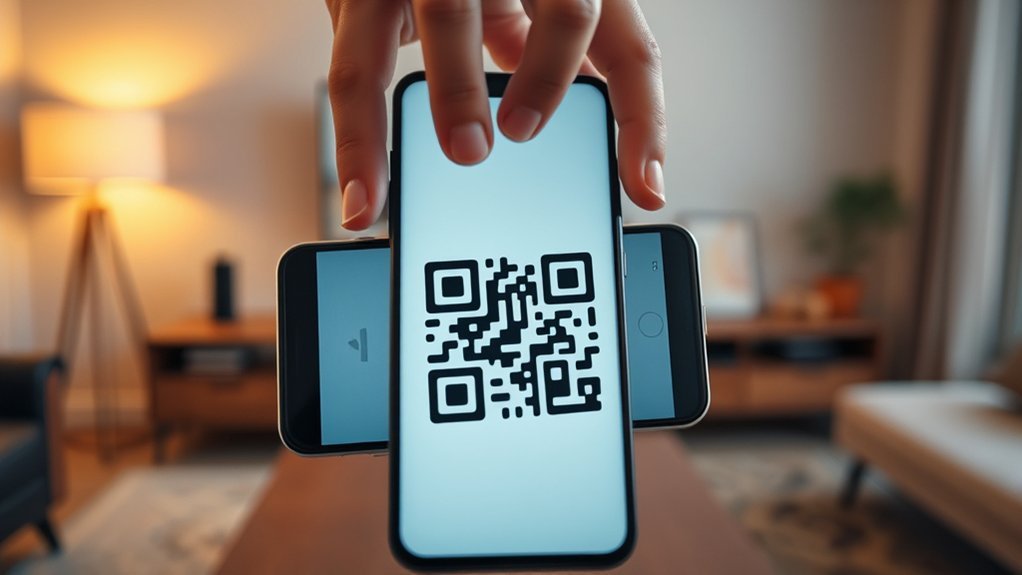
QR-code sign-in is usually the fastest TV option because it moves the authentication steps to your phone. Remote sign-in works when the QR code is unavailable or you prefer to enter the account details on the TV.
QR Code Sign-In
- Open Netflix on the TV and select Sign In.
- Open the camera app on your phone.
- Point the camera at the QR code on the TV.
- Tap the link that appears.
- Tap Sign in to TV.
The TV should sign in automatically. Scan only the QR code displayed inside the Netflix app, and confirm that the page opens on a netflix.com address before entering account information.
Remote Sign-In Option
- Open Netflix and select Sign In.
- Toggle to Use Remote.
- Enter the primary account email address or phone number and select Next.
- Choose Send Sign-In Link if it appears, or choose Use Password Instead.
- Open the link sent to your email or enter the password with the remote.
Not every TV shows the sign-in-link option. If it is missing, use the password, QR code, or browser-code method shown by the device.
Fix Common Netflix Login Problems
Start by testing Netflix on another device. If the account fails everywhere, the problem is likely tied to the credentials or account. If one device works and another does not, focus on the problem device or its network.
| Problem | What to Do |
|---|---|
| Incorrect password | Check capitalization, remove an outdated saved password, or reset the password at netflix.com/loginhelp. |
| Code did not arrive | Check the email address or phone number, inspect spam and promotions folders, select Resend code, or use the password option. |
| Code is incorrect or expired | Use the newest code. Codes expire after 15 minutes. If too many requests were made, use the password or wait a few minutes before trying again. |
| Account not found | Use Netflix’s account-recovery steps for a forgotten email address or phone number. |
| Works on one device only | Restart the problem device, update the app or operating system, and restart the home network. Follow Netflix’s device-specific sign-in troubleshooting. |
| Netflix asks you to sign in repeatedly | Allow Netflix to save cookies or site data in the browser. On an app, sign out, restart the device, and sign in again. |
| VPN, proxy, or location error | Turn off the VPN or proxy and restore custom network settings to their defaults, then try again. |
| Netflix Household or travel message | Connect at home and update the Netflix Household when prompted, or choose the travel or temporary-watching option and complete the verification steps. |
Reset a Forgotten Password
Go to netflix.com/loginhelp and request a reset by email or text. Text recovery works only when a mobile number has been added to the account. Netflix recommends signing out of all devices when you save the new password, especially when you suspect unauthorized access.
Recover a Forgotten Email Address or Phone Number
On the login-help page, choose I don’t remember my email or phone when that option is available. Netflix may ask for the first and last name on the account and the payment card used for the membership. Recovery options vary by payment method and region.
Secure the Account After an Unknown Sign-In
Change the password, sign out of unused or unrecognized devices, and review the profiles and account contact information. Contact Netflix if the account email address was changed without permission or you see suspicious charges.
Warning: Do not enter your Netflix password or payment details on an unfamiliar website. Netflix says it will not ask for passwords, bank details, or card numbers by email or text. Go directly to Netflix.com or the official Help Center when a message looks suspicious.
What to Do After You Sign In
After sign-in, select the correct profile so viewing history and recommendations stay separate. A standard Netflix account can have up to five profiles, while an extra-member account has one profile. You can also:
- Create or edit profiles and set maturity ratings.
- Use parental controls, profile locks, and title restrictions.
- Update the account email address, phone number, payment method, or plan.
- Review recent account access and sign out of devices you do not recognize.
- Search for titles and adjust language, subtitles, autoplay, and playback settings.
- Download eligible titles for offline viewing on supported devices; you must remain signed in to access those downloads.
The safest login habit is simple: use a unique password, open Netflix directly, and verify unfamiliar devices or account changes as soon as you notice them.
Frequently Asked Questions
How do I get access to my Netflix account?
Open Netflix or visit Netflix.com/login, enter the primary account email address or phone number, and use the 4-digit sign-in code or password option. Use Netflix Login Help when you cannot remember the credentials.
Can I sign in to Netflix without a password?
Yes. Netflix may send a 4-digit code by email or text, and supported TVs can use a QR code, browser code, or emailed sign-in link. Codes and links expire after 15 minutes.
Why am I not receiving the Netflix sign-in code?
Check the email address or phone number for mistakes, look in spam and promotional folders, and select Resend code. Use the newest code only. You can also open Get Help and choose Use password instead.
Is netflix.com/activate used to sign in on a TV?
Not in Netflix’s standard TV sign-in instructions. When a TV displays a browser code, Netflix directs most users to netflix.com/tv2 and Apple TV users to netflix.com/atv. Always follow the address shown on the TV.
Is there a senior discount on Netflix?
Netflix does not list a senior-specific plan or discount in its official plans and pricing information. Prices and packages vary by country and may differ when Netflix is included through a mobile, internet, or TV provider.
How do I connect a Hisense TV to Netflix?
Open Netflix from the Hisense home screen, Hicast@ button, All Apps menu, or Roku home screen, depending on the model. Select Member sign in or Sign In and follow the on-screen steps. Netflix provides model-specific Hisense instructions.
How do I log in to Netflix step by step?
Open Netflix, select Sign In, enter the account email address or primary phone number, select Continue, and enter the 4-digit code. To use a password, open Get Help, select Use password instead, and enter the primary account password.
Conclusion
Netflix sign-in is straightforward once you use the method built for your device. Start with the account email address or primary phone number, then complete the code, password, QR-code, browser-code, or sign-in-link prompt. When access fails, check the newest code, reset outdated credentials, restart the problem device and network, and use Netflix’s official troubleshooting steps instead of guessing.
Sources
- Netflix Help Center: How to sign in to Netflix — official TV, mobile, browser, QR-code, remote, and sign-in-code steps.
- Netflix Help Center: Can’t sign in to Netflix — device and network troubleshooting.
- Netflix Help Center: Fix sign-in code, link, and one-time-password issues — code delivery, expiration, and retry guidance.
- Netflix Help Center: How to change or reset your password — password recovery and security steps.
- Netflix Help Center: How to keep your account secure — unique passwords, phishing protection, and device access controls.
- Netflix Help Center: Getting started with Netflix — profiles, recommendations, account settings, and playback controls.
