Last Updated on July 30, 2026 by Caleb Warren
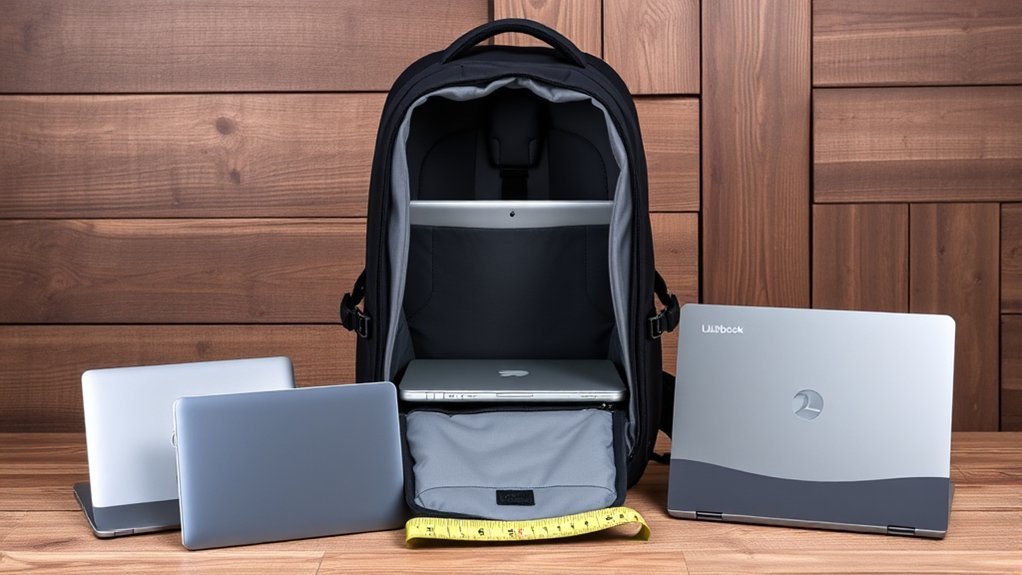
Choosing the right travel backpack for a laptop takes more than matching a “15-inch” or “17-inch” label. The advertised screen size is only a starting point because laptops with the same screen size can have different widths, depths, and thicknesses. Measure the closed laptop body, compare it with the sleeve’s usable dimensions, and then check the backpack’s airline fit, protection, and comfort features.
Quick Answer
Choose a laptop backpack by matching the sleeve’s internal width, depth, and thickness to your closed laptop—not by screen size alone. The laptop should slide in without force and have little room to shift. For flights, also compare the backpack’s packed exterior dimensions with your airline’s current carry-on or personal-item limit.
Key Takeaways
- Use your laptop’s full body dimensions: width, front-to-back depth, and thickness.
- Treat “fits up to 15.6 inches” as a guide, not a guarantee; compare the maker’s maximum device dimensions.
- Look for a padded sleeve with a raised or suspended bottom so the laptop does not rest directly on the bag floor.
- Water-resistant fabric helps with light rain, but it does not make every seam and zipper waterproof.
- Airline limits vary, so measure the backpack when packed and check the exact carrier and fare rules before departure.
At a Glance
| Time Required | About 5–10 minutes to measure and compare specifications |
| Difficulty | Easy |
| Tools Needed | Tape measure or ruler, laptop model specifications, and airline baggage rules |
| Cost | Free to measure; backpack prices vary by size, materials, and protection |
Disclosure: As an Amazon Associate I earn from qualifying purchases. Some links on this page are affiliate links, at no extra cost to you.
Understanding Laptop Backpack Sizes

Laptop backpack labels such as 13-inch, 15-inch, 16-inch, or 17-inch usually refer to the largest screen category the sleeve is intended to hold. They are not universal standards. Two laptops advertised with the same screen size may have different bezels, hinges, rubber feet, cooling sections, and chassis thicknesses.
The safest approach is to compare the backpack maker’s maximum compatible laptop dimensions with the laptop maker’s width, depth, and thickness specifications. For example, Dell lists both a nominal screen range and maximum device dimensions for one of its laptop backpacks. That is more useful than a screen-size claim by itself.
Note: Backpack capacity in liters describes the bag’s total storage volume. It does not tell you whether the laptop sleeve will fit your device.
Measuring Your Laptop for a Perfect Fit

Screen size is measured diagonally across the viewable display. It is useful for identifying a laptop category, but it is not the measurement that determines whether the entire computer fits inside a sleeve. Manufacturer specification pages, such as Apple’s MacBook Air technical specifications, list screen size separately from the computer’s physical size and weight.
How to Measure the Laptop
- Close the laptop and remove any detachable accessories.
- Measure the width from the farthest left edge to the farthest right edge.
- Measure the depth from the front edge to the rearmost hinge or protrusion.
- Measure the thickness at the thickest point, including rubber feet or a permanent protective shell.
- Add any case you plan to use before comparing the result with the backpack sleeve.
- Check the sleeve opening as well as its interior. A narrow zipper or curved opening can make a technically large compartment hard to use.
The laptop should slide in and out without scraping or force. It should not have enough empty room to slam from side to side. A slightly flexible padded sleeve can accommodate small differences, but do not rely on stretching fabric beyond the maker’s stated limit.
Warning: Do not force a laptop into a sleeve or close a zipper against the computer’s corners. Pressure on the lid, ports, or hinge can damage the device even when the zipper technically closes.
The Three Main Laptop Backpack Categories

Laptop backpacks are often grouped into small, medium, and large categories. These ranges are helpful starting points, but actual sleeve dimensions remain the final test. Also consider what else you carry, such as a charger, mouse, headphones, camera, documents, clothing, or a second device.
Small or Compact Backpacks
Small or compact backpacks commonly target 13- to 14-inch laptops, ultrabooks, and tablets. They are easy to carry for commuting, classes, meetings, and short outings. Their limited depth discourages overpacking, but it can also leave little room for a large charger, lunch, camera, or extra clothes.
| Feature | Typical Description |
|---|---|
| Nominal Laptop Range | Often 13–14 inches; verify the body dimensions |
| Design | Lightweight, slim, and easy to organize |
| Best Uses | Daily commuting, classes, meetings, and casual outings |
Medium and Large Backpacks
Medium backpacks commonly target 15- to 16-inch laptops and provide more space for daily work gear. Large backpacks may accept 16- to 17.3-inch laptops, thick mobile workstations, or gaming laptops. However, a “17-inch” label is not a guarantee because gaming models can be unusually deep or thick and may have large rear cooling sections.
Choose the smallest backpack that safely fits the laptop and the gear you regularly carry. A larger bag can be useful for travel, but its packed exterior size—not its liter rating—determines whether it meets an airline limit.
Essential Features for Laptop Safety
A well-sized compartment is only one part of laptop protection. Padding, structure, weather resistance, closures, and load control all affect how well the backpack handles everyday bumps and travel.
Padded Laptop Sleeves
Look for a sleeve that holds the device close to the back panel and uses firm, resilient padding rather than a thin fabric divider. Useful features include:
- Raised or suspended bottom: The sleeve ends above the backpack floor so the laptop is less likely to strike the ground when the bag is set down.
- Side and corner padding: Protection should extend beyond the broad front and back surfaces.
- Secure closure: A strap, zipper, or snug upper edge helps keep the laptop from lifting out of the sleeve.
- Smooth lining: The interior should not contain exposed hardware or rough seams that can scratch the device.
- Separate storage: Chargers, keys, bottles, and other hard objects should not press directly against the laptop.
Water-Resistant Materials
Nylon and polyester can be durable backpack fabrics, but the fiber name alone does not prove that a bag will keep a laptop dry. Water protection also depends on the coating or laminate, seam construction, zipper design, flap coverage, and condition of the bag.
A water-resistant backpack may handle a brief shower or small splash, but it should not be treated as waterproof unless the manufacturer specifically describes the full construction that way. For frequent rain, use a fitted rain cover or place the laptop in a separate water-resistant sleeve or dry bag inside the backpack.
Pro Tip: Keep drinks in an exterior pocket that does not share a wall with the laptop sleeve. A leak inside the main compartment can bypass the backpack’s exterior water-resistant finish.
Structure, Zippers, and Organization
A backpack with some structure is less likely to fold sharply around the laptop. Check that the main zipper does not run directly across an exposed laptop corner and that zipper pulls move without catching. Reinforced stitching at the shoulder straps and grab handle matters as much as the face fabric.
Use separate pockets for the charger, mouse, cables, power bank, passport, and small items. A bright or lightly colored lining can make dark accessories easier to find. Compression straps can control bulky clothing, but they should not squeeze the laptop compartment.
Comfort and Backpack Fit
Choose two adjustable, padded shoulder straps and wear both of them. The backpack should sit close to your back instead of hanging low and pulling backward. A sternum strap can improve stability while walking through airports, and a supportive hip belt may help on larger, heavier travel packs.
Load heavier items near your back and avoid putting dense objects at the outermost front of the bag. If the straps dig in, the pack sways, or you must lean forward to carry it, reduce the load or choose a better-fitting suspension system.
Security and Airport Access
A separate laptop opening can speed up access, but it should not open accidentally. Look for sturdy zipper pulls, lockable zipper tabs where useful, and a compartment that does not expose the laptop when you reach for another item. Hidden pockets can help with passports and wallets, although no backpack replaces normal awareness in crowded places.
Carry-On Requirements for Laptop Bags
There is no single carry-on or personal-item size used by every airline. Limits can vary by carrier, aircraft, route, fare, and whether the backpack must fit under the seat or in the overhead bin.
A 22 × 14 × 9-inch limit is common among major U.S. airlines, but it is not universal. Measure the backpack after packing and verify the operating airline’s current rule.
For example, American Airlines lists a 22 × 14 × 9-inch carry-on maximum, including handles and wheels, while Southwest lists 24 × 16 × 10 inches for a carry-on bag. A personal item normally must fit under the seat, but its exact permitted dimensions may differ by airline.
Do not assume a soft backpack will pass because it can compress. Overfilled front pockets, bottle pockets, handles, and rigid frames count toward the packed size. Regional aircraft may also have smaller storage spaces than the published maximum.
Laptop Screening and Battery Safety
At a standard U.S. security checkpoint, the Transportation Security Administration says laptops should be removed from the bag and placed in a separate bin; TSA PreCheck procedures may differ. A checkpoint-friendly opening can make this easier, but follow the officer’s instructions because screening technology and procedures can vary.
Keep power banks and spare lithium batteries in the cabin. The Federal Aviation Administration requires spare lithium batteries and power banks to remain in carry-on baggage and says their terminals must be protected from short circuit. If a backpack is gate-checked, remove the laptop, power bank, and spare batteries before handing it over.
Tips for Choosing the Right Size Backpack
- Identify the exact laptop model. Use the manufacturer’s specifications when available.
- Record width, depth, and thickness. Include any shell or sleeve that will stay on the computer.
- Check usable sleeve dimensions. Do not rely only on “fits up to” wording.
- List your regular gear. Include the charger, cables, mouse, headphones, documents, bottle, and clothing.
- Choose capacity for the trip. A slim daily bag may be enough for commuting, while a 24- to 30-liter backpack can be practical for some overnight or short trips. Capacity is a packing guide, not a laptop-fit standard.
- Check the packed exterior size. Compare all three dimensions with the airline’s rule.
- Test comfort under a realistic load. Adjust both shoulder straps and walk, turn, climb stairs, and sit down.
Avoid buying extra capacity “just in case” unless you expect to use it. Empty space encourages loose items to shift, while excessive gear adds strain and can push the backpack beyond airline limits.
Long-Term Benefits of the Right Backpack Size
A correctly sized backpack can protect both the laptop and the person carrying it:
- More stable carrying: A laptop that fits the sleeve is less likely to slide, bounce, or pull the load off balance.
- Better device protection: Proper padding and limited movement reduce repeated contact with hard objects and the bag floor.
- Less unnecessary weight: Choosing capacity around real needs makes overpacking easier to avoid.
- Improved organization: Dedicated storage keeps chargers and accessories from pressing against the laptop.
- Easier travel: A bag that fits the airline’s limits is simpler to stow and less likely to require last-minute repacking.
No backpack can guarantee perfect posture or prevent every injury. Comfort depends on the total weight, how the bag is packed, strap adjustment, carrying time, and the user’s body. Stop and adjust the load if you feel pain, numbness, or tingling.
Travel Considerations for Laptop Backpacks
| Consideration | Why It Matters |
|---|---|
| Packed Airline Dimensions | Determines whether the bag fits under the seat or in the overhead bin |
| Padded, Raised Laptop Sleeve | Helps isolate the device from bumps and the bag floor |
| Checkpoint Access | Makes it easier to remove and replace the laptop when instructed |
| Separate Accessory Pockets | Keeps hard items and liquids away from the computer |
| Water-Resistant Construction | Provides limited protection from light moisture; a cover adds protection in heavy rain |
| Trolley Sleeve | Secures the backpack to rolling luggage during long terminal walks |
How to Test the Backpack Before a Trip
- Pack the laptop, charger, accessories, bottle, and the clothing you normally carry.
- Confirm that the laptop enters and leaves the sleeve without force.
- Set the backpack down gently and check that the laptop does not strike the floor through the sleeve.
- Close every compartment and measure the bag at its widest, tallest, and deepest packed points.
- Adjust both shoulder straps and walk for several minutes.
- Check for pressure at the shoulders, lower back, and laptop corners.
- Practice removing the laptop without spilling the rest of the bag’s contents.
Note: Test the backpack while wearing the jacket or coat you expect to use. Strap fit can change when you add bulky layers.
Common Laptop Backpack Sizing Mistakes
- Using screen size as the only measurement: The body may be wider, deeper, or thicker than another laptop in the same screen class.
- Ignoring the sleeve opening: A device may match the interior dimensions but not pass easily through a curved or narrow zipper.
- Forgetting the protective shell: Even a thin case can change the fit.
- Assuming liters equal airline size: Two bags with the same capacity can have very different exterior shapes.
- Trusting “waterproof” casually: Check the manufacturer’s exact wording for fabric, seams, and zippers.
- Overlooking the charger: Large gaming and workstation power bricks need protected storage that does not press against the laptop.
- Measuring an empty bag only: A packed backpack can bulge beyond the airline’s limit.
Frequently Asked Questions
Can I fit clothes in a laptop backpack?
Yes, provided the backpack has enough capacity after the laptop, charger, and daily essentials are packed. Roll or fold compact garments and keep shoes or hard objects away from the laptop sleeve. Do not compress clothing so tightly that it pushes against the laptop lid.
What materials are best for durability?
Ballistic-style nylon, high-quality polyester, coated technical fabrics, and heavy canvas can all be durable. Construction matters just as much as the fabric name. Inspect the zipper quality, reinforced shoulder-strap attachment points, handle stitching, bottom panel, and abrasion-prone corners.
How do I clean my laptop backpack?
Remove all electronics and loose inserts, then follow the backpack maker’s care label. Spot cleaning with mild soap, cool water, and a soft cloth is the safest default for many bags. Do not machine-wash, soak, bleach, or tumble-dry the backpack unless the manufacturer specifically allows it. Air-dry it completely before replacing the laptop.
Are there backpacks specifically for gaming laptops?
Yes. Gaming-laptop backpacks often use deeper sleeves, stronger structure, and larger accessory compartments for a power brick, mouse, headset, and cables. Match the computer’s exact width, depth, and thickness because a thick 16-inch gaming laptop may need more room than a thin 17-inch model.
Can I use a laptop backpack as a carry-on?
Usually, yes, when its packed exterior dimensions meet the airline’s carry-on limit. It may also count as a personal item if it fits the carrier’s under-seat rule. Check the operating airline and fare before travel because limits and allowances vary.
Will a 15.6-inch laptop fit a 15-inch backpack?
It might, but the label alone cannot confirm the fit. Compare the laptop’s full body dimensions with the sleeve’s maximum compatible dimensions. Some 15-inch bags are designed for 15.6-inch computers, while slim sleeves may not fit thicker or wider models.
Should the laptop sleeve be tight or loose?
It should be secure but not tight. The laptop should slide in without force, the zipper should close without pressing on the corners, and the device should have little room to move. A sleeve that is too loose allows impact; one that is too tight can place pressure on the lid and hinge.
Conclusion
Choosing the right travel backpack for your laptop starts with the computer’s actual width, depth, and thickness—not the screen label alone. Match those measurements to the sleeve, choose enough capacity for your real gear, and test the loaded bag for comfort and easy laptop access. Before flying, measure the packed exterior and confirm the airline’s current rules. The result is a backpack that protects your device without adding unnecessary bulk or travel stress.
Sources
- Apple Support: MacBook Air technical specifications — distinguishes diagonal screen size from the computer’s physical dimensions.
- Dell: laptop backpack compatibility specifications — shows why maximum laptop dimensions matter in addition to screen-size labels.
- American Airlines: carry-on bags — current carry-on dimensions and fit requirements.
- Southwest Airlines: carry-on baggage policy — demonstrates that airline size limits are not universal.
- Transportation Security Administration: laptops — checkpoint screening guidance for laptops.
- Federal Aviation Administration: lithium batteries — carry-on and short-circuit requirements for spare batteries and power banks.