
Last Updated on July 24, 2026 by Daniel Globe
Your PS5 may connect to a hotel’s Wi-Fi network but still fail to reach the internet. This usually happens because the hotel uses a captive portal, which is the page that asks for a room number, access code, last name, or acceptance of the network terms. A PS5 does not include a dedicated general-purpose browser app, so completing that login can be unreliable. The methods below give you several safe ways to get connected.
Quick Answer
First, ask the hotel to register your PS5’s MAC address so the console can connect without opening the login page. Other options include a captive-portal-compatible travel router, a Windows mobile hotspot, an active Ethernet port, supported Android Wi-Fi sharing, or a cellular hotspot.
Key Takeaways
- Try connecting directly and testing the connection before using a workaround.
- Hotel staff may be able to register your PS5’s MAC address and approve it without a captive-portal login.
- A compatible travel router is usually the most practical option for frequent travelers.
- Windows can share a hotel Wi-Fi connection, but Mac and phone capabilities vary.
- An iPhone Personal Hotspot uses cellular data and cannot rebroadcast hotel Wi-Fi.
- Hotel network policies, device limits, NAT restrictions, and available speeds vary by property.
At a Glance
| Time Required | About 5 to 15 minutes |
| Difficulty | Easy to moderate |
| Tools Needed | PS5, hotel network details, and optionally a phone, laptop, LAN cable, or travel router |
| Cost | Usually free; mobile data, premium hotel access, or a travel router may cost extra |
Disclosure: As an Amazon Associate I earn from qualifying purchases. Some links on this page are affiliate links, at no extra cost to you.
What You’ll Need
Before you begin, collect the hotel’s Wi-Fi network name and any password, room number, confirmation code, or access instructions provided at check-in. You will also need at least one of the following:
- A smartphone with a cellular hotspot plan
- A Windows laptop that supports Mobile Hotspot
- A Mac with Ethernet or a second compatible network adapter
- A travel router that specifically supports captive portals
- A LAN cable if the room has an active Ethernet port
Most methods take about 5 to 15 minutes. Hotel staff may also need your room details or console MAC address before they can approve the connection.
Try a Direct PS5 Connection First
Start with the normal PS5 connection process. Some hotel systems may display a login or authentication prompt that the console can complete.
- Open Settings > Network > Settings > Set Up Internet Connection.
- Select the hotel’s Wi-Fi network.
- Enter the Wi-Fi password if the network requires one.
- Follow any authentication prompt that appears.
- Go to Settings > Network > Connection Status > Test Internet Connection.
You can review Sony’s current setup instructions in the official PlayStation internet connection guide.
Note: A successful connection to the Wi-Fi network does not always mean the PS5 has internet access. The captive portal may still be blocking traffic until the console or another device is approved.
Understanding Hotel Wi-Fi and Captive Portals
A captive portal is a webpage that appears before a public network grants full internet access. Hotels may ask you to enter a room number, surname, confirmation code, email address, or access voucher. Some portals only require you to accept the hotel’s network terms.
The PS5 does not include a dedicated general-purpose web browser app. It can display limited web content for certain system functions, but many hotel portals do not open or work correctly. When that happens, the console may join the wireless network while PlayStation Network, games, and downloads remain offline.
The safest solution is to have the hotel approve the console directly or use another device that can complete the captive-portal login and provide the PS5 with a separate connection.
Method 1: Ask the Hotel to Register Your PS5 MAC Address
This is usually the best method because it connects the PS5 directly to the hotel network without using mobile data or adding another wireless hop.
- On the PS5, open Settings > System > System Software > Console Information.
- Write down the MAC address shown on the screen.
- Call or visit the front desk.
- Explain that you are connecting a game console that cannot complete the hotel’s captive-portal login normally.
- Ask whether the hotel or its internet provider can register or whitelist the PS5 MAC address.
- After approval, restart the PS5, reconnect to the hotel network, and test the connection.
Sony confirms that the PS5’s console information screen displays its IP address and MAC address in the official console information guide.
Pro Tip: Tell the hotel whether you plan to use Wi-Fi or a LAN cable. Wired and wireless network adapters may use different MAC addresses.
Method 2: Use a Cellular Mobile Hotspot
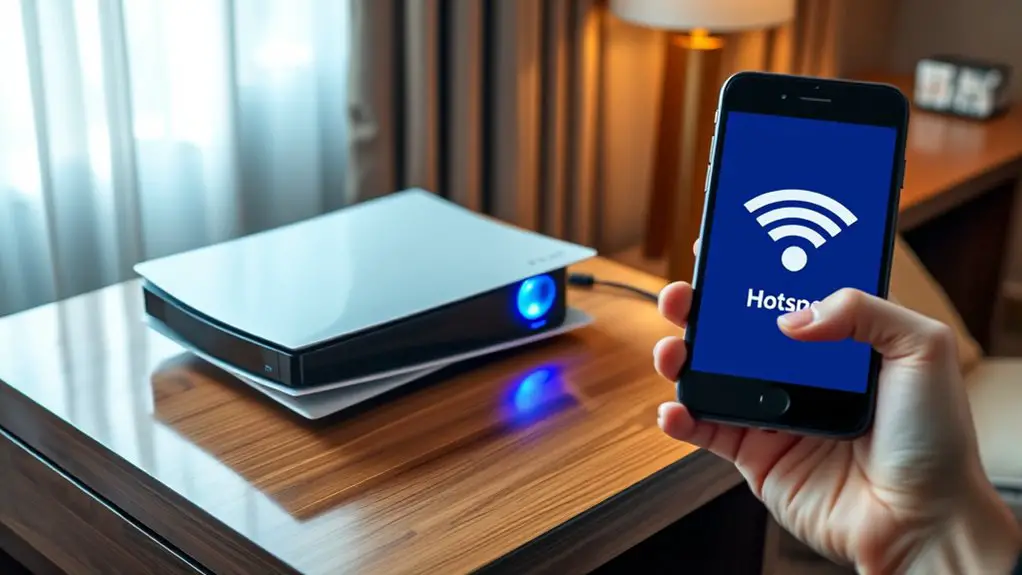
A cellular hotspot avoids the hotel’s captive portal completely. Your phone creates its own Wi-Fi network and sends the PS5’s traffic through your mobile carrier.
- On an iPhone, open Settings > Personal Hotspot. On Android, open the phone’s hotspot or tethering settings.
- Turn on the hotspot and create a strong password.
- Note the hotspot network name and password.
- On the PS5, open Settings > Network > Settings > Set Up Internet Connection.
- Select the phone’s hotspot and enter its password.
- Run a connection test.
Warning: Game downloads, system updates, cloud streaming, and video can use large amounts of mobile data. Check your carrier’s hotspot allowance, speed limits, and roaming charges before starting.
Your phone also needs a strong cellular signal. Weak reception can cause high latency, disconnections, slow downloads, and unstable voice chat.
An iPhone Personal Hotspot shares cellular data only. Apple states that an iPhone cannot connect to hotel Wi-Fi and then rebroadcast that Wi-Fi through Personal Hotspot. See Apple’s Personal Hotspot documentation for current details.
Method 3: Use a Travel Router
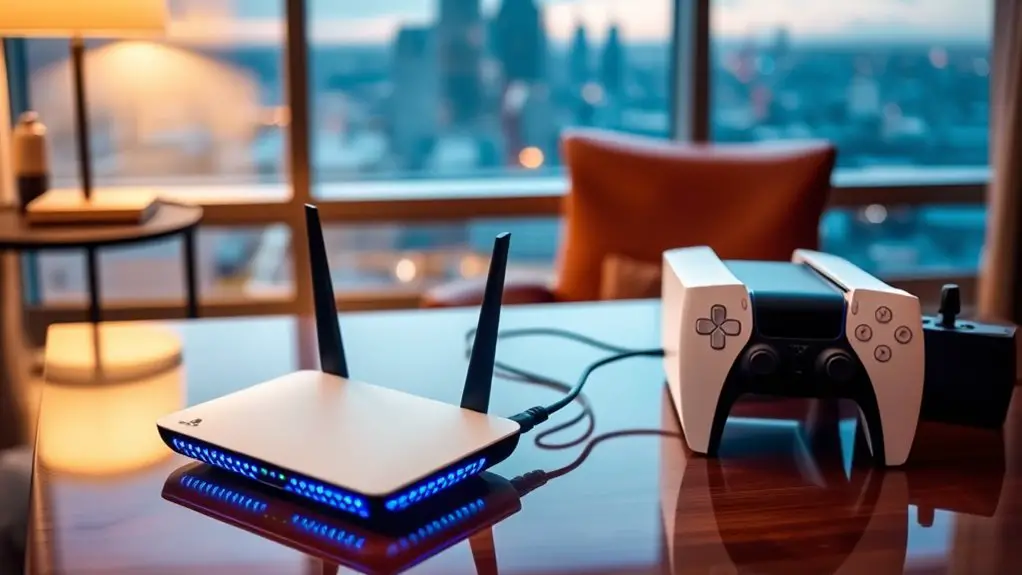
A travel router can connect to the hotel network and create a separate private Wi-Fi network for your PS5 and other approved devices. This is often the most convenient option for frequent travelers, but the router must support repeater or client mode and captive-portal authentication.
- Power on the travel router and connect your phone or laptop to the router’s private Wi-Fi network.
- Open the router’s administration page in a browser.
- Set the router to repeater, client, or Wi-Fi-as-WAN mode.
- Select the hotel’s Wi-Fi network and enter its password if required.
- Use the connected phone or laptop to open and complete the hotel’s captive portal.
- Connect the PS5 to the private Wi-Fi network created by the travel router.
- Run the PS5 internet connection test.
Captive-portal steps differ by manufacturer. For an example of the process, see the GL.iNet captive portal guide.
Pro Tip: Confirm captive-portal support before buying a travel router. Basic routers and Wi-Fi extenders may repeat a signal but still fail to complete hotel authentication.
Note: Ask the hotel whether travel routers are permitted and whether its plan limits the number of devices. Do not use a router to evade a stated network policy.
Method 4: Share Hotel Wi-Fi From a Windows Laptop
Windows 10 and Windows 11 can share a Wi-Fi, Ethernet, or cellular connection through the built-in Mobile Hotspot feature.
- Connect the Windows laptop to the hotel’s Wi-Fi network.
- Open a browser and complete the captive-portal login.
- Open Settings > Network & internet > Mobile hotspot.
- Under Share my internet connection from, select the hotel Wi-Fi connection.
- Under Share over, select Wi-Fi.
- Edit the hotspot name, password, and network band if needed.
- Turn on Mobile hotspot.
- Connect the PS5 to the new hotspot and test the connection.
Microsoft provides the full current workflow in its Windows Mobile Hotspot guide.
Keep the laptop plugged in and prevent it from sleeping during play. The PS5 will lose its connection if the laptop sleeps, shuts down, disconnects from hotel Wi-Fi, or turns off Mobile Hotspot.
Method 5: Share From a Mac or Supported Android Phone
Share a Mac Ethernet Connection Over Wi-Fi
A Mac can share an internet connection, but the incoming connection and outgoing connection normally need separate interfaces. The simplest hotel setup is to receive internet through Ethernet and share it to the PS5 over Wi-Fi.
- Connect the Mac to an active hotel Ethernet port using a built-in port or compatible adapter.
- Complete any hotel login in the Mac’s browser.
- Open System Settings > General > Sharing.
- Open Internet Sharing.
- Choose Ethernet under Share your connection from.
- Choose Wi-Fi under To devices using.
- Set a network name, security option, and password.
- Turn on Internet Sharing and connect the PS5.
Apple explains the available source and output interfaces in its Mac Internet Sharing guide.
Note: A Mac generally cannot use the same built-in Wi-Fi interface to receive hotel Wi-Fi and broadcast a new Wi-Fi hotspot at the same time. Use Ethernet, a supported second network adapter, or a travel router.
Share Hotel Wi-Fi From a Supported Android Phone
Most Android phones can create a hotspot from mobile data. Some models can also share an existing Wi-Fi connection, but the feature depends on the phone, Android version, carrier, and manufacturer.
- Connect the Android phone to hotel Wi-Fi and complete the portal login.
- Open Settings > Network & internet > Hotspot & tethering, or the equivalent menu on your phone.
- Turn on the Wi-Fi hotspot.
- Check whether the phone remains connected to hotel Wi-Fi instead of switching to mobile data.
- Connect the PS5 to the phone’s hotspot and run a connection test.
Google notes that only some Android phones can share an existing Wi-Fi connection. Pixel 3 and later models support Wi-Fi tethering, but steps and availability can differ on other devices. Review the Android tethering guide or your phone manufacturer’s documentation.
Method 6: Use a Hotel Ethernet Port
A wired connection can provide a stronger and more consistent signal if the room has an active Ethernet port. However, a wired connection may still require hotel approval or captive-portal authentication.
- Ask the front desk whether the room’s Ethernet port is active.
- Connect a LAN cable from the wall port to the PS5.
- Open Settings > Network > Settings > Set Up Internet Connection.
- Select Set Up Wired LAN, then select Connect.
- Run the internet connection test.
- If access remains blocked, ask the hotel to register the PS5’s wired MAC address.
A wired connection may reduce interference and packet loss, but it cannot overcome bandwidth limits, blocked gaming ports, or restrictions imposed by the hotel network.
Troubleshooting Common Connection Issues
PS5 Connects to Wi-Fi but Has No Internet
The captive portal probably has not approved the console. Ask the hotel to register the MAC address, use a compatible travel router, or share an authenticated Windows connection.
The Login Page Does Not Appear
Open the hotel network on a phone or laptop and confirm that the portal works there. If it does, contact hotel staff about console registration. Changing DNS servers usually does not remove the portal’s authentication requirement.
Authentication Keeps Failing
Recheck the room number, surname, confirmation code, voucher, and capitalization. Some hotels require a new login after a set period or whenever a device reconnects. The front desk can confirm the correct format and whether your room has reached its device limit.
The PS5 Cannot Obtain an IP Address
Forget the hotel network and reconnect. Restart the PS5, phone, laptop, or travel router you are using. If other devices also cannot obtain an address, the hotel network may be full or temporarily unavailable.
The Connection Is Slow or Unstable
- Move the PS5, phone, laptop, or travel router closer to the hotel access point.
- Use Ethernet when the hotel offers an active port.
- Try the 5 GHz network when its signal is strong.
- Pause game downloads, cloud streaming, and updates on other devices.
- Try again outside busy evening hours.
- Keep hotspot devices plugged into power and prevent them from sleeping.
NAT Type 3 or Multiplayer Features Fail
Hotel networks often use strict firewalls and shared network address translation. This can restrict voice chat, peer-to-peer connections, hosting, Remote Play, or certain multiplayer features. You normally cannot change the hotel’s NAT configuration yourself. Ask hotel support whether gaming traffic is restricted, or try an approved cellular connection.
PlayStation Network May Be Down
If the internet connection test succeeds but PlayStation services remain unavailable, check the official PlayStation Network status page. A PSN outage cannot be fixed by changing the hotel connection.
The Hotel Limits the Number of Devices
Some hotels limit the number of devices registered to a room. Ask the front desk whether it can remove an old device, increase the limit, or approve a travel router. A router may appear to the hotel as one connected device, but you should still follow the hotel’s terms.
Using Hotel Wi-Fi Safely
Hotel Wi-Fi is a shared public network, but that does not mean every connection is exposed. Most modern websites, apps, and online services encrypt traffic. The more immediate risks are connecting to a fake network, entering credentials into a false portal, or using a weak PlayStation Network password.
- Confirm the exact Wi-Fi network name with the hotel.
- Do not enter payment or PlayStation credentials into a portal that looks suspicious.
- Use a unique PlayStation Network password.
- Turn on two-step verification or a passkey for your PlayStation account.
- Keep the PS5 system software and games updated.
- Forget the hotel network after your stay if you do not want the console to reconnect automatically.
The FTC provides additional guidance in its public Wi-Fi safety article.
Note: A PS5 does not provide a normal native VPN setup option. To use a VPN, configure it on a compatible travel router or on a computer that is sharing its connection. A VPN is optional and does not replace the hotel’s captive-portal login.
Frequently Asked Questions
Can I connect multiple devices to hotel Wi-Fi with one login?
It depends on the hotel. Some properties allow several devices per room, while others charge for additional connections. Check with the front desk. A travel router can share one approved connection, but you should confirm that the hotel permits it.
Is hotel Wi-Fi safe for online gaming on PS5?
Modern apps and websites generally encrypt traffic, but you should still confirm the correct network name and secure your PlayStation account with a unique password, two-step verification, or a passkey. Avoid entering account information into an unfamiliar hotel portal.
Do I need to update my PS5 before connecting to hotel Wi-Fi?
An update is not normally required just to connect, but keeping the console current improves security and ensures you have Sony’s latest system fixes. Updates do not guarantee that a hotel captive portal will work. Large updates are best completed before traveling or on an unrestricted connection. You can also review these hotel connections before your stay.
Can hotel Wi-Fi support multiplayer gaming on PS5?
It may, but performance depends on latency, congestion, signal strength, packet loss, and the hotel’s NAT restrictions. Use Ethernet or a strong 5 GHz signal when possible, pause downloads, and avoid the busiest hours. Some hotel networks may block features even when the measured download speed looks adequate.
Will connecting to hotel Wi-Fi void my PS5 warranty?
No. Connecting to a normal wired or wireless network does not void the PS5 warranty. Warranty problems are more likely to involve unauthorized hardware modification, improper repair, or unsupported system-software changes rather than ordinary network use.
Can an iPhone share hotel Wi-Fi with a PS5?
No. Apple states that Personal Hotspot shares the iPhone’s cellular internet connection. It cannot receive hotel Wi-Fi and rebroadcast that same Wi-Fi network to the PS5. Using an iPhone hotspot will therefore use your mobile data plan.
Can I install a VPN directly on a PS5?
The PS5 does not provide a standard native VPN client in its network settings. A VPN can instead run on a compatible travel router or on a computer that shares its VPN-protected connection. You still need to complete the hotel’s captive-portal authentication first.
Why does my PS5 say connected but have no internet?
The PS5 may have joined the hotel’s local Wi-Fi network without being approved for internet access. A captive portal, expired login, device limit, inactive room account, or hotel firewall can cause this. Test the connection and ask the hotel to register the console’s MAC address.
Getting a PS5 online at a hotel usually comes down to choosing the method that matches the hotel’s network and the devices you have available. Start by asking the hotel to register the console’s MAC address. For frequent travel, a captive-portal-compatible router provides a convenient private connection. Windows sharing, Ethernet, supported Android Wi-Fi sharing, and cellular hotspots are useful alternatives when direct registration is unavailable.
Sources
- PlayStation Support: Set Up an Internet Connection — official PS5 wired, wireless, testing, and advanced network settings
- PlayStation Support: Check PS5 System Software and Console Information — confirms the location of the console IP and MAC address
- Microsoft Support: Use Windows as a Mobile Hotspot — Windows Wi-Fi, Ethernet, and cellular connection sharing
- Apple Support: Share a Mac Internet Connection — Mac Internet Sharing source and output configuration
- Apple Support: Share an iPhone Internet Connection — confirms that Personal Hotspot shares cellular data rather than Wi-Fi
- Android Help: Hotspot and Tethering — Android mobile-data and model-dependent Wi-Fi sharing guidance
