
Last Updated on July 24, 2026 by Daniel Globe
Better chest rendering in Minecraft can mean several different things: sharper chest textures, smoother lid animations, container previews, custom storage blocks, or higher frame rates in large storage rooms. Those goals require different tools. A resource pack changes textures, a client mod can change animations or add previews, and a mod developer uses version-specific rendering APIs for dynamic models.
Quick Answer
To improve chest rendering, first choose your goal. Use a resource pack for texture changes, a version-matched client mod for animations or previews, or a performance mod that converts chests to static geometry. Developers should use the current BlockEntityRenderer API instead of old TESR or ISBRH tutorials.
Key Takeaways
- “Better chest render” is best treated as a category unless you have a verified project page for a specific mod.
- Your Minecraft version, mod loader, dependencies, and client or server requirements must all match.
- Textures and lid animations do not automatically reveal the items or stack counts stored inside a chest.
- Modern Forge, NeoForge, and Fabric projects use block entity renderers rather than old
TileEntitySpecialRendererexamples. - Performance-focused mods may remove chest animations to reduce rendering work in large storage areas.
What Is Better Chest Render in Minecraft?
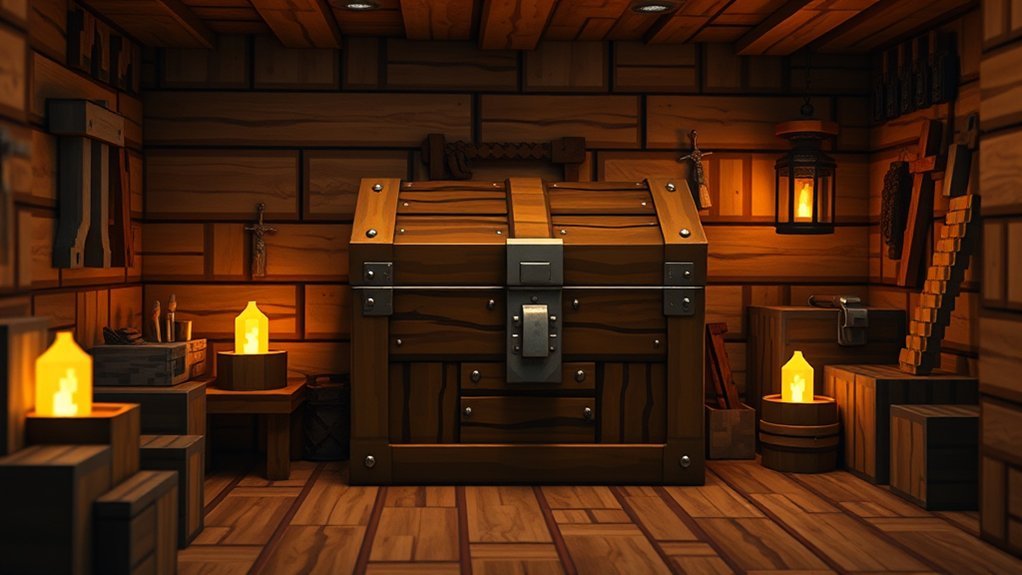
Better chest rendering is a general term for changing how chests look, animate, display information, or affect performance. It is not automatically the name of one universal mod that works with every Minecraft version.
Before downloading anything, decide what you want to change:
| Your Goal | Best Approach | Main Limitation |
|---|---|---|
| Sharper or themed textures | Resource pack | Usually does not add new behavior |
| Different lid speed or animation | Client-side animation mod | Must match the game version and loader |
| See container contents without opening it | Preview or tooltip mod | May require server support or permission |
| Improve FPS near many chests | Static chest or rendering optimization mod | May remove lid animations |
| Add new chest models or storage tiers | Storage mod or custom mod development | Often requires both client and server installation |
Note: Minecraft Bedrock Edition uses add-ons, resource packs, and Marketplace content rather than Java Edition loaders such as Forge, NeoForge, and Fabric. Confirm your edition before following Java mod instructions.
Why Better Chest Rendering Can Improve Gameplay
A well-designed chest texture or model can make storage rooms easier to read. Different colors, labels, trims, or chest tiers can help you identify categories without opening every container.
However, a visual change cannot automatically show what is stored inside a normal chest. For reliable organization, combine clear chest visuals with signs, item frames, renamed containers, color-coded blocks, or a dedicated preview mod.
Chest-related changes can help in four main ways:
- Visual clarity: Better textures can make normal, trapped, Ender, and modded chests easier to distinguish.
- Animation control: Some client mods let you change or disable lid movement.
- Storage information: Preview mods can show container contents through a tooltip or overlay.
- Performance: Optimization mods can reduce the cost of rendering many dynamic chests, sometimes by replacing them with static block geometry.
These features solve different problems. A high-resolution texture pack may improve appearance while lowering performance, while a static-chest mod may improve performance but remove the opening animation.
Better Chest Render Features and Modes
The features you receive depend entirely on the resource pack or mod you choose. A project may offer one feature or combine several.
Texture-Only Changes
A resource pack can replace chest textures, change colors, add seasonal designs, or increase texture resolution. This is the simplest option because it does not normally change storage capacity or gameplay logic.
Resource packs are also the safest choice for players who only want a different look. They are easier to remove and are less likely to break a world than a storage mod that adds new blocks or inventory data.
Animation Controls
Animation mods can change how far a lid opens, how quickly it moves, or whether the animation appears at all. For example, the Fancy Chests project page describes configurable chest animation controls for supported older game versions.
Always check the project’s Files page. A mod that supports Minecraft 1.20.4 should not be assumed to work on a later release.
Container Previews
A preview mod may display items, stack counts, enchantments, or tooltips when you look at a container. This is a separate feature from chest rendering. It may need server support because a client cannot display information it has not received.
On public servers, preview overlays, chest finders, and ESP-style tools may be restricted even when they are technically client-side. Read the server rules before using them.
Static Chest Optimization
Normal chests use dynamic rendering because their lids move. Performance mods such as FastChest Reforged can render chests as static chunk geometry instead. This may improve FPS in chest-heavy areas, but it removes the normal lid animation.
Custom Storage Blocks
Storage mods can add metal, crystal, diamond, obsidian, or other chest tiers. These projects may change capacity, blast resistance, transparency, item display, recipes, and automation support. They usually affect game data, so removing them from an existing world can cause blocks or stored items to disappear.
How Better Chest Rendering Works in Game
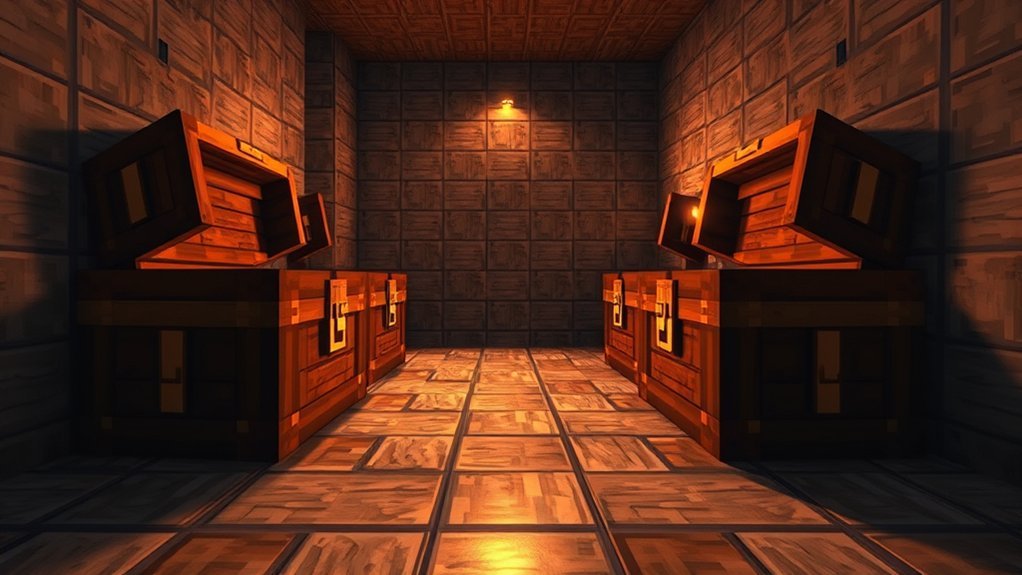
Minecraft chests are not handled exactly like ordinary static cubes. Their lids move, double chests join together, and the renderer must account for position, direction, texture, lighting, and animation state.
How Chest Rendering Works for Players
From a player’s point of view, the selected pack or mod may change one or more layers:
- The chest texture displayed on the model
- The model shape or proportions
- The opening and closing animation
- The inventory item appearance
- An overlay that previews stored items
- The method used to draw chests in the world
A resource pack normally affects assets. A mod can also replace rendering logic, track animation values, draw extra elements, or change whether a chest uses dynamic or static geometry.
How Custom Chest Rendering Works for Developers
Modern Forge uses a BlockEntityRenderer for blocks that need dynamic rendering beyond a normal baked model. The official Forge BlockEntityRenderer documentation explains the renderer, pose stack, buffer source, lighting values, partial ticks, and renderer registration.
NeoForge also uses block entity renderers. Developers should follow the documentation for the exact NeoForge and Minecraft version they target because recent rendering releases have added render-state and submission changes. See the NeoForge BlockEntityRenderer guide.
Fabric provides its own registration workflow through BlockEntityRenderers. Current documentation uses a render-state and submission system for dynamic block visuals. See the Fabric block entity renderer guide.
Warning: Tutorials based on TileEntitySpecialRenderer, TESR, ISimpleBlockRenderingHandler, direct OpenGL calls, or old ModelChest examples may target much older Minecraft versions. Do not copy them into a current project without checking mappings and loader documentation.
Developers should also separate client rendering code from common or dedicated-server code. Loading client-only renderer classes on a dedicated server can cause startup crashes.
How to Install a Chest Rendering Mod
There is no single installation file that works for every type of chest improvement. Start with the official project page for the exact resource pack or mod you selected.
At a Glance
| Time Required | About 10–20 minutes, plus download time |
| Difficulty | Easy if the game version and loader match |
| Tools Needed | Minecraft Java Edition, a compatible loader, the verified mod file, required dependencies, and a world backup |
| Cost | Many community mods and resource packs are free; check the project page and license |
1. Confirm Your Minecraft Edition and Version
These instructions apply to Minecraft Java Edition. Open the launcher and write down the exact version used by your profile or modpack.
Do not rely only on the first two version numbers. A file made for one point release may fail on another release even when the names look similar.
2. Confirm the Required Loader
Check whether the project requires Forge, NeoForge, Fabric, Quilt, or no loader at all. A Fabric file cannot be placed into a Forge profile, and a NeoForge build should not be assumed to work with Forge.
3. Read the Project Requirements
Check the project description and Files page for:
- Supported Minecraft versions
- Supported mod loaders
- Required libraries or APIs
- Client-only or client-and-server installation
- Known conflicts
- Configuration instructions
4. Back Up Your World and Instance
Copy the world folder before adding a new storage or rendering mod. A cosmetic client mod is usually easier to remove, but a mod that adds new chests may store important block and inventory data in the world.
5. Download From the Verified Project Page
Use the developer’s official repository or a recognized project page. Avoid files reuploaded to unrelated download sites, shortened links, or pages that do not identify the developer and supported versions.
Warning: Never run a random executable to install a normal Minecraft mod. Java mods are usually distributed as .jar files and should be loaded through the correct launcher profile or mod loader.
6. Install Required Dependencies
Some Fabric projects require Fabric API or Cloth Config. Other mods may require a rendering library or configuration library. Download every required dependency for the same Minecraft version and loader.
7. Place the File in the Correct Instance
For the standard launcher, common default locations include:
- Windows:
%appdata%\.minecraft\mods - macOS:
~/Library/Application Support/minecraft/mods - Linux:
~/.minecraft/mods
Third-party launchers and modpack managers often create a separate folder for each instance. Open the instance folder from the launcher instead of assuming the standard .minecraft folder is being used.
8. Launch the Correct Profile
Select the profile containing the required loader. After the game starts, check the Mods screen or loader information to confirm that the project and its dependencies loaded.
9. Test in a Copy of Your World
Place a normal chest, double chest, trapped chest, and Ender chest. Check textures, lid movement, inventory appearance, lighting, and FPS. If the project adds storage blocks, test crafting, breaking, upgrading, saving, and reopening the world.
Pro Tip: Keep a clean test profile with only the loader, required dependencies, and the chest mod. If the feature works there, add your other mods in small groups until you identify any conflict.
Best Settings for Better Chest Rendering
There is no universal graphics preset for every chest mod. High-resolution textures, shaders, preview overlays, and animated custom models can affect systems differently. Start with a stable baseline and change one setting at a time.
Optimal Visual Settings
- Graphics mode: Use Fancy or Fabulous only when your frame rate remains stable. Some transparency effects may need a specific mode, but many chest textures look the same on Fast.
- Mipmap levels: Try a moderate value such as 2–4 if textures shimmer or look harsh at a distance.
- Render distance: Use the highest distance your system can hold steadily. Chest quality does not require a fixed 16-chunk distance.
- Shaders: Treat shaders as optional. Disable them first when diagnosing low FPS or visual conflicts.
- Resource-pack resolution: Lower the texture resolution if memory use, loading time, or stuttering increases.
Lighting and Visibility
Brightness and in-world light sources often improve chest visibility more reliably than a rendering mod. Use torches, lanterns, glowstone, or other light blocks so labels and chest faces remain visible.
Smooth lighting can soften block transitions, but shader packs may alter shadows, reflections, and color balance. If a chest becomes too dark or glossy, test it without shaders before blaming the chest pack.
For storage organization, use signs or item frames above each row. A clear label provides more useful information than a decorative texture alone.
Performance and Compatibility
Test performance in the same place before and after installing the mod:
- Stand in the center of the storage room.
- Face the same direction.
- Use the same render distance and graphics settings.
- Wait for chunks to finish loading.
- Record the normal FPS range for 30–60 seconds.
- Install or enable the chest change.
- Repeat the test under the same conditions.
Look at frame consistency as well as the highest number. A mod that briefly reaches a higher FPS but creates frequent stutters may not be an improvement.
- Disable shaders before lowering every other setting.
- Test preview overlays separately because they may scan nearby containers or draw extra GUI elements.
- Remove duplicate mods that change the same chest renderer or model.
- Use V-Sync only when you want to reduce visible tearing. It is not a direct chest-rendering repair.
- Update the game, loader, Java runtime, and graphics driver only when the selected mod supports the new versions.
Better visuals and better performance are different goals. Animated or transparent chests may add rendering work, while static chest optimizers may improve FPS by removing animation.
Common Better Chest Render Problems
| Problem | Likely Cause | What to Do |
|---|---|---|
| The mod does not appear | Wrong instance, loader, or game version | Open the active instance folder and compare the file’s supported loader and version |
| Game crashes during startup | Missing dependency or incompatible mod | Read logs/latest.log and the crash report, then install the named dependency or remove the conflicting file |
| Chest still looks normal | Pack is disabled, another pack overrides it, or the feature applies only to modded chests | Check resource-pack order, configuration settings, and the project description |
| Purple-and-black chest texture | Missing texture, incorrect resource path, or version mismatch | Test the pack alone and download the correct release from the project page |
| Lid is frozen or moves incorrectly | Animation mod conflict or static-rendering optimization | Disable other chest, animation, model, and performance mods one at a time |
| Item form looks different from the placed block | World renderer and inventory renderer use separate assets or code paths | Check whether the project supports custom item rendering for your version |
| FPS drops near storage rooms | Shaders, high-resolution textures, transparent models, previews, or many dynamic block entities | Disable shaders and previews, lower pack resolution, and compare with a static-chest optimizer |
| Works in single-player but not on a server | Server component is required or the server blocks the feature | Check the project environment requirements and ask the server administrator |
For general crashes or severe lag, start with a restart and a clean test profile. Minecraft’s official crash and lag troubleshooting guide also covers basic device, software, and connection checks.
Better Chest Rendering in Survival and Multiplayer
Cosmetic chest textures can make a survival base easier to navigate, especially when you use different visual themes for building blocks, food, tools, redstone, and mob drops.
In multiplayer, the effect depends on the project:
- A normal resource pack is usually client-side.
- A simple animation-control mod may be client-side.
- A mod that adds new chest blocks usually needs to be installed on the server and every connecting client.
- A preview mod may require server support to access accurate inventory data.
- A chest finder, ESP, or remote-preview feature may violate server rules.
Warning: Better visuals do not protect shared loot. Locks, claims, permissions, private containers, and anti-theft tools require separate server-side features.
When using shared storage, combine clear labels with agreed categories and overflow space. This reduces confusion without relying on a mod that every player may not have installed.
Better Chest Render Alternatives
Choose an alternative based on the result you need, not only the project name.
| Option | Best For | Important Check |
|---|---|---|
| Resource pack | New chest colors, detail, themes, or resolution | Pack format and conflicts with other resource packs |
| Fancy Chests | Configurable lid animation on supported versions | Its listed releases mainly target older Minecraft versions |
| FastChest Reforged | Improving FPS around many chests | Static rendering removes lid animation and may conflict with chest resource packs |
| Preview Chest | Viewing container contents through an overlay | Loader, server compatibility, data access, and server rules |
| Iron Chests | Adding larger storage tiers and special chest types | It changes gameplay and world data, not only rendering |
| Signs and item frames | Simple vanilla storage organization | Requires manual labeling but no mod compatibility work |
Project support changes over time. Use the Files page to confirm the exact Minecraft version and loader instead of downloading the first file shown in a search result.
Frequently Asked Questions
Is a diamond or obsidian chest better?
Neither chest exists in vanilla Minecraft, so the answer depends on your storage mod and version. In common Iron Chests implementations, diamond and obsidian chests can have the same number of slots, while the obsidian chest adds blast resistance. Check your mod’s documentation before choosing.
What is the rarest thing to find in a Minecraft chest?
There is no single permanent answer. Chest rarity depends on the structure, loot table, Minecraft edition, and game version. Enchanted golden apples, rare armor trims, music discs, templates, and certain high-value items can all have low chances in specific locations.
Are barrels less laggy than chests?
Barrels have no moving lid, so their client-side visuals are simpler. However, both barrels and chests are container block entities, and barrels are not guaranteed to fix lag. Test the complete storage room on your version, hardware, server, and mod setup.
How many chests should I use in an auto sorter?
There is no fixed total. Use at least one destination container for each filtered item or category, then add overflow storage for high-volume materials. Leave room for future categories and test what happens when one destination becomes full.
Is Better Chest Render an official Minecraft mod?
The phrase can describe several types of chest improvements, but you should not assume it identifies one official or universal mod. Verify the developer, project page, Minecraft version, loader, dependencies, and file name before downloading anything.
Can a resource pack change chest animations?
A normal resource pack can change textures and some model-related assets, but changing lid behavior generally requires a mod or a version-specific rendering feature. Read the pack description to see exactly what it supports.
Do chest rendering mods work on multiplayer servers?
Some cosmetic mods work only on the client, while mods that add blocks, inventories, permissions, or synced data usually require server installation. Preview and finder features may also be restricted by server rules. Check both the project environment and the server policy.
Conclusion
Better chest rendering can improve appearance, organization, animation control, container previews, or storage-room performance, but one tool rarely provides every benefit. Start by identifying your goal, then choose a resource pack or mod that matches your exact Minecraft version and loader.
For players, the safest process is to back up the world, install only verified files, test the mod in a clean profile, and compare performance under the same conditions. For developers, use the current block entity rendering documentation for Forge, NeoForge, or Fabric rather than copying legacy TESR and ISBRH code.
Sources
- Forge BlockEntityRenderer Documentation — current Forge concepts for dynamic block entity rendering and registration.
- NeoForge BlockEntityRenderer Documentation — current NeoForge renderer and render-state guidance.
- Fabric Block Entity Renderer Documentation — Fabric registration, render-state extraction, and rendering workflow.
- Minecraft Help: Fix Crashes and Lag Issues — official basic troubleshooting for crashes, lag, devices, and software.
- Fancy Chests Project Page — version-specific configurable chest animation features.
- FastChest Reforged Project Page — static chest rendering and the trade-off of removing lid animations.
