
Last Updated on July 25, 2026 by Daniel Globe
Connecting a PS4 to hotel Wi-Fi is usually straightforward until the network asks for a room number, access code, or agreement through a browser. The key is to treat the Wi-Fi connection and the hotel login page as two separate steps. You may also need the console’s MAC address if the hotel registers devices manually.
Quick Answer
On your PS4, open Settings > Network > Set Up Internet Connection > Use Wi-Fi > Easy, then select the hotel network. Enter its Wi-Fi password if required. If internet access fails, open the PS4 Internet Browser to complete the hotel’s login page or ask the front desk to register the console’s MAC address.
Key Takeaways
- Use Settings > Network > Set Up Internet Connection > Use Wi-Fi > Easy to select the hotel network.
- A Wi-Fi password is entered during network setup, while a room number, surname, code, or terms agreement normally belongs on the hotel’s browser-based login page.
- If the login page does not appear, open the PS4 Internet Browser or ask the hotel to register the console’s MAC address.
- A NAT Type 3 result can limit multiplayer, voice chat, or peer-to-peer features, and hotel staff may be the only people able to change the network policy.
- Never unplug, reset, or reconfigure hotel-owned networking equipment.
At a Glance
| Time Required | About 5–15 minutes |
| Difficulty | Easy to moderate |
| Tools Needed | PS4, controller, TV, hotel network details, and optional Ethernet cable or phone hotspot |
| Cost | Usually free; premium hotel access or mobile data may cost extra |
Disclosure: As an Amazon Associate I earn from qualifying purchases. Some links on this page are affiliate links, at no extra cost to you.
How Hotel Wi-Fi Works With a PS4
Hotel networks often use a captive portal. This is the page that asks you to accept terms, enter your room number and surname, or type an access code before the network grants full internet access.
The PS4 must first connect to the wireless access point. It must then complete the portal, either through its browser or through manual device registration by hotel staff. A console can therefore show that it obtained an IP address while still failing the internet or PlayStation Network portion of its connection test.
Note: The password used to join the wireless network is not always the same as the room number, surname, or access code requested by the hotel login page.
What to Get From the Hotel Before Connecting
Ask the front desk or check the welcome materials for the following information:
- The exact hotel Wi-Fi network name, also called the SSID
- The wireless password, if the network is protected
- Any room-number, surname, voucher-code, or terms-of-use requirement
- The number of devices allowed per room
- Whether game consoles must be registered by MAC address
- Whether the room has an active Ethernet jack
- Whether a paid internet tier changes speed, device limits, or network restrictions
Warning: Confirm the exact network name with hotel staff. Do not enter a PlayStation password, payment details, or personal information on an unexpected login page or a page displaying a security warning.
How to Connect a PS4 to Hotel Wi-Fi
Step 1: Open the PS4 Network Setup
- Turn on the PS4 and sign in to your local user profile.
- Open Settings from the home screen.
- Select Network.
- Select Set Up Internet Connection.
- Choose Use Wi-Fi.
- Select Easy.
This is the standard wireless setup route in the official PlayStation connection instructions. Easy setup automatically selects the normal IP, DNS, MTU, and proxy settings used by most hotel networks.
Step 2: Select the Hotel Network
Choose the hotel’s exact network name from the list. Enter the Wi-Fi password if the network displays a lock symbol.
Do not type a room number or surname into the Wi-Fi password field unless the hotel specifically says that it is the wireless password. Those details usually belong on the captive portal after the PS4 joins the network.
Step 3: Run the Initial Connection Test
After setup, select Test Internet Connection. The test may succeed immediately, or it may obtain an IP address and then fail at the internet or PSN stage because the hotel portal has not been completed.
Step 4: Open the Hotel Login Page
If the test does not provide full internet access:
- Return to the PS4 home screen.
- Open Internet Browser from the content area.
- Try opening the hotel’s website or enter
http://example.comin the address bar. - Wait for the hotel login page to redirect.
- Enter the requested room number, surname, access code, or other hotel-issued details.
- Accept the hotel’s terms only after confirming that the page belongs to the property or its network provider.
- Close the browser and run Settings > Network > Test Internet Connection again.
The PS4’s browser can be opened from the content area, as described in the official PS4 Internet Browser guide.
Pro Tip: Loading a basic HTTP address can trigger a captive portal more reliably than opening a bookmarked HTTPS page, which may refuse an unexpected redirect.
Step 5: Ask the Hotel to Register the PS4 if Needed
Some hotels do not display a usable portal on game consoles. In that case, ask the front desk or internet-support provider to register the PS4 manually.
To find its MAC address:
- Open Settings.
- Select System.
- Select System Information.
- Read the MAC address to the hotel representative exactly as displayed.
Sony confirms that the console’s MAC address appears under Settings > System > System Information.
After the hotel registers the device, wait for the representative’s instructions and test the connection again.
Connection Steps at a Glance
| Step | What to Do |
|---|---|
| 1 | Get the correct SSID, wireless password, and hotel login details. |
| 2 | Open Settings > Network > Set Up Internet Connection. |
| 3 | Choose Use Wi-Fi > Easy and select the hotel network. |
| 4 | Enter the wireless password if one is required. |
| 5 | Open the Internet Browser and complete the hotel portal. |
| 6 | Provide the MAC address to hotel support if the portal will not work. |
| 7 | Run Test Internet Connection and review the results. |
How to Read the PS4 Connection Test
The PS4 connection test reports several separate results. Knowing which item fails can point you toward the correct solution.
- Obtain IP Address: Confirms whether the hotel network assigned an address to the PS4.
- Internet Connection: Confirms whether the console can reach the internet beyond the hotel network.
- PlayStation Network Sign-In: Confirms whether the console can reach and sign in to PSN.
- NAT Type: Shows how the network handles connections between the PS4 and other systems.
- Connection Speed: Displays estimated download and upload speeds.
The official PS4 connection-test guide explains these fields. The displayed speed figures are estimates, and the test does not provide a true gaming-latency or ping measurement.
What NAT Type Means at a Hotel
- NAT Type 1: The console is connected directly to the internet. This is uncommon on hotel networks.
- NAT Type 2: The console connects through a router but usually supports normal online features.
- NAT Type 3: The hotel firewall or router is using stricter controls. Multiplayer connections, voice chat, party features, or peer-to-peer communication may be limited.
A guest normally cannot change a hotel’s NAT rules. If Type 3 causes problems, ask hotel support whether it can place the console on a less restricted guest network. Otherwise, use an authorized wired connection or a personal hotspot with a suitable data plan.
Troubleshooting PS4 Hotel Wi-Fi Problems
The Hotel Network Does Not Appear
- Confirm the exact SSID with the front desk.
- Move the PS4 away from cabinets, televisions, metal objects, and other electronics.
- Move the console closer to the room entrance or another area with a stronger signal.
- Select the manual setup option only if hotel support gives you the exact network name and security details.
- Ask whether the property uses a network band or configuration that is incompatible with your PS4 model.
The PS4 Says the Wi-Fi Password Is Wrong
- Re-enter the password carefully, including uppercase letters and symbols.
- Confirm that you are using the wireless password rather than the room number or captive-portal code.
- Ask whether the password changed recently.
- Check whether you selected a similarly named conference, staff, or neighboring network.
The PS4 Obtains an IP Address but Internet Access Fails
This usually means the console joined the local Wi-Fi but has not completed the hotel portal.
- Open the PS4 Internet Browser and try to trigger the login page.
- Confirm that the room number, surname, and access code match the hotel’s records.
- Ask whether the room has reached its device limit.
- Ask hotel support to remove an old device or register the PS4 MAC address.
Internet Works but PSN Sign-In Fails
- Check the official PlayStation Network status page.
- Restart the PS4.
- Confirm that the console’s date and time are correct.
- Sign out of the hotel portal and authenticate again if the session has expired.
- Ask hotel support whether gaming services or required network traffic are restricted.
The Connection Keeps Dropping
- Move the PS4 to a more open position.
- Avoid placing it behind the television or inside a closed cabinet.
- Pause game downloads, application updates, and streaming on your other devices.
- Try playing outside peak evening hours when the guest network may be crowded.
- Use an authorized Ethernet connection if the room provides one.
The Hotel Login Page Will Not Load
- Close and reopen the PS4 Internet Browser.
- Load
http://example.comto request a fresh redirect. - Restart the PS4 and repeat the Easy Wi-Fi setup.
- Ask the hotel to register the PS4 manually by MAC address.
- Ask whether the hotel’s portal supports game consoles.
Warning: Do not press reset buttons, unplug access points, restart hotel routers, or attempt to access the property’s network-administration controls. Report equipment problems to hotel staff.
How to Improve the PS4 Wi-Fi Signal
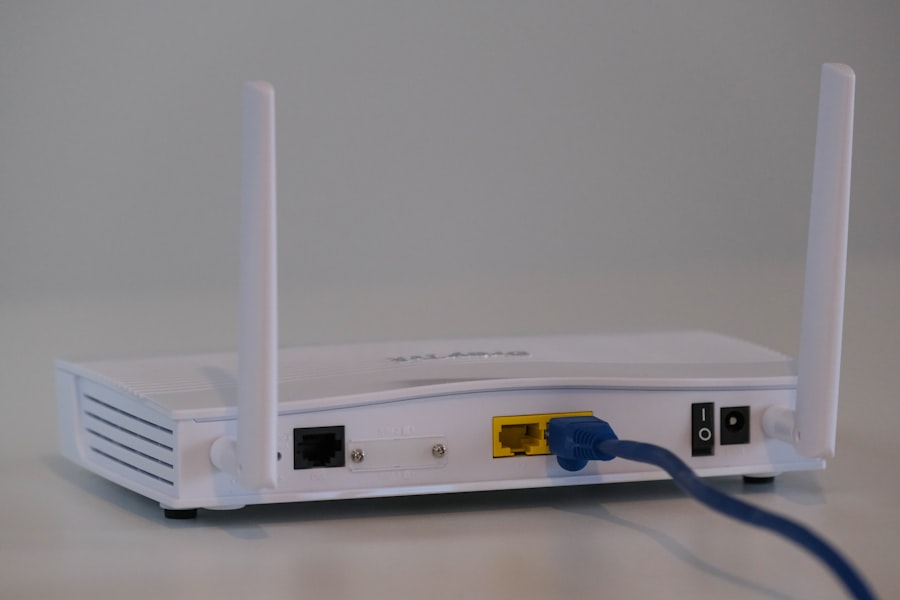
Walls, mirrors, metal furniture, televisions, and other electronics can weaken or reflect a wireless signal. Place the PS4 in an open, ventilated area instead of hiding it behind the television or inside a cabinet.
Try several safe positions within reach of the HDMI and power cables. In many rooms, the signal may be stronger near the entrance, desk, or hallway-facing wall because an access point is located outside the room.
Do not block the PS4’s ventilation openings while moving it. A stronger signal is not worth creating an overheating risk.
How to Improve Gaming Performance on Hotel Wi-Fi
Hotel internet is shared among many guests, so performance can change throughout the day. These steps can reduce problems within your control:
- Pause PS4 game downloads and system updates before starting multiplayer.
- Stop video streaming and large downloads on your phone, tablet, or laptop.
- Disconnect personal devices you are not using if the hotel enforces a device limit.
- Use a wired connection when the hotel provides an active Ethernet jack and permits console use.
- Ask what a premium internet tier actually changes before paying for it.
- Choose a nearby game server when the game provides a region or server selector.
- Check the game’s own latency display because the PS4 connection test does not report ping.
A premium hotel plan may offer more bandwidth, but it does not guarantee low latency or a less restrictive NAT type. Ask the property or its internet-support provider whether the upgrade changes speed, device limits, or firewall restrictions.
Alternative Ways to Connect
Use a Hotel Ethernet Connection
If the room has an active Ethernet jack, connect a LAN cable between the wall port and the PS4. Then open:
Settings > Network > Set Up Internet Connection > Use a LAN Cable > Easy
A wired link can improve stability, but the hotel may still require browser authentication or MAC-address registration. Ask before connecting to an unlabeled wall port.
Use a Phone Hotspot
A smartphone hotspot can bypass a hotel captive portal. Enable the hotspot, then connect the PS4 to its network name through the normal Wi-Fi setup.
Check your carrier plan first. Game downloads, updates, streaming, and cloud features can consume a large amount of mobile data, and hotspot performance depends on cellular coverage.
Use a Travel Router
A travel router may connect to the hotel network and share that connection with the PS4 and your other devices. However, captive portals, device-isolation rules, and hotel policies can prevent this method from working.
Use a travel router only when the property permits it, and follow the router manufacturer’s setup instructions. Do not connect it to hotel network equipment or wall ports without authorization.
Public Wi-Fi Security Tips for PS4 Users
Hotel Wi-Fi is a shared public network. Before connecting:
- Confirm the network name and login procedure with hotel staff.
- Keep the PS4 system software updated.
- Use a strong, unique PlayStation password.
- Enable two-step verification on your PlayStation account.
- Do not continue through unexpected certificate or security warnings.
- Avoid entering sensitive personal or payment information into an unfamiliar hotel portal.
- Sign out of the hotel portal if it provides a logout option.
The Federal Trade Commission’s public Wi-Fi guidance recommends protecting accounts with strong passwords and two-factor authentication and checking that websites use secure connections.
How to Disconnect the PS4 From Hotel Wi-Fi
You do not need to use Custom setup or search for a “Do Not Use” option. To take the PS4 offline:
- Open Settings.
- Select Network.
- Clear the checkbox beside Connect to the Internet.
When you reach another property or return home, open Settings > Network > Set Up Internet Connection and configure the new network normally.
Hotel access usually expires automatically after checkout. If the property’s portal provides a sign-out page, use it before leaving. You can also sign out of sensitive apps or accounts that you do not want left active on the console.
For other trip-planning ideas, the original travel resources cover solar-powered camping lanterns, practical traveler pants, and choosing a travel camera backpack.
Frequently Asked Questions
What is the process for connecting a PS4 to hotel Wi-Fi?
Open Settings > Network > Set Up Internet Connection > Use Wi-Fi > Easy. Select the hotel network and enter its wireless password if required. Run the connection test, then open the PS4 Internet Browser to complete any room-number, access-code, or terms page.
How do I open the hotel Wi-Fi login page on a PS4?
Join the hotel network first, then open Internet Browser from the PS4 content area. Try loading the hotel website or enter http://example.com to trigger the captive portal. If no page appears, ask the hotel to register the console’s MAC address.
Where can I find the PS4 MAC address?
Open Settings > System > System Information. Read the MAC address exactly as displayed when speaking with the hotel’s front desk or internet-support provider.
Can every hotel accommodate a PS4 connection?
No. Some properties limit the number or type of devices, block gaming traffic, use an incompatible portal, or enforce a restrictive NAT. Contact the property before arrival when online gaming is an important part of your stay.
Do I need additional equipment to connect?
Usually not. The PS4 can connect directly through Wi-Fi. An Ethernet cable can help when the room has an authorized wired connection. A phone hotspot or permitted travel router can serve as a fallback, but either option may involve extra costs or restrictions.
Why does my PS4 show NAT Type 3 at a hotel?
Hotels often use strict firewalls, shared addressing, and client-isolation rules. These controls can produce NAT Type 3 and limit voice chat or multiplayer connections. Guests normally cannot change the router settings, so ask hotel support whether another guest network or an authorized wired option is available.
Can I connect my PS4 through my phone’s hotspot?
Yes. Turn on the phone’s hotspot, then select its network through the PS4 Wi-Fi setup. Check your plan’s hotspot allowance and data charges first, especially before downloading games or updates.
What should I do when the PS4 connects to Wi-Fi but not PSN?
Complete the hotel portal, rerun Test Internet Connection, and check the official PlayStation Network status page. If internet access succeeds but PSN still fails, restart the PS4 and ask hotel support whether gaming services are restricted.
Sources
- PlayStation: Set Up an Internet Connection — official PS4 wireless and wired setup steps
- PS4 User’s Guide: Test Internet Connection — IP, internet, PSN, NAT, and speed-test results
- PS4 User’s Guide: System Information — location of the console’s MAC address
- PS4 User’s Guide: Using the Browser — official PS4 browser controls
- PlayStation Network Service Status — current PSN availability
- Federal Trade Commission: Public Wi-Fi Safety — account and public-network security guidance

