
Last Updated on September 11, 2026 by Daniel Globe
Google Maps can help you locate rest areas before or during a road trip, but it does not use one universal rest-area layer with guaranteed amenity details. The most reliable method is to search for terms such as rest area, rest stop, service plaza, or welcome center, open each listing, and add a suitable stop to your route. You should also confirm closures, access direction, and available facilities through the relevant transportation agency.
Quick Answer
Open Google Maps and search “rest area,” “rest stop,” “service area,” or “welcome center” near your location, highway, or destination. Open a result to check its details, then tap Directions or add it as a stop. During mobile navigation, use Search along route. Verify closures and amenities through an official transportation source.
Key Takeaways
- Search several terms because facilities may be listed as rest areas, service plazas, welcome centers, or travel centers.
- Use Search along route during mobile navigation or add a selected location as a planned stop.
- Check which side and direction of the highway the facility serves before adding it.
- Treat Maps listings, reviews, and photos as planning aids, not guaranteed proof that every amenity is open.
- Download a geographic area for offline use and make sure the entire route falls inside it.
At a Glance
| Time Required | About 2 to 5 minutes |
| Difficulty | Easy |
| Tools Needed | Google Maps app or web browser, plus an internet connection for current results |
| Cost | Free, excluding mobile data charges |
Disclosure: As an Amazon Associate I earn from qualifying purchases. Some links on this page are affiliate links, at no extra cost to you.
How the Rest Area Search Works in Google Maps
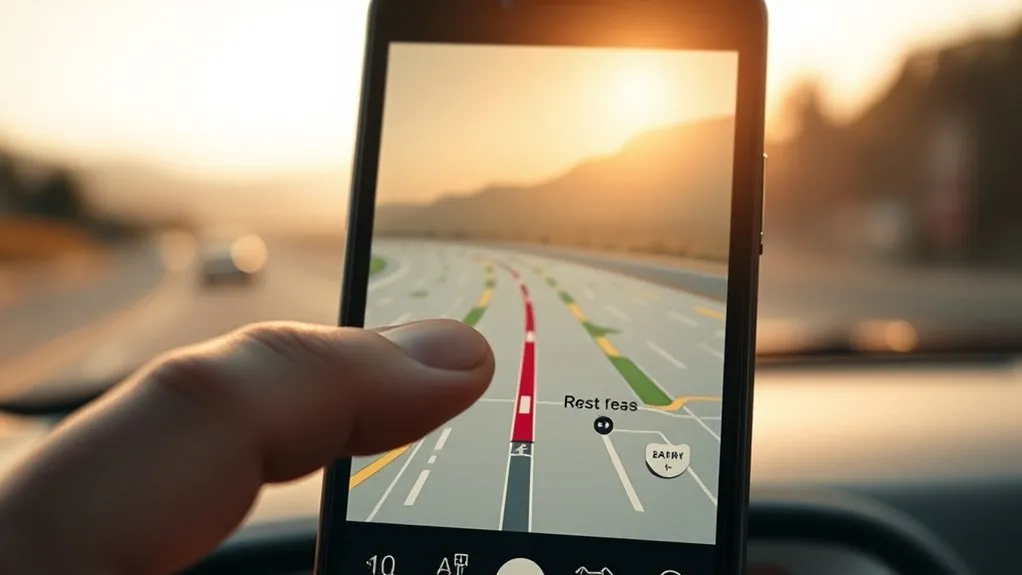
Google Maps does not have one fixed rest-area screen that works the same way on every phone, computer, or vehicle display. Instead, it searches its place database and displays matching locations as a list, pins, dots, or other markers. The results can change according to your search wording, visible map area, location, distance, and the information available for each facility.
Use these steps to find a rest area:
- Open Google Maps while parked. Use the mobile app or visit Google Maps in a web browser.
- Enter a specific search. Try “rest area,” “rest stop,” “service area,” “service plaza,” or “welcome center.”
- Add a location to the search. Examples include “rest area near I-95 Richmond” or “service plaza near Toronto.”
- Open a result. Check its name, location, photos, reviews, website, and any listed facilities.
- Check highway access. Confirm that the entrance serves your direction of travel and does not require an unsafe turnaround.
- Add the stop. Tap or click Directions, or add the location to your existing route.
Warning: Do not type searches, read reviews, or change a route while driving. Pull over safely before using your phone, ask a passenger to operate it, or use a supported hands-free feature.
Note: Google Maps results are not a complete official directory. A facility may be missing, duplicated, closed, listed under another name, or shown with incomplete amenities.
Search Rest Stops by City or Route
The wording of your search affects the locations you see. A broad search such as “rest area” may show facilities near your current map view, while a more detailed search can focus on a city, highway, state, province, or destination.
Useful searches include:
- Rest area near me
- Rest stop near [city]
- Rest area on [highway number]
- Service plaza near [destination]
- Welcome center near [state or provincial border]
- Truck stop near [highway exit]
Search Before You Start Driving
For the easiest planning, create your main route first and inspect the highway corridor before departure. Search for rest areas near major towns, interchanges, or highway sections along the route. Open each result and compare the detour, access direction, available parking, operating information, and recent traveler reports.
On a computer, you can also create a route and add a selected rest area as another destination. Google Maps allows multiple destinations for supported travel modes. On a phone, open the route options and use the stop-editing feature to add the chosen location.
Search Along an Active Route
Google Maps supports a separate Search along route option during mobile navigation. The exact labels can vary slightly by device and app version.
- Start driving navigation to your destination.
- Open the information card at the bottom of the navigation screen.
- Swipe up to display more actions.
- Select Search along route.
- Search for “rest area,” “rest stop,” “service plaza,” or another useful term.
- Select a suitable result and add it to the route.
Pro Tip: Search for your next break before you urgently need one. A result that looks close on the map may be farther away by road or may serve only the opposite carriageway.
See Services at Each Rest Area
Open a place listing to check whatever information Google Maps currently has for that location. Depending on the facility, you may see photos, reviews, an agency website, opening information, accessibility attributes, toilets, parking, picnic areas, vending machines, pet areas, charging points, food, or fuel nearby.
Not every facility has the same details, and the absence of an amenity in Maps does not always mean it is unavailable. Likewise, an old photo or review does not prove that the amenity is currently open.
| What to Check | Why It Matters |
|---|---|
| Highway direction | The entrance may serve only one side of a divided highway. |
| Recent reviews and photos | They may reveal temporary closures, construction, or poor conditions. |
| Official website | The operating agency may publish more complete facility information. |
| Accessibility details | Accessible parking, entrances, and toilets should be confirmed when essential. |
| Closure or construction notices | A listed facility may be temporarily unavailable. |
For a U.S. trip, check the relevant state transportation department or its 511 traveler-information service. The Federal Highway Administration explains that 511 services provide current travel information where implemented, although coverage and features vary by state and local jurisdiction. Outside the United States, use the equivalent national, provincial, or regional road authority.
Use Google Maps to discover possible stops, then use an official transportation source to confirm access, closures, and essential amenities.
Find Nearby Rest Areas on the Map
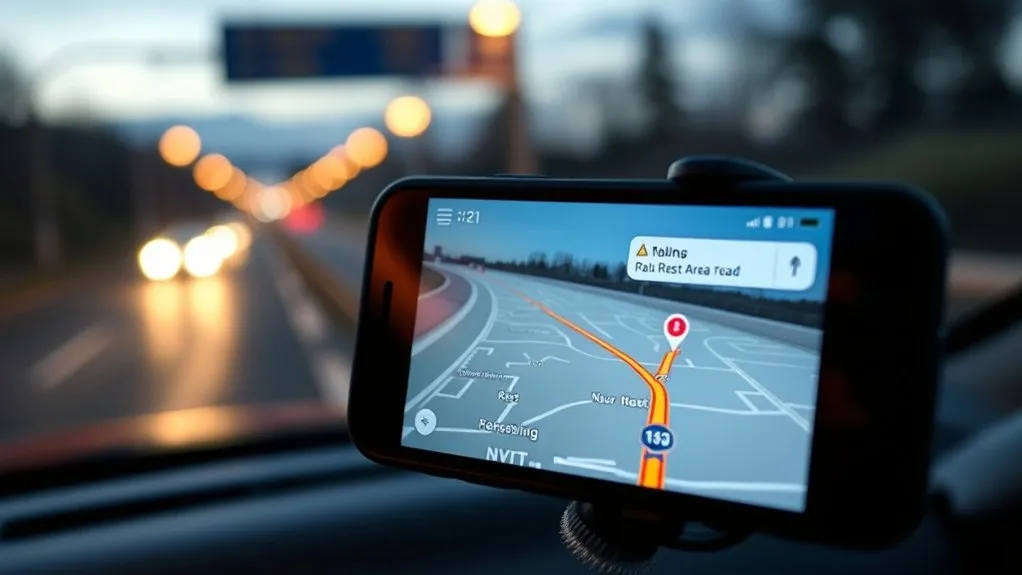
You can search around your current location, a destination, or a highway corridor. Google Maps may display the results as pins, dots, cards, or a list. It does not guarantee that every rest area will appear at one zoom level, so use precise searches and inspect the route carefully.
Search by Location
Allow Google Maps to use your location when you want nearby results, or search a specific city, address, highway, or exit. For example, “rest area near I-80 Des Moines” is usually more useful than a broad search for “rest area” while viewing an entire state.
Google explains that local search results are influenced by relevance, distance, and prominence. This means the first result is not necessarily the closest, most suitable, or only available stop. You can read more in Google’s guide to searching for nearby places.
Zoom for More Results
Zooming can reveal additional pins or make closely placed results easier to inspect, but it should not be treated as a guaranteed clustering system. If the visible results are too broad, move the map toward the highway section you are checking and repeat the search with a location or road number.
On a computer, searching near a city or address can also display mini-pins and dots for matching places. Open each likely result rather than assuming every visible marker represents an official public rest area.
Tap Nearby Markers
Open nearby markers or result cards to compare the available information:
- Check the facility name and whether it is a public rest area, service plaza, welcome center, or commercial travel stop.
- Review the route preview and confirm that the entrance serves your travel direction.
- Look for recent photos, reviews, agency links, and closure information.
- Tap Directions or add the location as a stop only after confirming it fits your route.
If a divided highway has separate northbound, southbound, eastbound, or westbound facilities, choose the listing that matches your direction. Do not follow a route that requires an illegal median crossing, prohibited U-turn, or unsafe access road.
Save Rest Areas in Google Maps
Google Maps lets you save selected rest areas to a custom list, such as “Road Trip Stops.” You must be signed in to your Google Account to keep saved places available across supported devices.
| Action | Benefit |
|---|---|
| Save a rest area | Find it quickly before or during the trip |
| Add a private list note | Record the highway direction, exit, or planned break time |
| Create a custom list | Group stops for one journey or route |
| Share a list | Let travel companions review or edit the plan |
| Open saved places later | Reuse reliable stops on a future trip |
To create or manage a list, follow Google’s current instructions for creating a list of places. You can usually find lists in the You or Saved section, depending on your device and app version.
Private list notes are different from public reviews. Google states that reviews, ratings, and attached photos are public and cannot be posted anonymously. Only publish a review when you want to share your experience with other users. See Google’s guide to reviews and ratings for current details.
Plan Trips With Offline Google Maps
Offline Google Maps can provide driving guidance when the signal is weak, but you download a geographic area rather than a route. The downloaded section must cover the entire route and the rest areas you expect to use.
- Connect your phone to the internet and open Google Maps.
- Tap your profile picture or initial.
- Select Offline maps.
- Choose Select your own map.
- Adjust the box so it covers the complete driving corridor, including possible detours and rest stops.
- Tap Download.
- Open Offline maps again before departure and update any expiring download.
An offline map can guide a driving route only when the full route is inside the downloaded area, and it will not provide live traffic or alternate-route information while offline.
Google notes that offline downloads are unavailable in some countries and regions. Offline driving also lacks live traffic and alternate routes, while public-transit, bicycling, and walking directions are unavailable offline. Review the latest instructions in Google’s guide to downloading areas and navigating offline.
Note: Save the facility name, highway direction, and exit number separately. An offline listing may not contain the latest closure, construction, or amenity information.
Verify Rest Area Information Before You Go
The correct verification source depends on where you are traveling. A state, provincial, regional, or national road authority may publish official rest-area maps, facility lists, seasonal closures, construction notices, and accessibility information.
Before relying on a stop, check:
- Whether the facility is open
- Which travel direction it serves
- Whether overnight parking is permitted
- Whether toilets, drinking water, picnic areas, or accessible facilities are available
- Whether the stop is affected by construction or weather
- Whether food, fuel, or charging is on-site or only available at a nearby exit
Understand the Facility Types
| Search Term | What It Usually Means |
|---|---|
| Rest area or rest stop | A public roadside facility that may provide parking, toilets, picnic space, and other basic services. |
| Service area or service plaza | A highway stop that may include food, fuel, shops, or charging in addition to basic facilities. |
| Welcome center | A visitor-information facility, often near a state, provincial, or regional boundary. |
| Truck stop or travel center | A commercial business that commonly offers fuel, food, toilets, and parking. |
Troubleshoot Rest Area Searches
No Results Appear
Try a different facility name, add the highway number or nearby city, and move the map closer to the route. Search “service plaza,” “welcome center,” or “travel center” if “rest area” produces no useful result.
The Result Is on the Wrong Side of the Highway
Look for a separate listing marked northbound, southbound, eastbound, or westbound. Preview the route before adding the stop. If Maps creates a long detour or turnaround, choose another facility that directly serves your carriageway.
The Listing Has No Amenity Details
Search the facility name on the relevant transportation-agency website. You can also check recent photos or reviews, but use official information when an amenity is essential.
The Rest Area Is Closed or Incorrectly Listed
Choose another verified stop. When you are safely parked, you can use Suggest an edit to report an incorrect location, closure, or facility detail. Google reviews submitted changes, so an edit may not appear immediately.
Offline Navigation Does Not Work
Reconnect to the internet and download a larger map area. Make sure the starting point, destination, rest area, and all connecting roads are inside the downloaded region. Update the map if it has expired or is close to expiring.
Frequently Asked Questions
How do I locate rest areas on Google Maps?
Open Google Maps and search “rest area,” “rest stop,” “service plaza,” or “welcome center.” Add a highway, city, or destination to narrow the results. Open a listing, check its access direction and details, then tap Directions or add it as a stop.
Can Google Maps find a rest area along my current route?
Yes. During supported mobile navigation, open the information card, swipe up, and select Search along route. Enter “rest area” or a similar term, choose a result, and add it to the route. Use the feature only while parked or let a passenger operate the phone.
Why does Google Maps not show every rest area?
Maps results depend on the search wording, visible area, distance, relevance, prominence, and available place data. Some facilities may be missing, duplicated, closed, or listed under terms such as service area, welcome center, or travel center.
How can I check the amenities at a rest area?
Open the place listing and review its photos, recent reviews, website, and available attributes. For essential facilities such as accessible toilets, parking, water, or charging, confirm the information through the responsible transportation agency.
Can I use Google Maps to find rest areas without a signal?
You can use downloaded offline areas for driving guidance when the complete route is covered. However, offline mode does not provide live traffic or alternate routes, and the saved place information may not reflect current closures or facility changes.
Is Google Maps the best app for finding rest areas?
Google Maps is convenient for searching, routing, reviews, saved lists, and offline areas. However, an official transportation-department or 511 service may provide more dependable information about closures, road conditions, access direction, and public rest-area facilities.
Conclusion
Google Maps makes it easier to discover possible rest areas, compare locations, save useful stops, and add one to a route. The safest method is to plan before driving, use Search along route only through a passenger or while parked, and confirm important details through an official transportation source. Download a large enough offline area before entering a weak-signal region, and always check that the selected facility serves your direction of travel.
Sources
- Google Maps Help: Search for nearby places and explore the area — explains local search results and nearby-place information.
- Google Maps Help: Use navigation in Google Maps — explains Search along route and navigation actions.
- Google Maps Help: Get directions and show routes — explains adding and arranging route stops.
- Google Maps Help: Create a list of places — explains saved lists, notes, sharing, and list management.
- Google Maps Help: Download areas and navigate offline — explains offline-area downloads, coverage, expiration, and limitations.
- National Highway Traffic Safety Administration: Distracted Driving — supports the warning against interacting with navigation systems while driving.
